Customer Card Tab in Process Settings
"Customer Card" Tab in Process Settings allows the Administrator to configure the layout of Customer Cards.
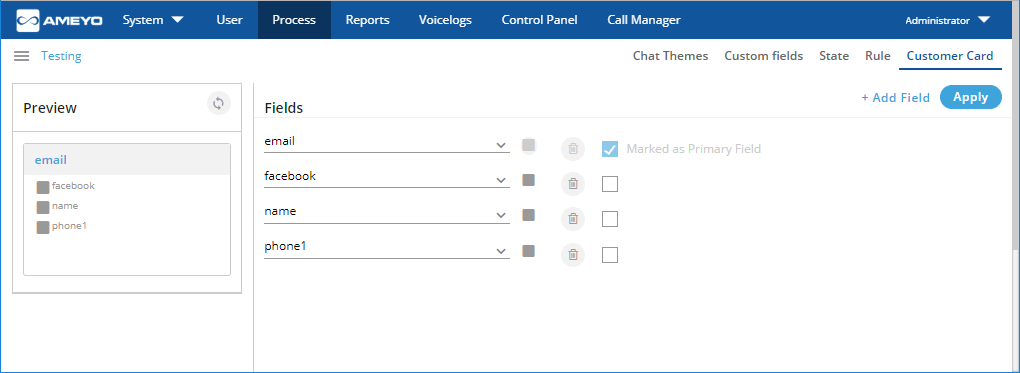
Figure: Customer Card Tab
Customer Cards appear in search bar when a user search for any customer information.
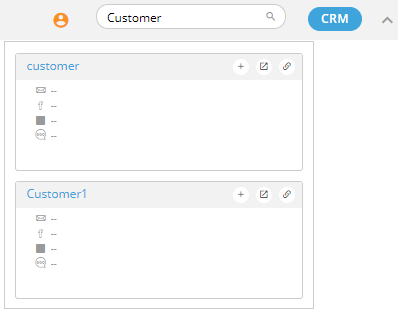
Figure: Displaying Customer Cards in Search
Default Fields
By default, there are four fields in the customer card. As per the layout, any four fields must remain. You can delete fields other than any four fields of your choice.
Default Values for Fields
The fields in "Customer Card" Tab can have any of the following values. If a field is created for a value that value will not be available when you add or edit another field.
- name
- phone1
- phone2
- phone3
- phone4
- phone5
- timezone
Here, you can perform the following operations.
Add a Field
By default, only four fields are available. Perform the following steps to add a new field.
- You can click "Add Field" link on the top right corner to add a field. It shows a new blank field in the end of the list.
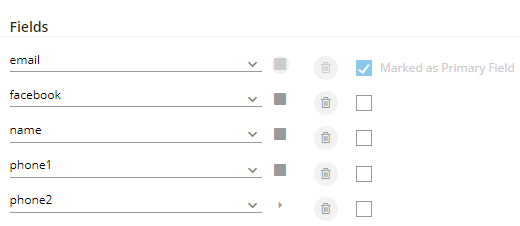
Figure: Add Customer Card
- Select any field from the drop-down menu.
- Click the icon to select any icon displayed in the following screenshot.
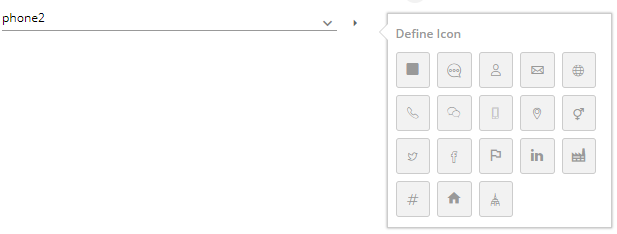
Figure: Select an icon
Select a suitable icon that compliments the field value. For example, you can select "Facebook" icon for facebook field, "Twitter" icon for twitter field, email icon for email, and phone icon for phone.
Make Primary Field
There can be only one primary field that will be displayed in the header of the customer card. You just have to select "Make Primary Field" checkbox for any field to make it primary.
Edit a Field
You can click edit any field directly by selecting a different value in the drop-down or by selecting a different icon.
You cannot change the icon of the primary field. Make another field primary to edit the icon of an existing primary field.
Delete a Field
Click  icon to delete any field.
You can click "Apply" to apply the modified fields in the customer card, which is displayed on the left side.
Sample Customer Card
Following is a screenshot of the modified fields and customer card.
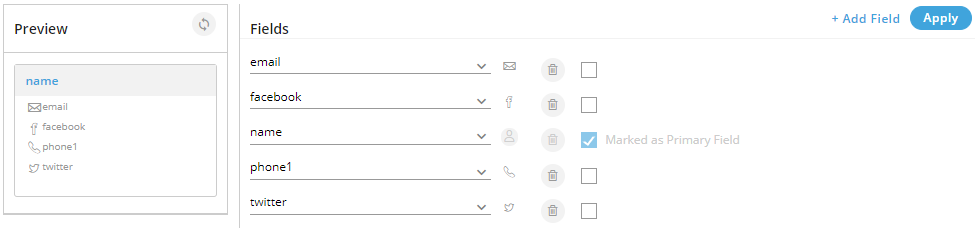
Figure: Modified Customer Card