Canned Messages
Canned messages are predefined reply templates which can be used to quickly send out replies to tickets. A category is associated with each canned message, according to which agent can select canned message. Click "Canned Messages" Tab in to view the canned messages and their categories.
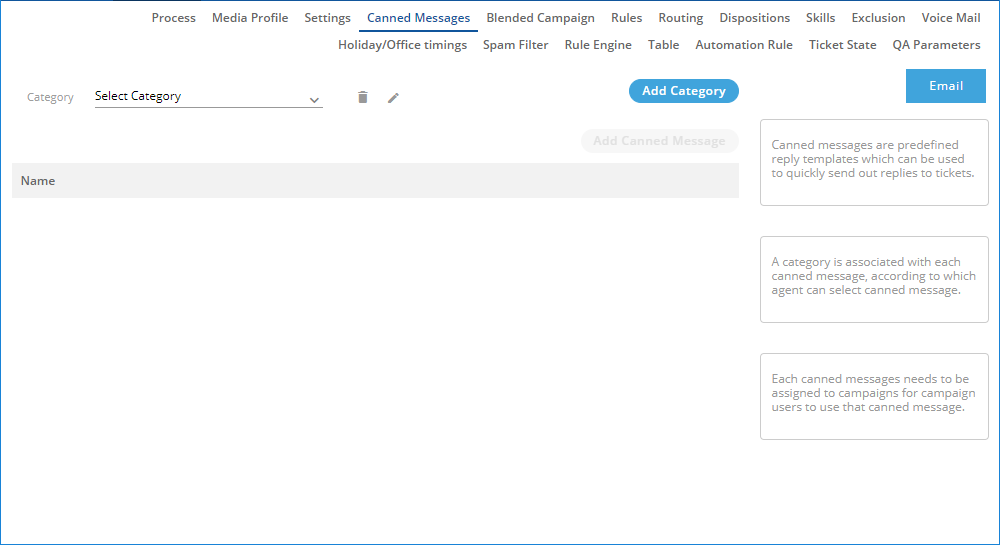
Figure: Canned Messages Tab
Here, you can perform the following functions.
Create Category
Perform the following steps to create a category of Canned Messages.
- Click "Add Category" button. It shows the following pop-up.
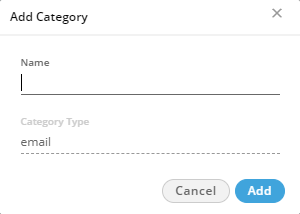
Figure: Add Category of Canned Messages
- Provide a name for the category.
- Click "Add". The category is created and listed in the drop-down menu.
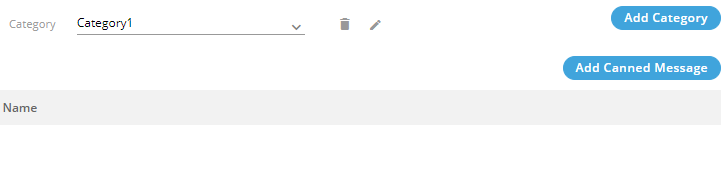
Figure: Added a Category of Canned Messages
Modify a Category
Perform the following steps to edit a category of Canned Messages.
- Select the category from the drop-down menu and click
 icon to edit the category using the following pop-up.
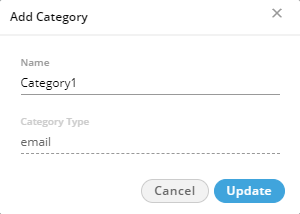
Figure: Modify a Category of Canned Messages
- You can only change the name of category. You cannot change the category type.
- Click "Update" to modify the category else click "Cancel" to discard the changes.
Delete a Category
Perform the following steps to delete a category.
- Select the category from the drop-down menu and click
 icon to delete the category.
 - The following warning message is displayed on the screen.
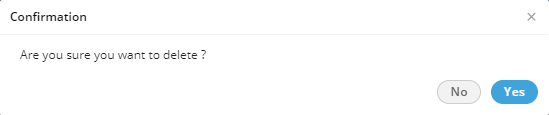
Figure: Asking to Delete a Category of Canned Messages
- Click "Yes" to delete the category else click "No" to keep it.
Create a Canned Message in a Category
Perform the following steps to create a canned message in a category.
- Select the category from the drop-down menu.
- Click "Add Canned Message" to add a canned message using the following pop-up.
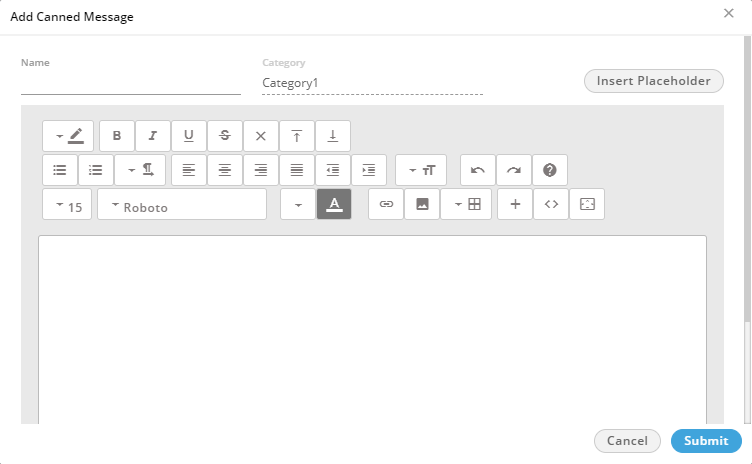
Figure: Add a Canned Message
- Provide a name of the canned message.
- You can type the message in the textarea.
- You can click "Insert Placeholder" button to add any placeholder displayed in the following screenshot.
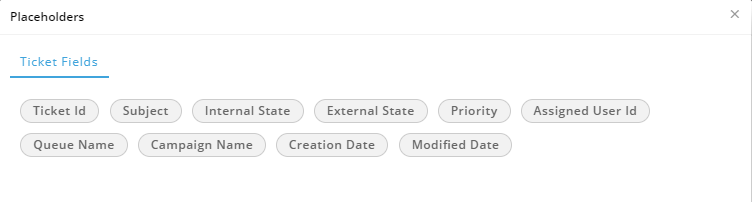
Figure: Placeholders
- Following is a sample canned message.
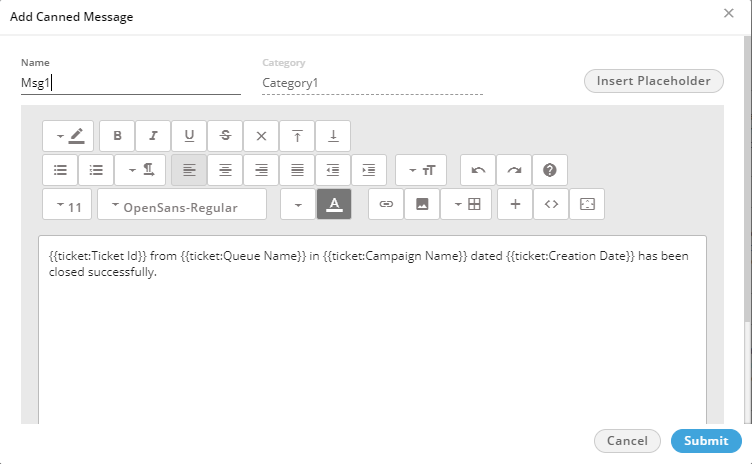
Figure: Sample Canned Message
- Click "Submit". It lists the canned message in the whitearea.
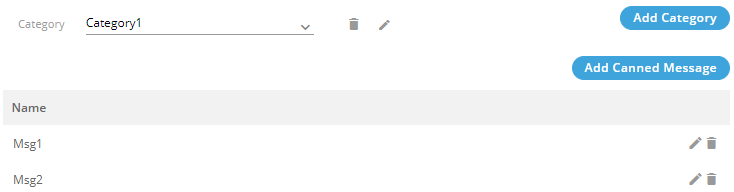
Figure: Added Canned Messages
You can edit and delete the canned messages.
You have to assign the canned messages in the campaign so that the users in that campaign can use them.