Download PDF
Dispositions
It contains two sub-tabs - Disposition Class and Disposition Plan.
Disposition Class
This tab is used to define disposition codes and classes for the calls. Disposition class is a set or logical grouping of disposition codes. Disposition code is the reason of call disconnection which agent selects while disposing any call.
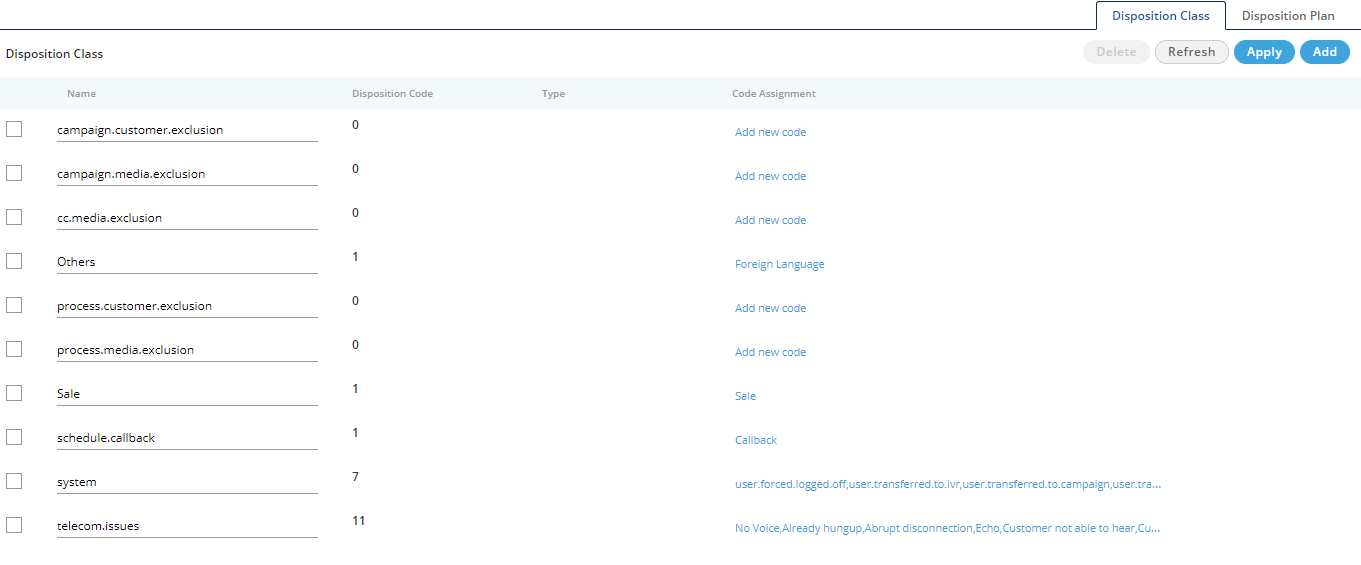
Figure: Disposition Class
Administrator can perform the following steps here.
- The Administrator can add "Disposition Class" by clicking "Add" button. "User Defined" type will appear for the Administrator created disposition classes.
- The Administrator can also add "Disposition Code" by clicking "Add New Code" option for a disposition class.
Disposition Plan
This tab is used to create disposition plan and assign the disposition codes in that plan. From here, administrator can select the disposition codes which needs to be assigned in created disposition plan.
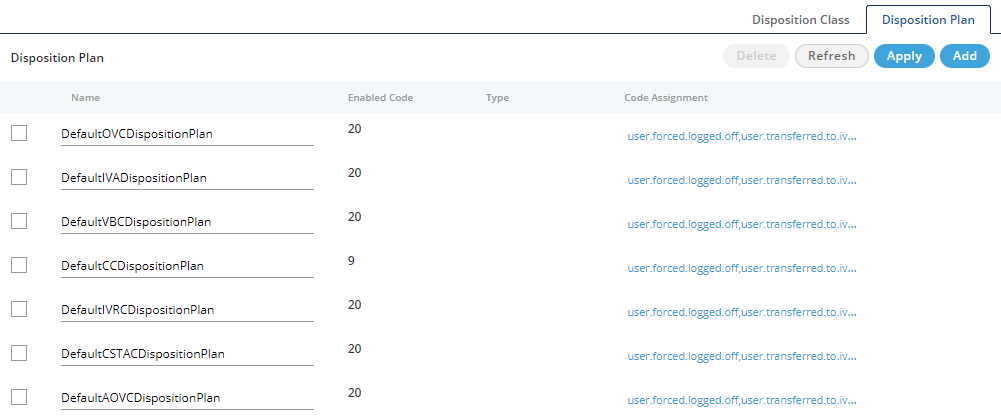
Figure: Disposition Plans
Perform the following steps.
- To add a new Disposition Plan, click "Add" and provide a name in the text field and click "Add New Code" to add the code.

Figure: Adding New Disposition Plan
"User Defined" will be the type for custom disposition plans added by the Administrator.
- To change the code for an existing disposition plan, select it and click "Code Assignment option". It shows the following box for both adding and modifying the code assignments.
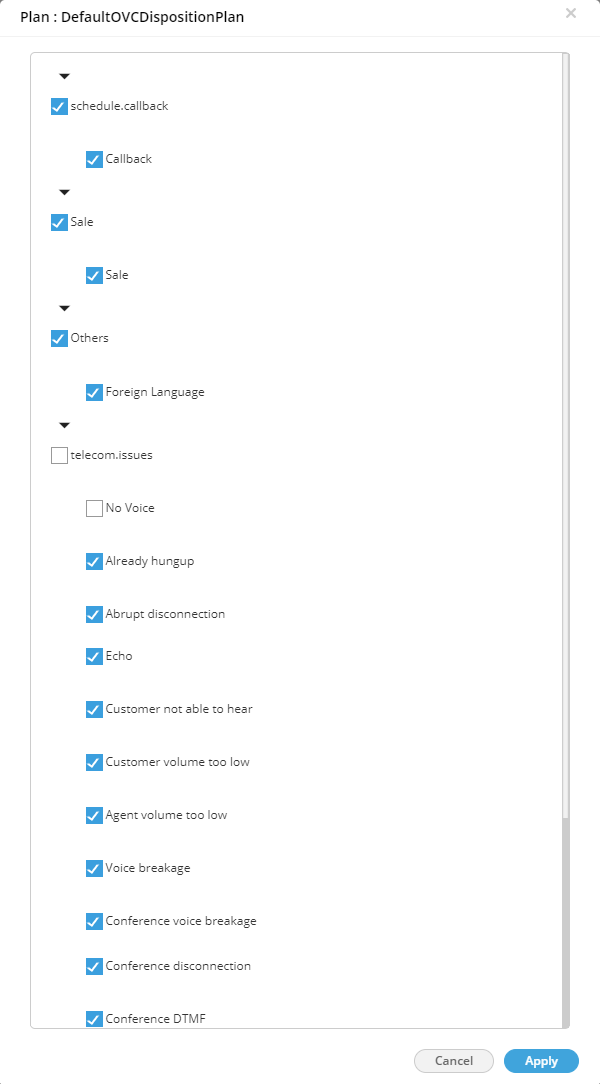
Figure: Add or Modify Code Assignments for any Disposition Plan
- Select the checkboxes of different disposition codes which has to be assigned in that disposition plan. Uncheck those which you do not want to assign in the selected disposition plan.
- Click "Apply" to save the changes. Rather, you can click "Refresh" button to discard the changes.
- Administrator can also delete a particular disposition plan by selecting that plan and click on "Delete" button. It shows a warning message before deletion. Click "Yes" to delete the selected disposition plan, whereas you can click "Cancel" to not delete it.