Email Media Profile
As the name suggests, its lets the Admnistrators add an email address as a media profile. After assigning to campaign, this email media profile can be used to send and receive emails to interact with the clients.
Create Email Media Profile
Perform the following steps to create an Email media profile.
- Click "Add" to create an email media profile. It shows the following pop-up.
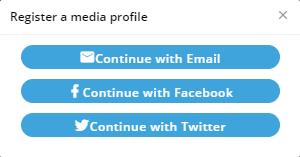
Figure: Register a Media Profile
- Click "Continue with Email" to create an Email based Media Profile using the following pop-up.
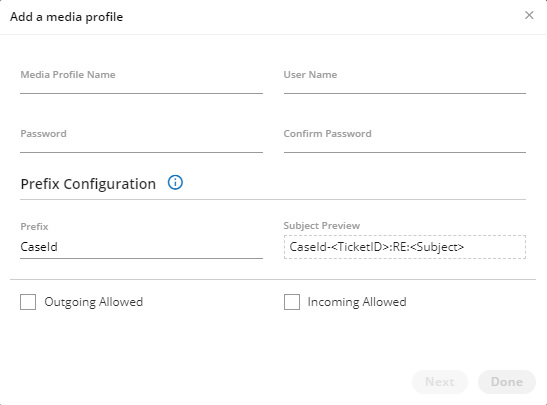
Figure: Create Email Media Profile
- Media Profile Name: Provide a name for the new media profile.
- User Name: Provide a username for the new media profile.
- Password: Provide a password for the user of new media profile.
- Confirm Password: Re-enter the same password to confirm.
- Prefix: Provide a prefix for the subjects.
- Subject Preview: Provide the subject that will be sent with the emails sent using this profile.
- Outgoing Allowed: Check this box to allow the sending of outgoing emails. After enabling it, you have to provide the following inputs.
- Outgoing Host: Provide the SMTP Address of your email provider.
- Outgoing Port: Provide the port number for sending outgoing emails.
- Send Protocol: Select any of the following protocols to send the emails.
- NONE
- SMTP
- SMTPS
- EWS (Exchange Web Services)
- Outgoing Folder: Provide the folder name that will store the outgoing email.
- Enable 'reply-to' email: Check this box to provide "reply-to" email address. If a recipient click on reply on the received email, the the email address provided here will be the recipient. After enabling it, provide the reply-to email.
- Delete mail on Fetch: Select it to delete those emails which have been fetched.
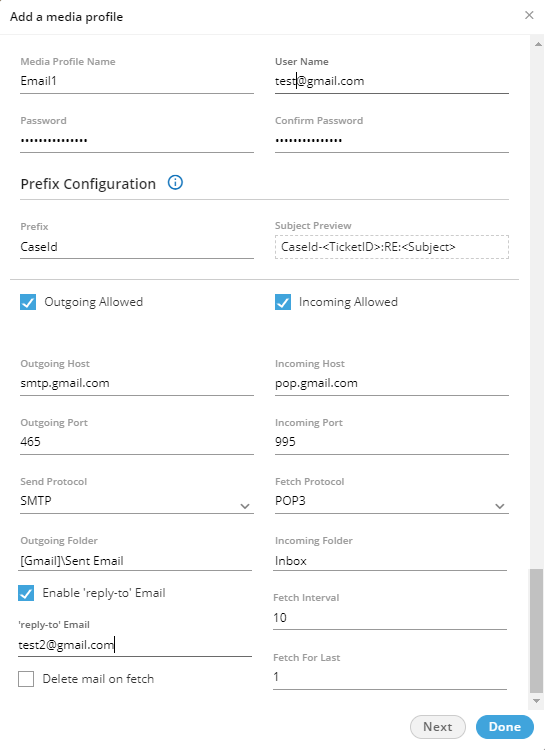
Figure: Sample Email Media Profile
- Incoming Allowed: Check this box to allow the receiving of incoming emails. After enabling it, you have to provide the following inputs.
- Incoming Host: Provide the incoming Address of your email provider.
- Incoming Port: Provide the port number for receiving the incoming emails.
- Fetch Protocol: Select any of the following protocols to receive the emails.
- NONE
- IMAP
- IMPAS
- POP3
- POP3S
- EWS (Exchange Web Services)
- Incoming Folder: Provide the folder name that will store the outgoing email.
- Fetch Interval: Provide the interval after which the system will check for the incoming emails.
- Fetch for Last: Provide the number of the last days of which emails has to be downloaded.
- Click "Save" to create the Email Media Profile.
View and Modify Settings of Email Media Profile
Select an email media profile in the list to view its settings on the right side under "Settings" tab.
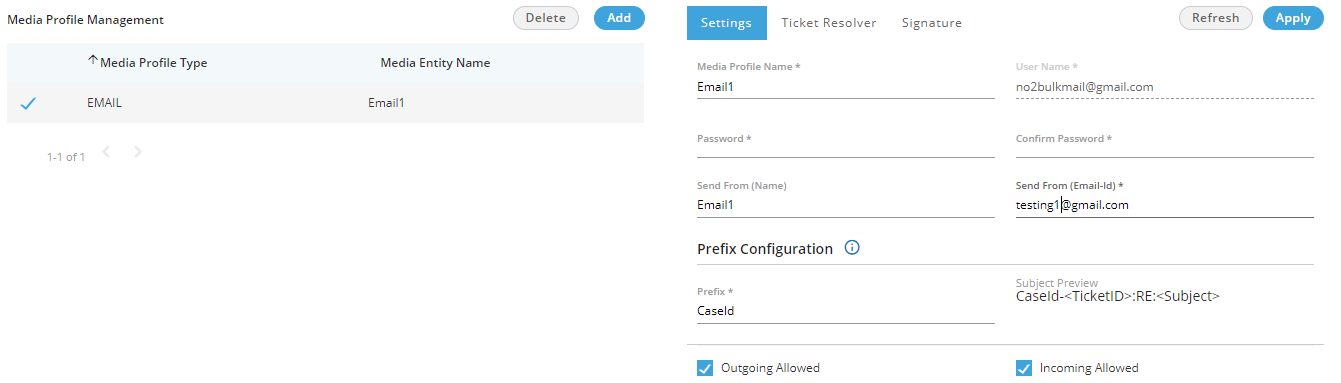
Figure: Settings of Email Media Profile
You can modify the settings here and click "Apply" to apply the same. Rather, you can click "Refresh" to discard the changes.
Delete Email Media Profile
The deleted Email Media Profile cannot be retrieved back. The campaigns, queues, and users using this Media Profile will be disabled to use the Email Media Profile to interact with your clients.
Perform the following steps to delete a Facebook media profile.
- Select an Email media profile.
- Click "Delete" to delete it. It shows the following warning message.

Figure: Asking to delete the Email Media Profile
- Click "Yes" to delete the email media profile. Rather, you can click "No" to not delete it.
Ticket Resolver for Email Media Profile
This tab lets you manage how the tickets in a campaign (where the selected media profile is added) will be handled. Following is a screenshot for Ticket Resolver Tab for a Email Media Profile.
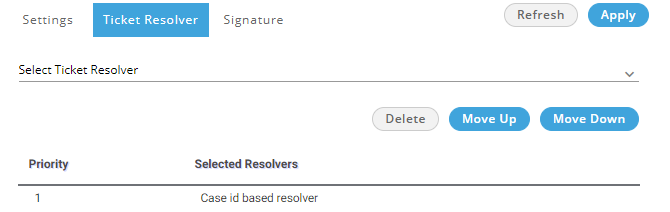
Figure: Ticket Resolver of Email Media Profile
You can click the drop-down menu titled "Select Ticket Resolver" to select any of the following options.
- Single ticket for each customer: Select it to create asingle ticket for all emails from a customer in the campagin. Every new email from the same customer with same or different subject will be appended in the same ticket.
- Single ticket of same subject: Select it to create a single ticket for all emails having same subject. All emails having same subject from same or different customers will be
- Single ticket of same subject from same customer: Select it to crate a single ticket for all emails having same subject sent from the same customer.
- Single ticket with same subject from observer: Select it to create a single ticket of all emails having same subject from the observer who is in CC of an email received from a customer.
- Subject Media Profile Customer Interaction Resolver: Select it to create a single ticket for all emails having same subject from the same customer for the same media profile. New ticket will be created only when the customer sends an email with other subject to same media profile or connect with other media profiles with same or other subject.
When you select a resolver, it gets added in the list. The added ticket resolvers will be removed from the drop-down menu. After adding mutliple resolvers, you can move them to up or down to specify their priority. See the following screenshot.
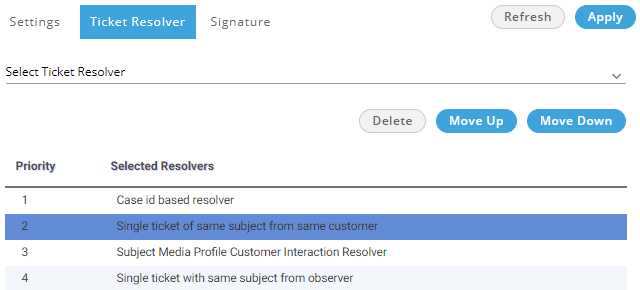
Figure: Added Ticket Resolvers
Signature
This tab will be visible only for Email Media Profile. This tab lets Administrator to specify the signature for all emails that will be sent using this email media profile.
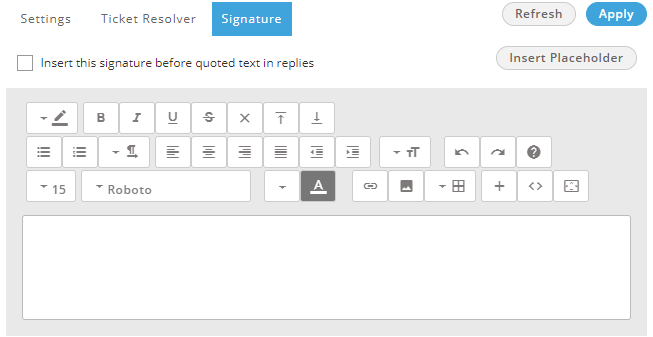
Figure: Blank Email Signuatre
Here, perform the following steps to create an email signature.
- Click "Insert this signature before quoted text in replies" to insert the signature before the quoted text. Keep it uncheck if you want to insert the signatures after the quoted text.
- You can type the signature in the textarea and use the available tools to format the text, add a hyperlink, and insert an image.
- Click "Insert Placeholder" to insert the dynamic placeholders from the following dialog box.

Figure: Signature Placeholder
- After creating the signature, click "Apply" to apply the same. Now, the created signature will be displayed on all emails being sent through the selected Email Media Profile.