Download PDF
Exclusions
If administrator wants to exclude few numbers that should not be dialed in the system, then they can be uploaded in exclusion tab by adding leads.
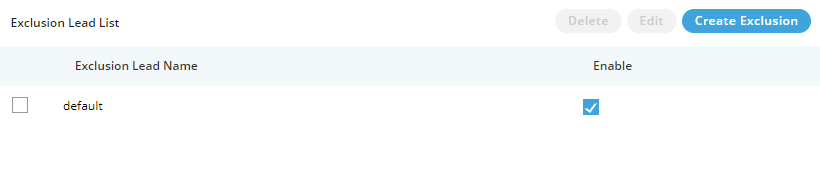
Figure: Exclusions Tab
Administrator can perform the following steps.
- Click "Create Exclusion" to create a new exclusion lead. It shows the following pop-up.
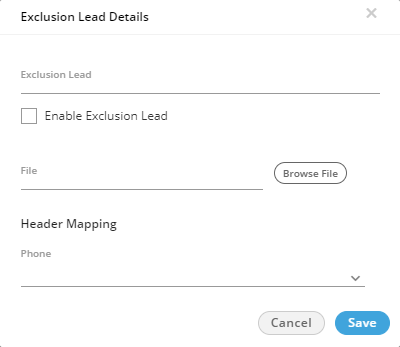
Figure: Exclusion Lead Detail
Here, you have to perform the following steps.
- In exclusion lead column, enter the name of the lead.
- Check "Enable Exclusion Lead" box to enable the new lead being created.
- Click "Browse File" to select the location and the CSV file. Click "Open" button to upload that file.
- In Header Mapping, Administrator can map the file headers of lead with phone1, phone2, phone3, phone4, phone5, timezone, and name headers.
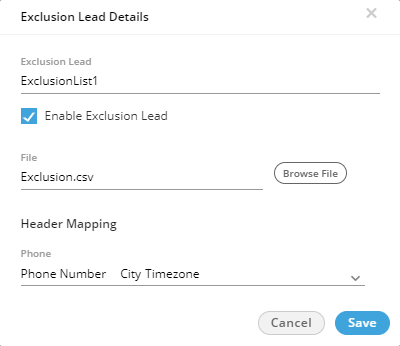
Figure: Sample Exclusion Lead
- Click "Save" to save the changes.
Rather, you can click "Cancel" to discard the changes.
- After clicking "Save", it takes you back to the main page that shows the created exclusion list.You can create the multiple exclusion leads here.

Figure: Exclusion Leads
Disable or Enable an Exclusion Lead List
Uncheck "Enable" box for any lead to disable it. You can check this box again to enable it.
Edit an Exclusion Lead List
Select an Exclusion Lead and click "Edit" to edit it.
Delete an Exclusion Lead List
The delete exclusion lead cannot be retrieved back. Also, it will not be applicable in the selected campaign.
Select an Exclusion Lead and click "Delete" to delete it. A warning message is displayed on screen. Click "Yes" to delete it else you can click "No" to not delete it.