Facebook Media Profile
This media profile lets you interact with your clients using the Facebook. You can interact with posts, comments, and messages using it. It is requried to perform the following steps sequentially for creating a Facebook Messenger Media Profile.
- Create Facebook Account and Page
- Create Facebook App and Make it Public
- Generate App Access Token for your Facebok Page
- Integrate the App with Ameyo
- Submit Your App to Facebook for Review
Prerequisites
- Facebook Login Credentials
- Facebook Page
- Facebook App registered with Facebook
If above prerequisites are not met, perform the following steps.
Create Facebook Account and a Facebook Page
- Create a Facebook account for the organization.
- Go to Facebook.com, fill the required details, and click "Sign Up".
You need to confirm your email or mobile phone number. Refer to "How to create Account on Facebook" page for more information.
- Visit Create a Facebook Page, select a Page Type, and follow onscreen instructions to create a page.
Refer to "How to create a Facebook Page" for more information.
Create Facebook App
Perform the following steps to create a Facebook App.
- Visit "Facebook Developers Portal" and login with your credentials.
- Go to "My Apps" and click "Add New App". It shows the following pop-up.
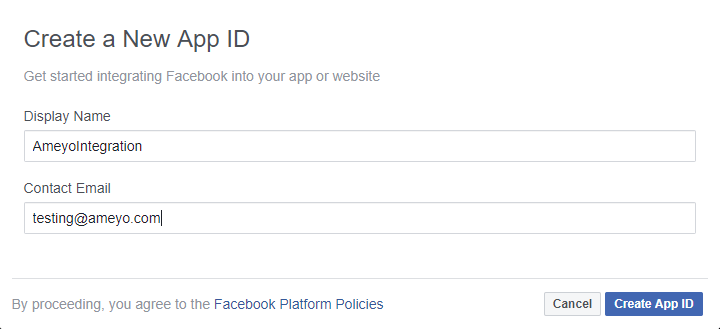
Figure: Creating a New Facebok App
- Provide the display name for App and your contact email address.
- Click "Create App ID".
- Verify "CAPTCHA", if it appears. The following page is displayed.
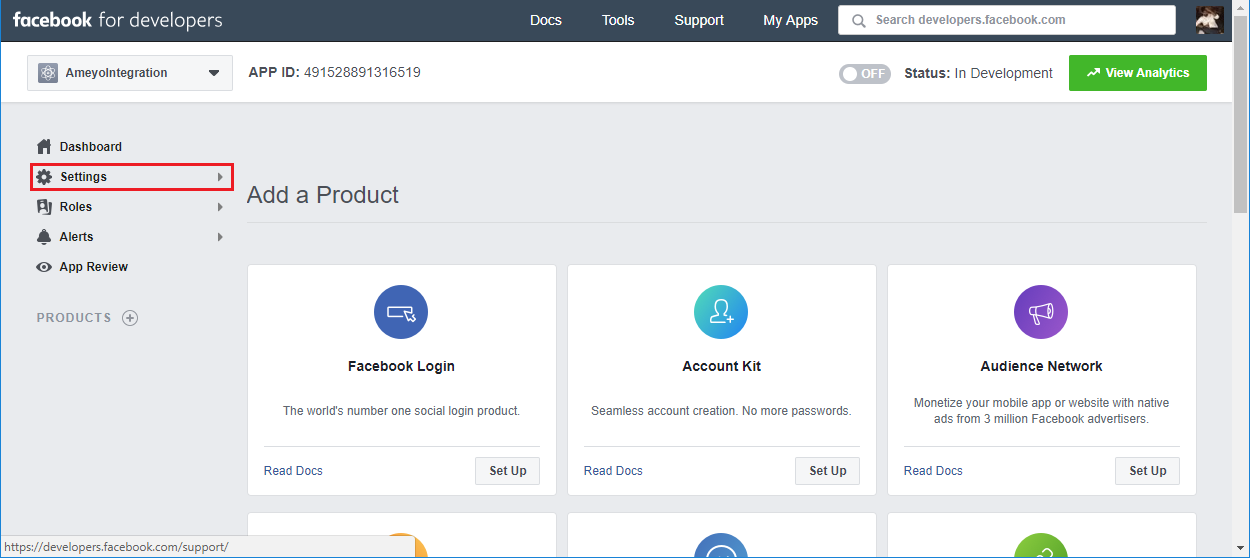
Figure: Asking to select product to create Facebook Page
- Do not click on any product here. Rather, Click "Settings" in the left panel to expand its items, and then click "Basic". It shows the following page.
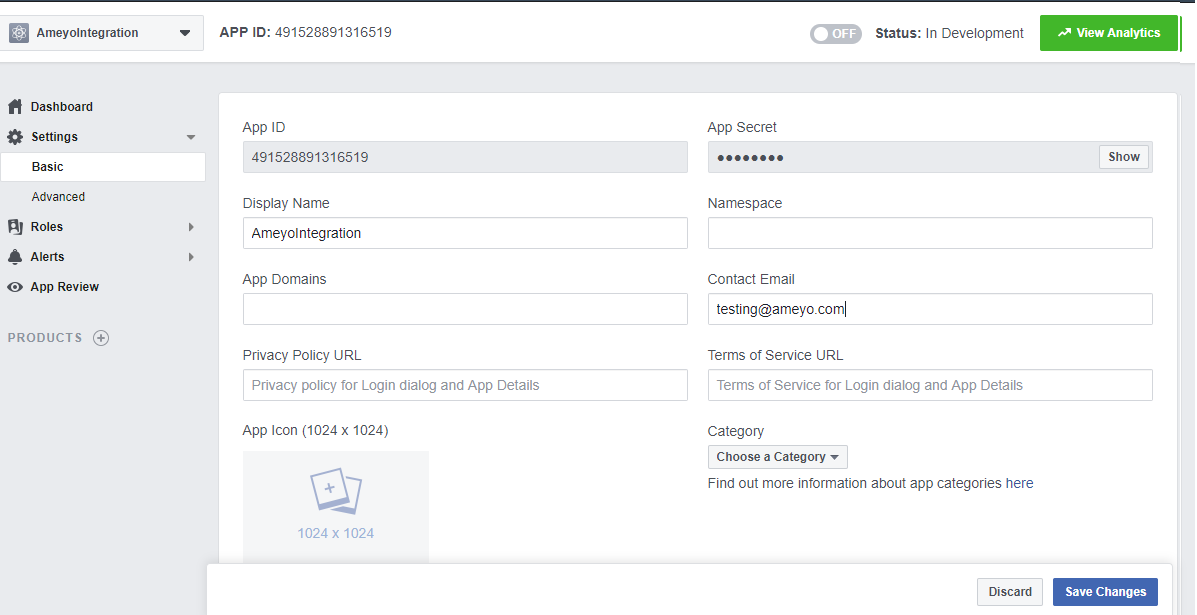
Figure: Basic Settings
- Enter the value of following fields.
- Privacy Policy URL: Enter the URL of the privacy policy of your organization. It may be "Privacy Policy" page hosted at your Website.
- Select the category as "Business and Pages".
- Select "Support my own business" in "Business Use" section.
- Upload an app icon of the required size.
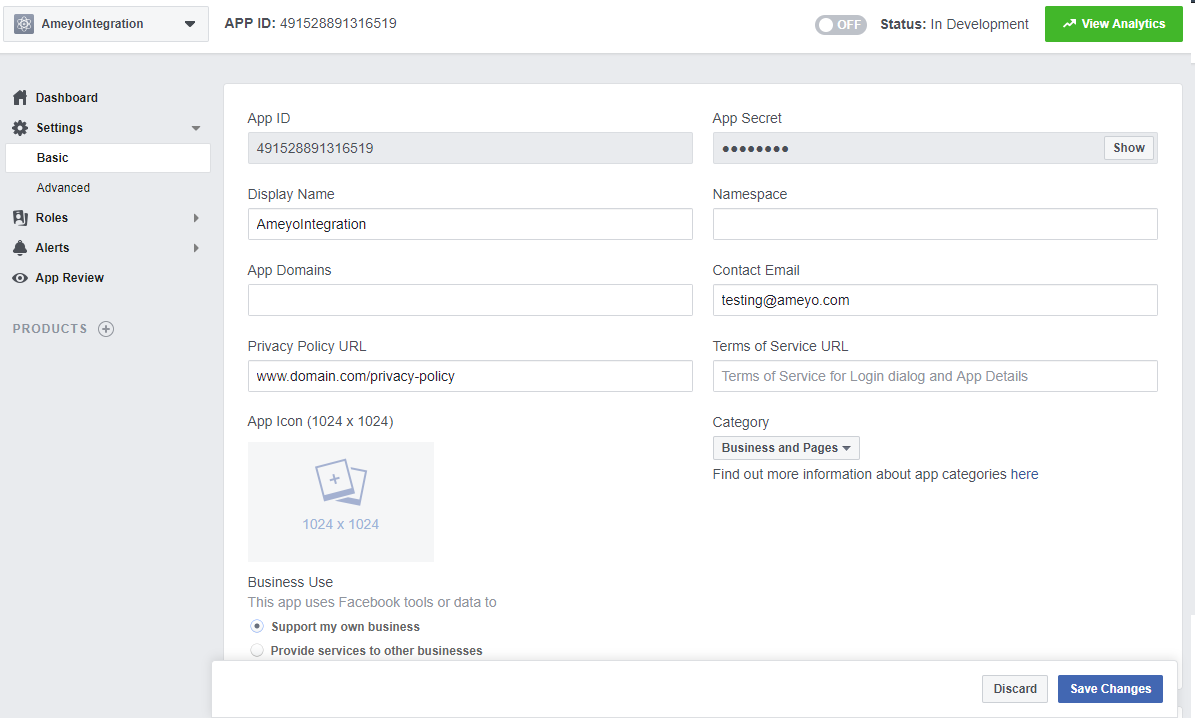
Figure: Sample Basic Settings
- Scroll down and click "+Add Platform". It shows the following pop-up.
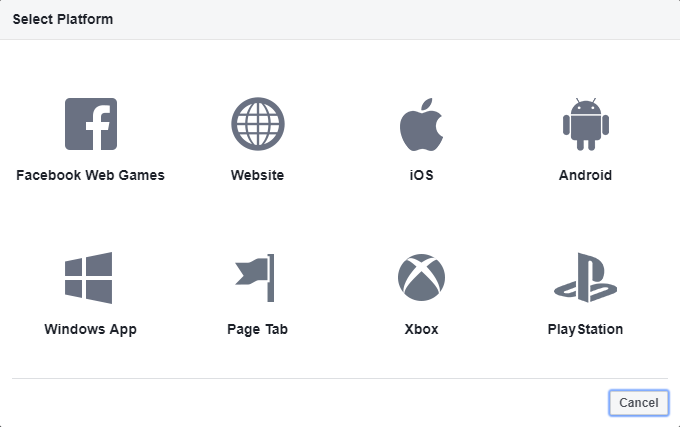
Figure: Platforms for Facebok App
- Select "Website". It shows the following box.

Figure: Textbox to provide Website URL
- Enter the URL of your Website where Ameyo Server is running. Preferrably, it should be in HTTPS format.
- Click "Save Changes".
- Now, click "App Review" in the left panel. It shows the following page.
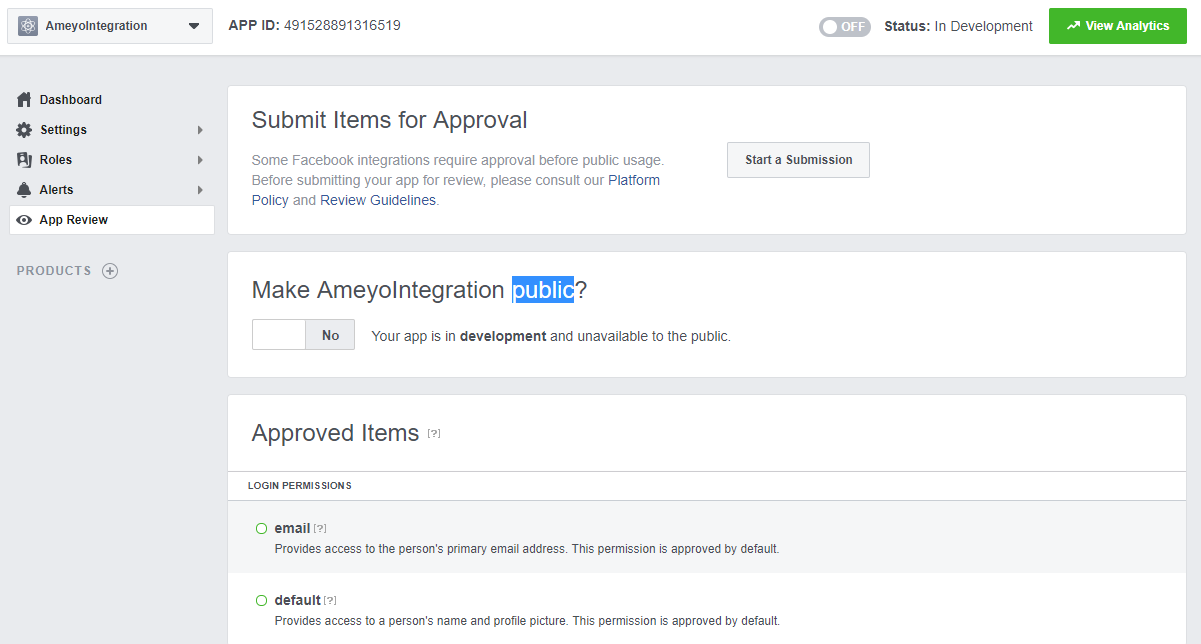
Figure: Make your App Public
- Click the toggle switch in "Make <App_Name> public?" section to make your App public.
Do not submit your App for approval here.
Facebook App Token Generation
Perform the following steps to generate the access token for your app.
- Visit "Facebook Graph API Explorer" and login with your credentials.
- Select the App for which you want to generate the token.
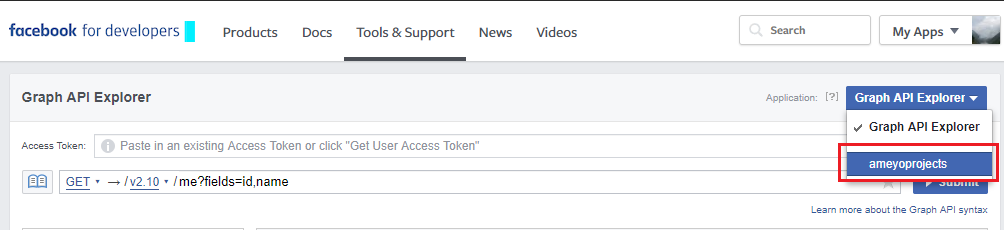
Figure: Select App
- Select "User Access Token" in the drop-down menu.
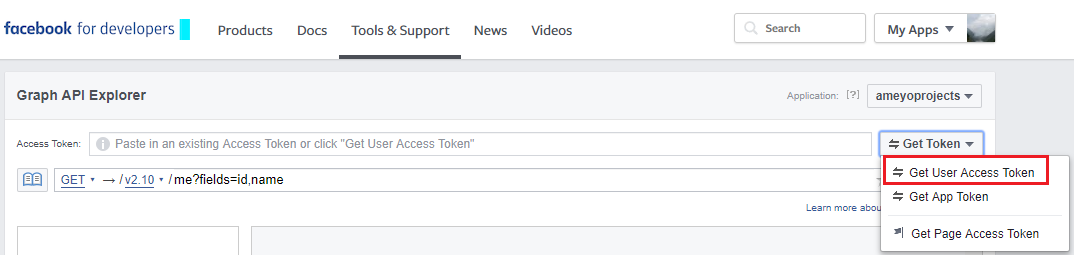
Figure: Select Token
- After selecting the token, you have to select the permissions.
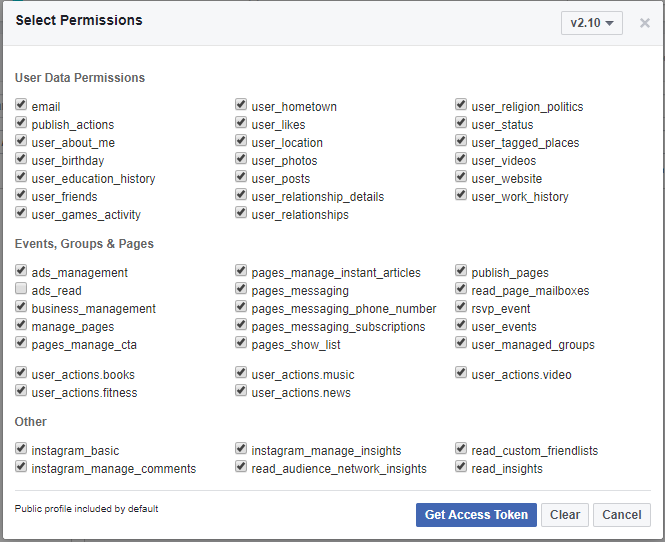
Figure: Select Permissons
- Clck "Get Access Token" to get the access token. You will get a token here, which you have to copy and reuse to generate a final token.
- Now, you have to enter these details in the following URL format.
https://graph.facebook.com/oauth/access_token?client_id=<APP_ID>& client_secret=<APP_SECRET>& grant_type=fb_exchange_token&fb_exchange_token=<ACCESS_TOKEN>
Here, you have to replace <APP_ID>, <APP_SECRET>, and <ACCESS_TOKEN> with your own values. - Open this URL in a Web browser. The browser will dipslay the access token.

Figure: Access Token
- Copy this access token and paste it into the Graph API Explorer. Now, type the following two words in the explorer.
me/accounts
- Click "Submit" button. A set of code appears in the textarea.
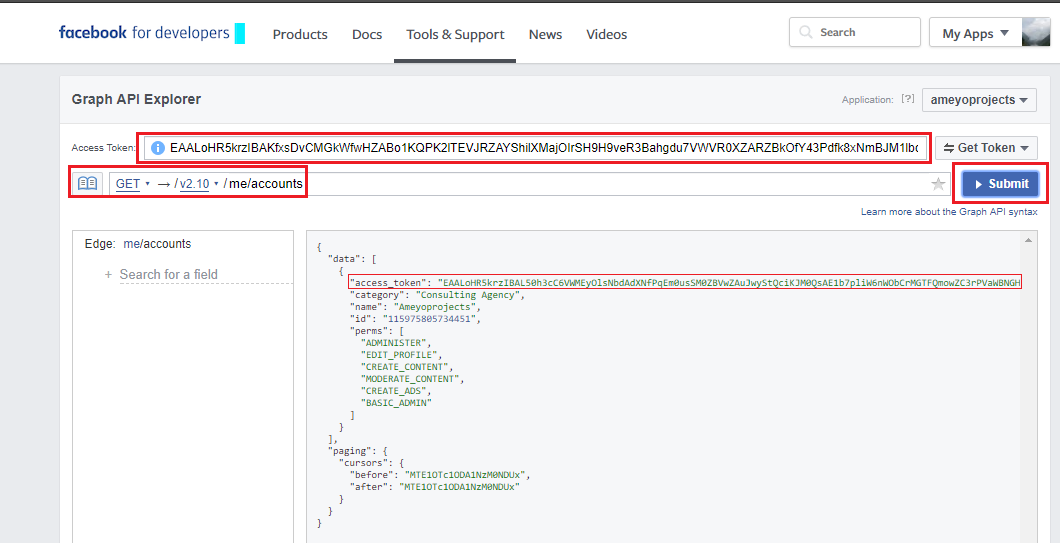
Figure: Required Access Token
- This code is actually giving the access tokens for all of your Facebook pages and accounts. Note down the access token for your page. This is the final token.
Integrate your App in Ameyo
There are following two ways to integrate your App in Ameyo to create a media profile.
- Integration at Backend Without OAuth
- Integration using OAuth (Recommended Way)
Now, you have the following prerequisites.
- username (Your Facebok Username)
-
In the Facebook, user should be the Tester, Developer, or Admin of the Facebook App.
- App ID
- App Secret
- Access Token for your Facebook Page
Perform the following steps to integrate the Facebook App in Ameyo through backend.
- Access the Operating System through Putty and execute the following commands to enter the PostgreSQL system.
psql -U postgres
- In the PostgreSQL console, execute the following command to enter your database.
\c <DB_Name>
Replace <DB_Name> with the name of database that has been integrated with your Ameyo App. - Execute the following command to enter Media Profile ID, Username, Access Token, App ID, and APP Secret in "facebook_profile" table.
INSERT INTO facebook_profile (media_profile_id,user_name,access_token,app_key,app_secret,should_fetch_conversation) values ('<media_profile_id>','<user_name>','<access_token>','<app_id>','<app_secret>',true)
Replace the following values.Samle Attribute
Required Value
<media_profile_id>
Provide a unique ID for your media profile.
<user_name>
Facebook Username
<access_token>
Access Token
<app_id>
App ID
<app_secret>
App Secret
- Execute the following command to enter the Media Profile details in "media_profile" table.
INSERT INTO media_profile (media_profile_id,media_entity_name,media_profile_type,fetch_timer_interval,is_incoming_allowed,is_outgoing_allowed,contact_center_id,escalation_priority) values ('<media_profile_id>','<media_entity_name>',<media_profile_type>,'180','t','t','1','100');
Replace the following values.
Samle Attribute
Required Value
<media_profile_id>
Provide the same Media Profile ID that you have entered in "facebook_profile" table.
<media_entity_name>
Provide a unique name for your Media Profile. If you are creating multiple media profiles, make sure that all have unique names.
<media_profile_type>
Type FACEBOOK
- Execute the following command to make an entry in "interaction_resolver_configuration".
INSERT INTO interaction_resolver_configuration (media_profile_id,resolver) values ('<media_profile_id>','["socialmediainteractionresolvervalue"]');
Replace <media_profie_id> with the ID of your Media Profile that you have entered in "facebook_profile" table.
- Now, execute the following command to exit from database console.
\q
- Execute the following command to restart the appserver service.
ameyoctl service appserver restart
Facebook Media Profile has been created now. You have to submit your App for review to Facebok and then use this media profile in the campaign.
It is the recommended method to integrate your Facebook App via OAuth in Ameyo Server. For this, you have to generate redirection URL for App, make entries at the backend, provide OAuth URL in Facebook App, and then integrate App in Ameyo through User Interface.
- Redirect URL: Following will be redirect URL for your Facebook App in Ameyo Server.
http://<App_Server_IP>:<PORT>/oauth/oauth/facebook
Replace App_Server_IP with the IP Address of your Ameyo Server App, PORT with the Port Number where Ameyo Server is running (that can be 8888 by default). - Commands for the Backend: Perform the following steps.
- Access the Operating System through Putty and execute the following commands to enter the PostgreSQL system.
psql -U postgres
- In the PostgreSQL console, execute the following command to enter your database.
\c <DB_Name>
Replace <DB_Name> with the name of database that has been integrated with your Ameyo App. - Execute the following command.
INSERT INTO APP_OAUTH_CONFIGURATION (CONSUMER_ID, SERVICE_PROVIDER, OAUTH_AUTHORIZATION_URL, OAUTH_AUTHORIZATION_REDIRECT_URL, OAUTH_SCOPE_VALUES, OAUTH_TOKEN_REQUEST_URL, OAUTH_TOKEN_REQUEST_REDIRECT_URL, OAUTH_REVOKE_ACCESS_URL, CLIENT_ID, CLIENT_SECRET, ERROR_PAGE, DESCRIPTION) VALUES (125,'FACEBOOK','https://www.facebook.com/v2.8/dialog/oauth',<redirect-url>,'publish_pages,read_page_mailboxes,manage_pages','https://graph.facebook.com/v2.8/oauth/access_token',<redirect-url>,'',<App-Id>,<App-Secret>,'http://<App_Server_IP>:<PORT>/oauth/error.html','');
Replace the following inputs.- <redirect-url> with your redirect URL
- <App-Id> with your App ID
- <App-Secret> with your App Secret
- <App_Server_IP> with the IP Address of your App Server
- <PORT> with the Port Number where your App Server is running
- Execute the following command.
INSERT INTO APP_OAUTH_REQUEST_PARAMETER (CONSUMER_ID, TYPE, PARAMETER_NAME, PARAMETER_VALUE) VALUES(125,'AUTH_REQUEST','response_type','code');
- Execute the following command. INSERT INTO APP_OAUTH_REQUEST_PARAMETER (CONSUMER_ID, TYPE, PARAMETER_NAME, PARAMETER_VALUE) VALUES(125,'ACCESS_TOKEN_REQUEST','grant_type','authorization_code');
- Execute the following command.
INSERT INTO APP_OAUTH_RESPONSE_PARAMETER (CONSUMER_ID, TYPE, PARAMETER_NAME) VALUES(125,'ACCESS_TOKEN_REQUEST','token_type');
- Access the Operating System through Putty and execute the following commands to enter the PostgreSQL system.
- Add Redirect URL in the Facebook App: Perform the following steps.
- Visit "Facebook Developers Portal" and login with your credentials.
- Go to "My Apps" and select your application.
- Select "Settings" in the left panel.
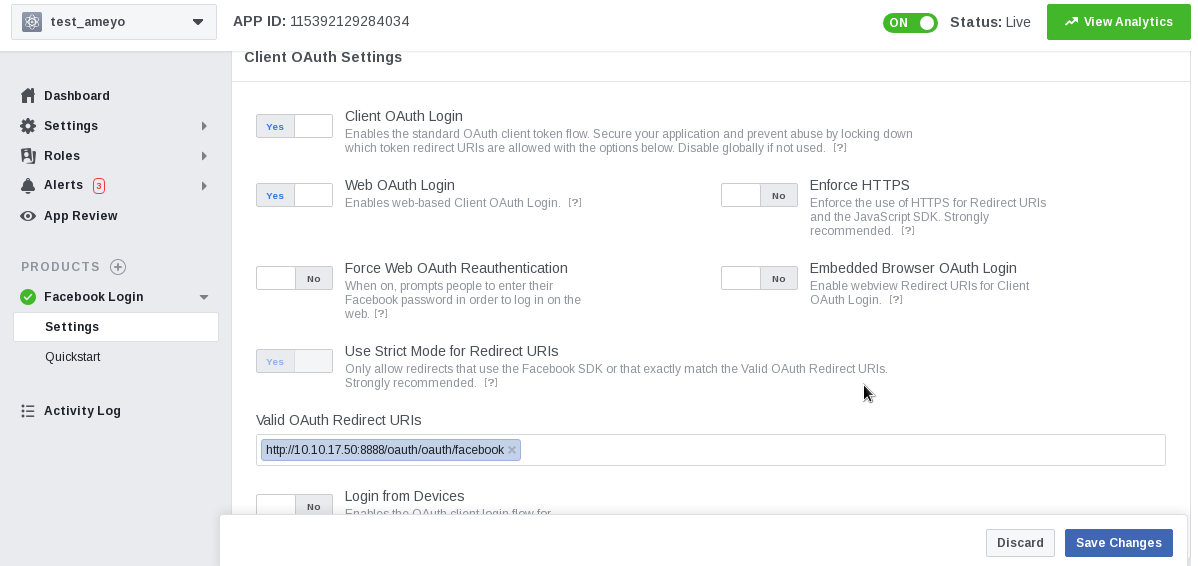
Figure: Providing OAuth URL in Facebook
- Here, you have to provide the OAuth URL in the box titled "Valid OAuth Redirect URIs".
- Click "Save Changes".
- Integrate Facebook App in Ameyo Server:
Perform the following steps to create a Facebook Media Profile.
- Go to "System" → "System Configuration".
- Click "Media Profile" tab.
- Click "Add" to create a media profile.
- Click "Continue with Facebook" to create a Facebook Messenger Media Profile using the following pop-up.
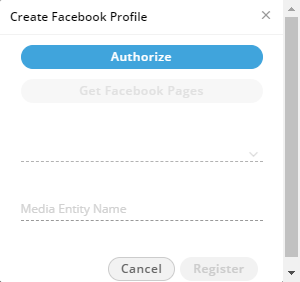
Figure: Add Facebok Media Profiile
- Click "Authorize Facebook". It shows a pop-up, where you have to click "Continue" and then "Allow" to allow the Ameyo to access your account. It shows the list of pages in your Facebook account.
- Select the required Facebok page.
- Enter the name of your page and click "Register".
Submit Your Facebok App for Review
Perform the following steps.
- Visit "Facebook Developers Portal" and login with your credentials.
- Go to "My Apps" and select your application.
- Now, click "App Review" in the left panel. It shows the following page.
Figure: Submit your App for Review to Facebook
- Click "Start a Submission" button. It shows the following pop-up.
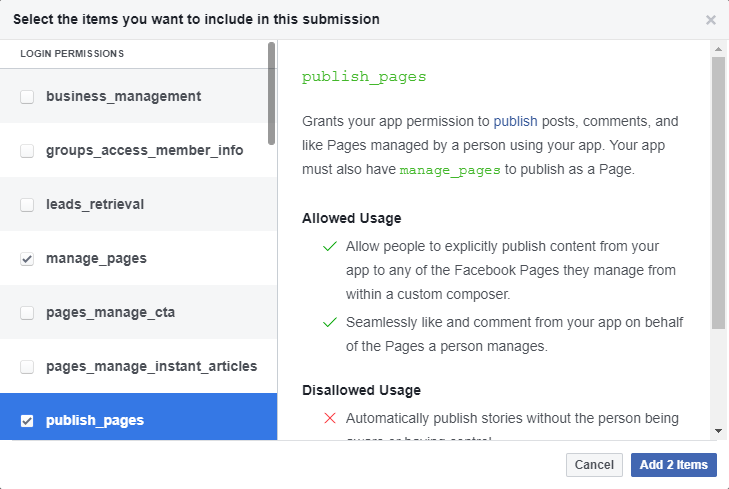
Figure: Select App Usage
- Select "manage_pages" and "publish_pages" and click "Add 2 Items" button. It shows the following page.
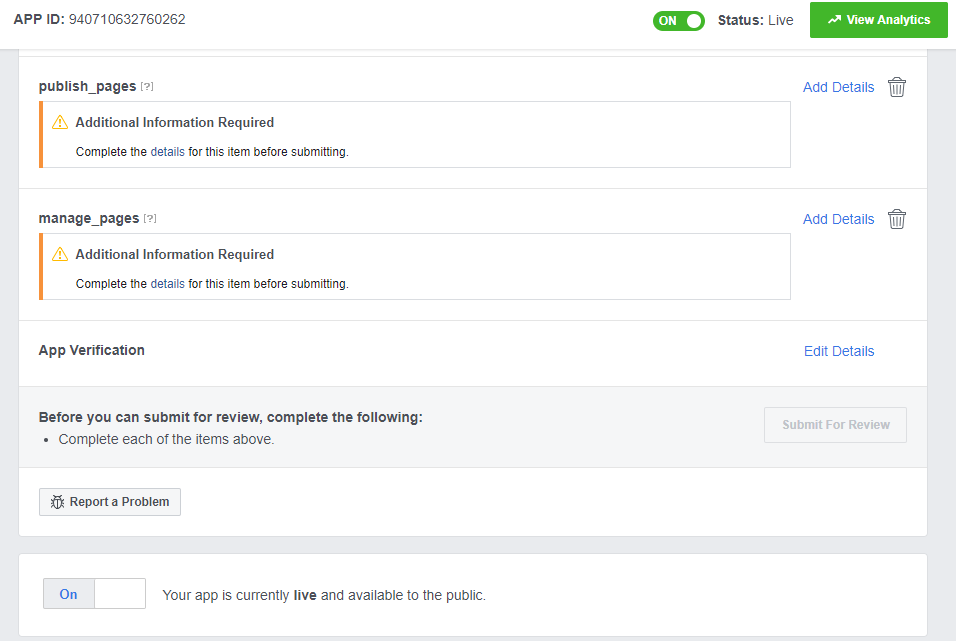
Figure: Add Details
- Click "Add Details" for "publish_pages".
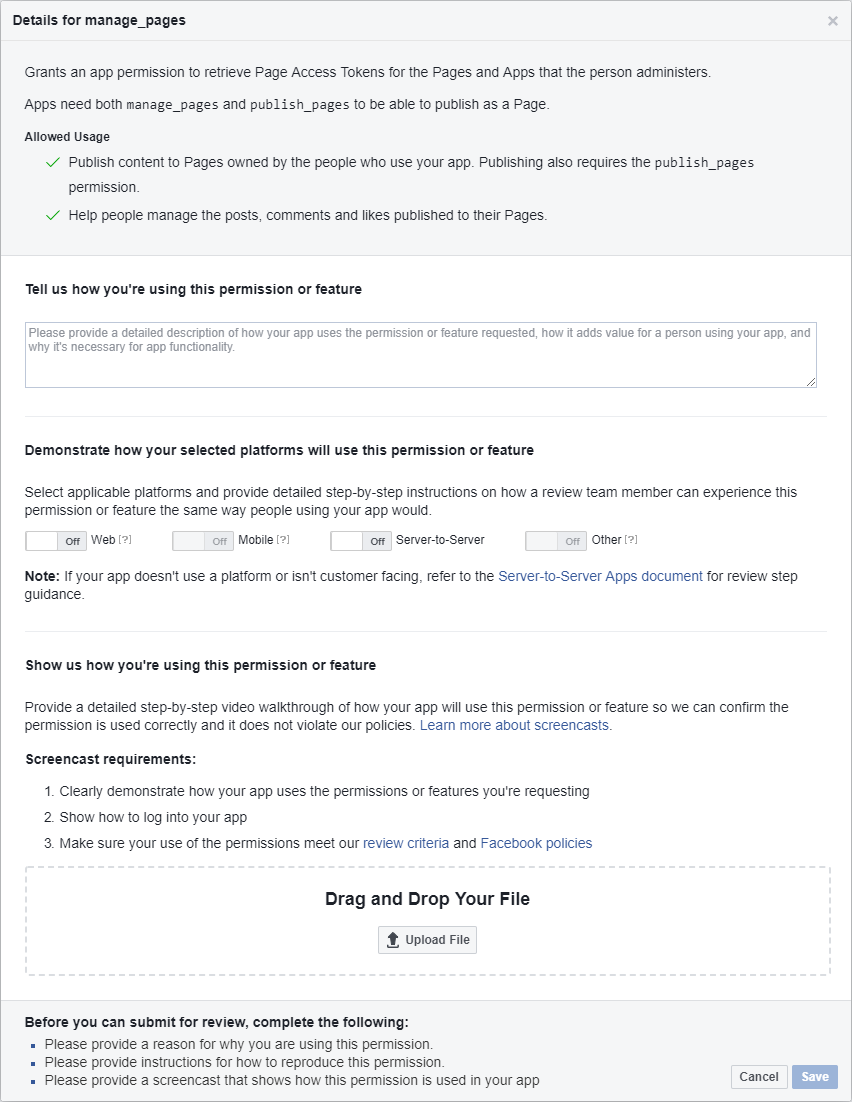
Figure: Add Details
- Here, you have to provide the following inputs.
- Tell us how you're using this permission or feature: Click the following link to visit the next page, which contains the text that you can copy and paste in your Facebook App Submission page. Press the back button in the end of the page to come back at this point.
- Click "Web" to select Web as your platform.
- Now, you have to upload a Video that shows the screen recording of the steps documented in the pop-up (that opens upon clicking the button).
You can get this video from the Service Delivery Team.
- Click Save.
- Tell us how you're using this permission or feature: Click the following link to visit the next page, which contains the text that you can copy and paste in your Facebook App Submission page. Press the back button in the end of the page to come back at this point.
- Now, you have to repeat the same steps to add the details for "manage_pages".
- Click "Submit for Review" button to submit the App for review.
After approval, you can normally use the Facebok Media Profile in the campaigns.
View and Modify Settings of Facebook Media Profile
Select a Facebook media profile in the list to view its settings on the right side under "Settings" tab.

Figure: Settings of Facebook Media Profile
You can modify the settings here and click "Apply" to apply the same. Rather, you can click "Refresh" to discard the changes.
Delete Facebook Media Profile
The deleted Facebok Media Profile cannot be retrieved back. The campaigns, queues, and users using this Media Profile will be disabled to use the Facebook to interact with your clients.
Also, it is associated with your Facebook App. If you delete it now and again try to create a new Facebok Profile, you have to go through the Command Line Interface to execute the commands and submit the App again to Facebook for review.
Perform the following steps to delete a Facebook media profile.
- Select a Facebook media profile.
- Click "Delete" to delete it. It shows the following warning message.

Figure: Asking to delete the Facebook Media Profile
- Click "Yes" to delete the media profile. Rather, you can click "No" to not delete it.
Ticket Resolver for Facebook Profile
This tab lets you manage how the tickets in a campaign (where the selected media profile is added) will be handled. Following is a screenshot of Ticket Resolver Tab of Facebok Media Profile.
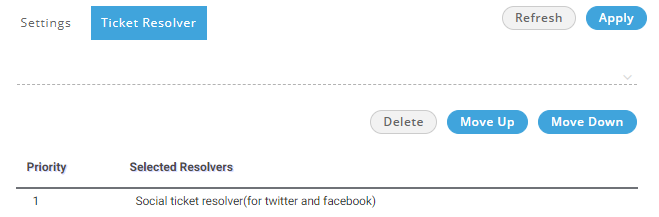
Figure: Ticket Resolver of Facebook Media Profile