Twitter Media Profile
You can create Twitter Media Profile using your Twitter Handle and interact with your clients on Twitter from here. It is requried to perform the following steps sequentially for creating a Facebook Messenger Media Profile.
- Create Twitter Account
- Apply for a Twitter Developer Account
- Create Twitter App
- Integrate the Twitter App with Ameyo
- Submit Your App to Twitter for Review
Create Twitter Account
If you do not have a Twitter Account already, perform the following steps to createa a Twitter Account.
- Visit Twitter.com and click "Sign Up" button. It takes you to "Sign Up" page.
- Follow the onscreen instructions to create your Twitter Account.
Please refer to "Signing up with Twitter" page for more information.
- Make sure to verify your email address and phone number while
Apply for Twitter Developer Account
Perform the following steps to create a Twitter Developer Account. After creation, you have to submit it for approval. Once approved, you can go ahead to create a Twitter App and integrate it in your Ameyo Server.
- Visit "Twitter Developer Portal" page and click "Sign In" button on the top right corner. It takes you to "Login" page.
- Login with your credentials. It takes you back to the Twitter Developer Portal.
- Click "Apply" on the top right corner to apply for a Twitter Developer Account. It takes you to the following page.
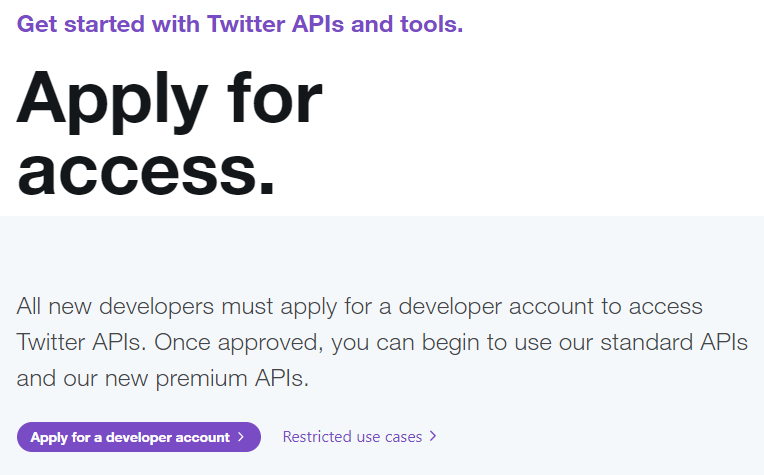
Figure: Twitter Developer Portal
- Click "Apply for a Developer Account" button. It shows the following page.
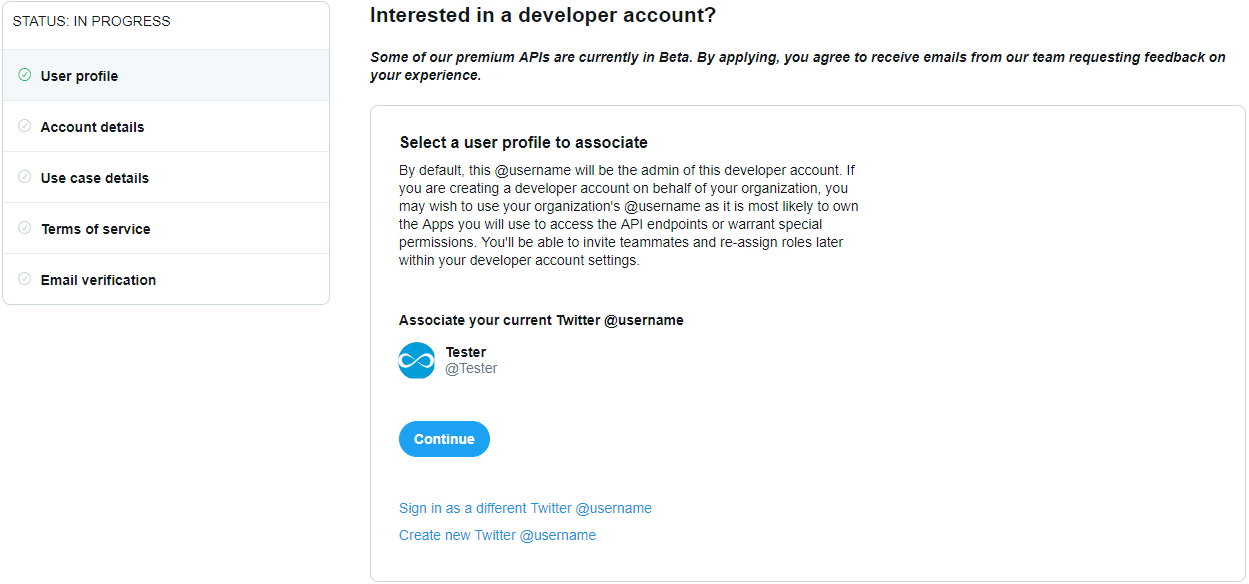
Figure: Use Your Profile as Developer Account
- Click "Continue" to use this account as a Developer Account. It shows the following page, which asks for the details to create a Developer Account.
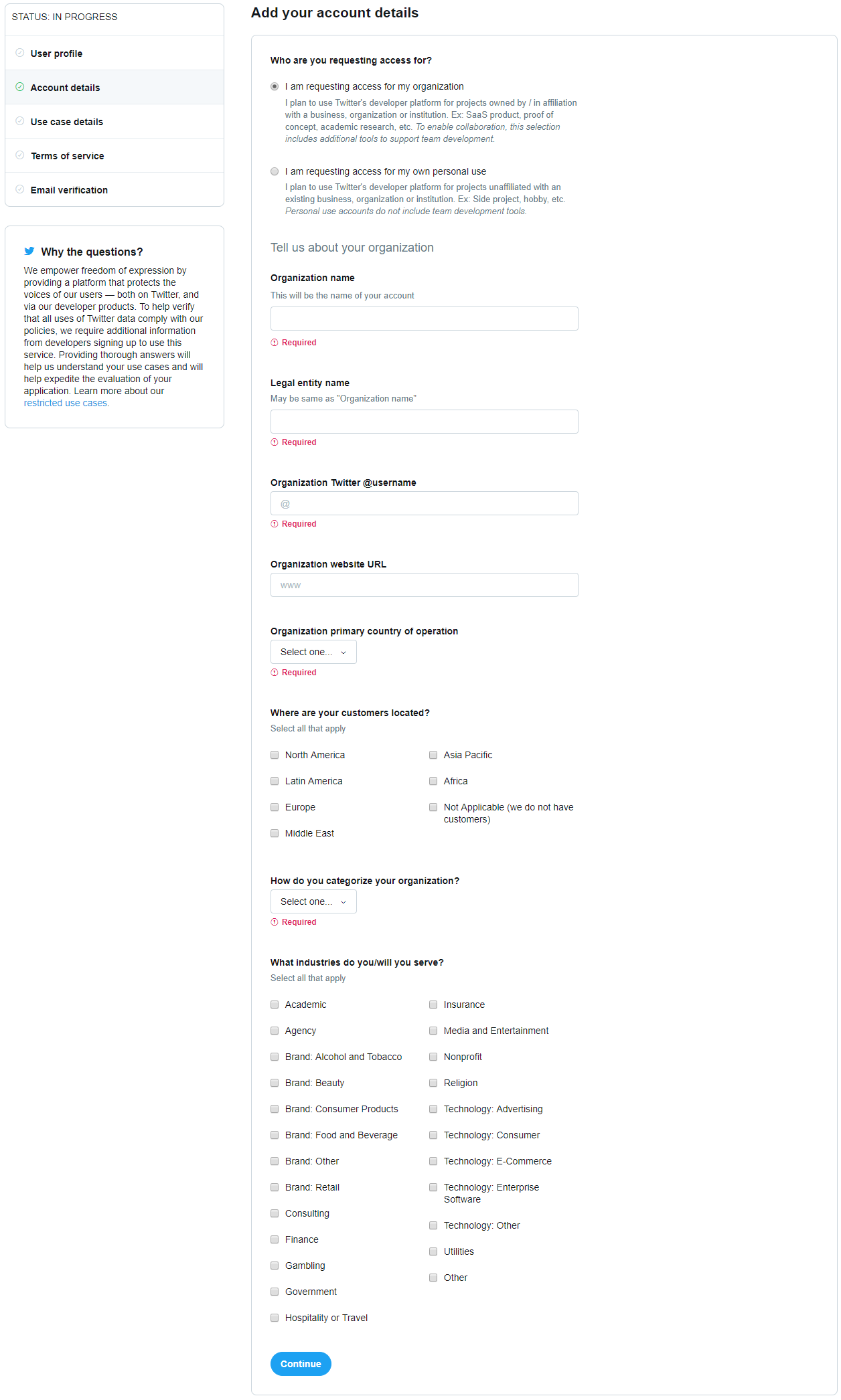
Figure: Asking for Account Details
- Here, you have to provide the following details.
- Who are you requesting access for?: Select "I am requesting access for my organization". The other fields will be displayed.
- Organization Name: Provide the name of your oganization.
- Legal Entity Name: Provide the Legal Entity Name of your organization.
- Organization Website URL: Provide the Website URL of your organization.
- Organization Primary Country of Operation: Select the name of country from where your orgnaization operates.
- Where are your customers located?: Select the areas where your customers are located.
- How do you categorize your organization?: Select the category applicable for your organization.
- What industries do you/will you serve?: Select the industries which you serve.
- After providing the details, click "Continue". It shows the next page.
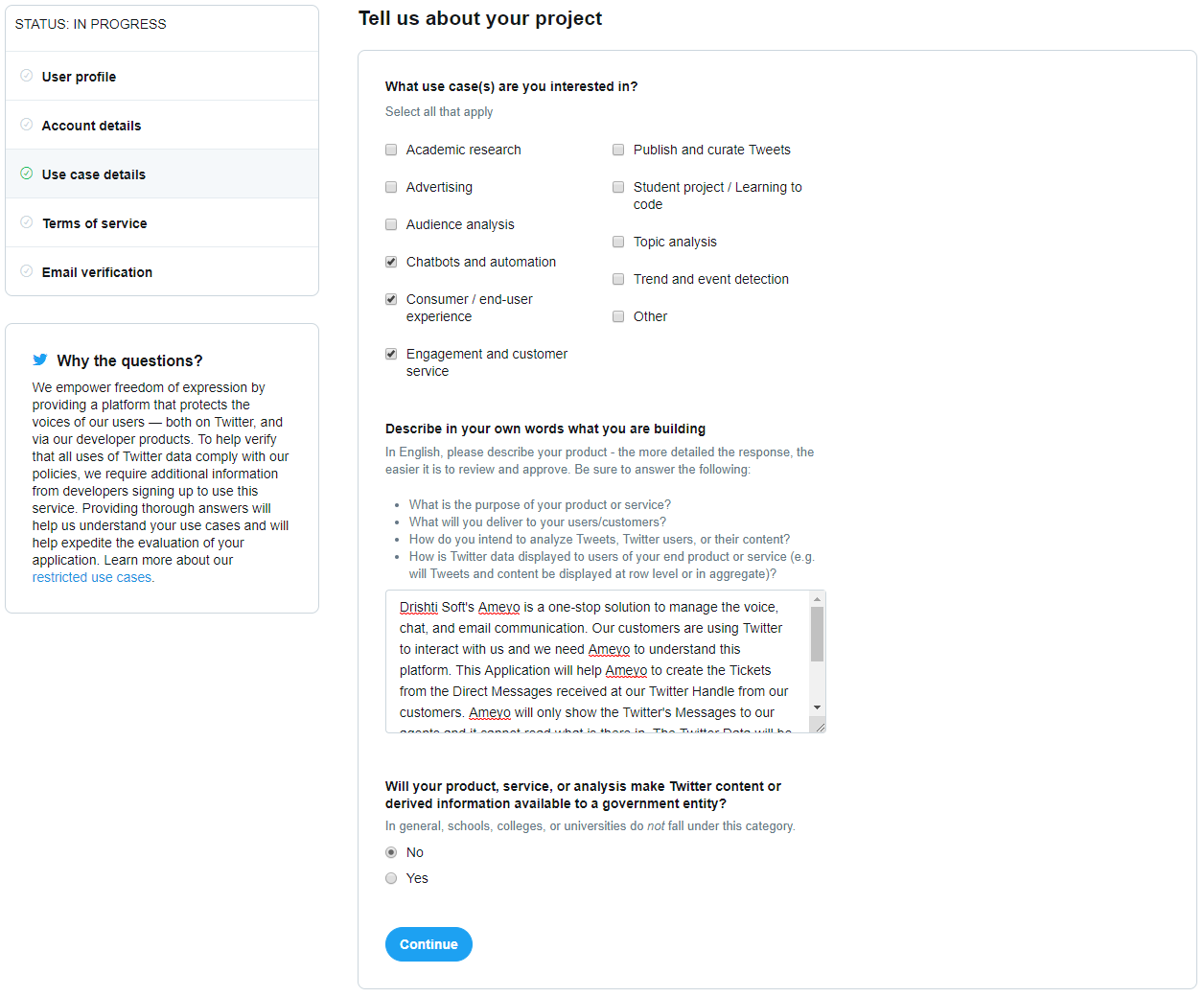
Figure: Asking for Use Case Details
- Here, you have to provide the following details.
- What use case(s) you are interested in?: Select the required use cases of your application. For Ameyo, it can be the following options.
- Chatbots and Automation
- Consumer / End User Experience
- Engagement and Customer Service
- Describe in your own words what you are building: As per it's description says, you have to explain the following items.
- Purpose of your product or service
- What will be delivered to your customers?
- How do you analyze Tweets, Twitter users, or their content?
- How will you display the Twitter data to users of your end product or service?
- Will your product, service, or analysis make Twitter content or derived information available to a government entity?: Click "No" if you are not a Government entity.
- What use case(s) you are interested in?: Select the required use cases of your application. For Ameyo, it can be the following options.
- Click "Continue" to proceed further. The next page shows the Twitter's Terms of Service.
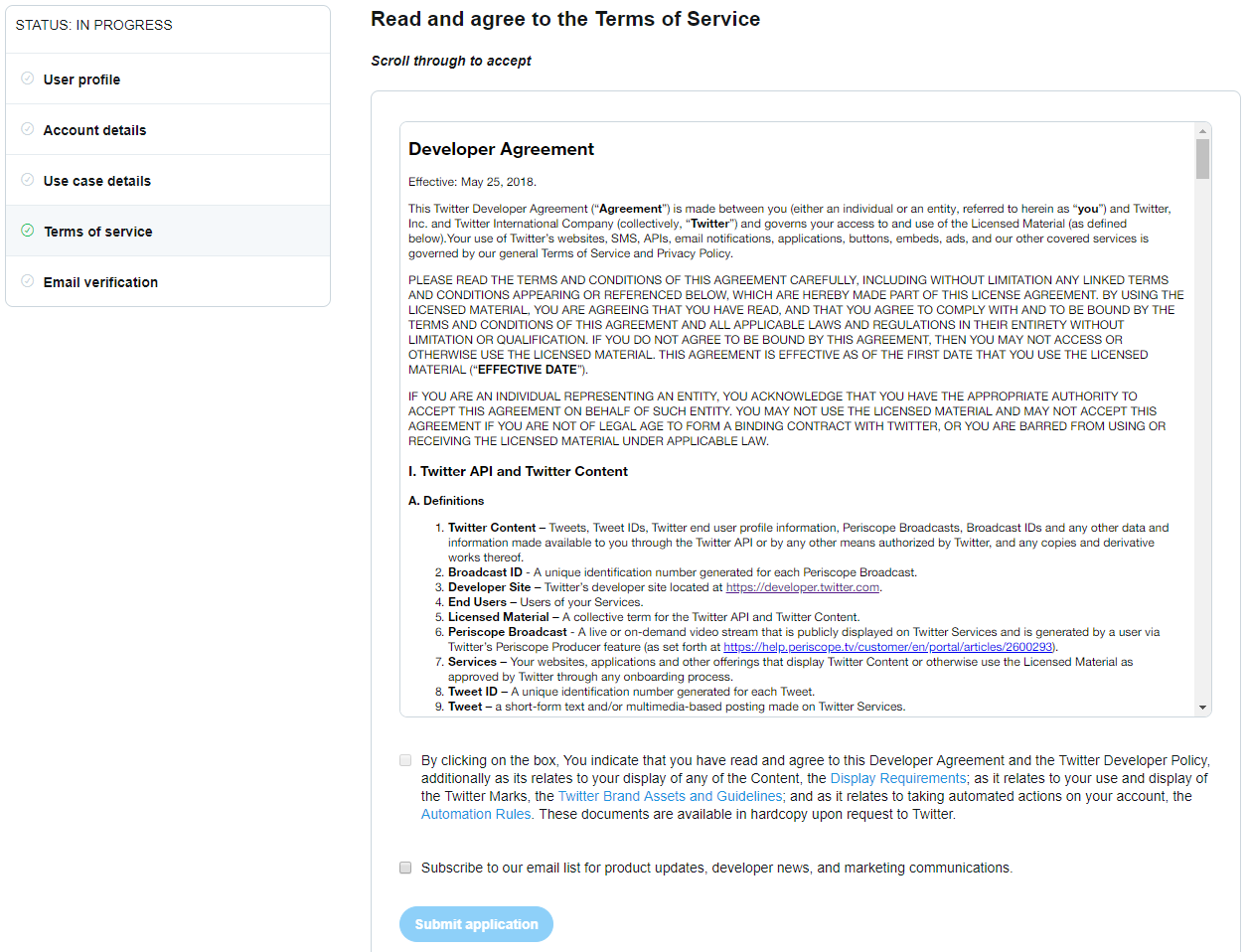
Figure: Terms and Conditions
- Read the Terms and Conditions carefully as it will be an Agreement between Twitter and your Organization.
- Click "Submit Applciation" button. It takes you the next page.
- Verify your Email Address on this page.
Now, you have to wait for the approval for your Developer Account. After approval, you can proceed to create a Twitter App.
Create Twitter App
Perform the following steps to create a Twitter App.
You can create a Twitter App only when you have an approved Twitter Developer Account.
- Visit "Twitter Apps Portal" page and click "Sign In" button on the top right corner. It takes you to "Login" page.
- Login with your credentials. It shows the following page.
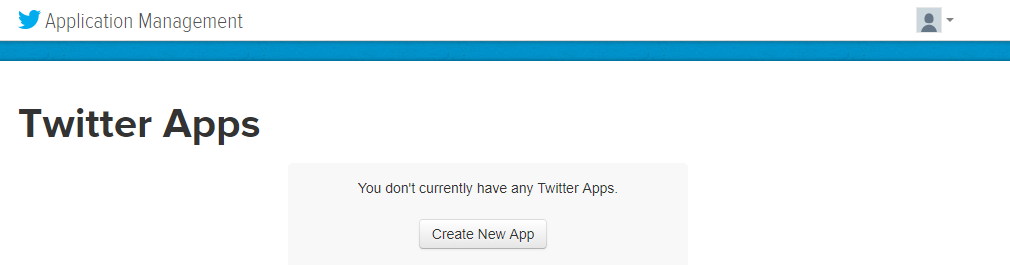
Figure: Twitter App Management
- Click "Create New App" button. It shows the following page.
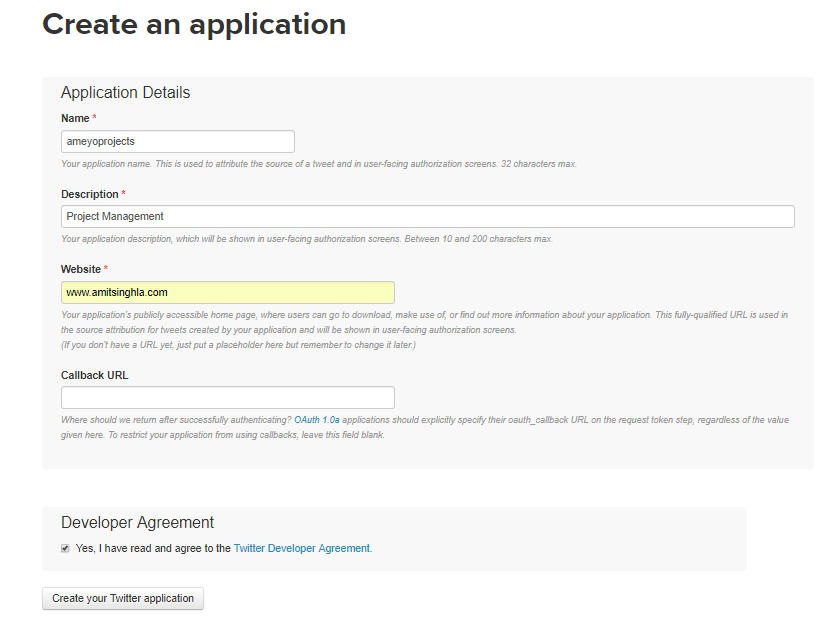
Figure: Create Twitter App
- Provide the following details here.
- Name of your App
- Description
- Website URL
- Callback URL
- Click "Yes" to agree with the terms and conditions.
- Click "Create your Twitter Application."
Now, your Twitter App will be submitted for approval. After approval, it will be registered with Twitter.
Create an Access Token
Perform the following steps to create an access token for your Twitter App.
- Visit "Twitter Apps Portal" page and click "Sign In" button on the top right corner. It takes you to "Login" page.
- Login with your credentials. It shows all of your Twitter App.
- Select your Twitter App to open its page.
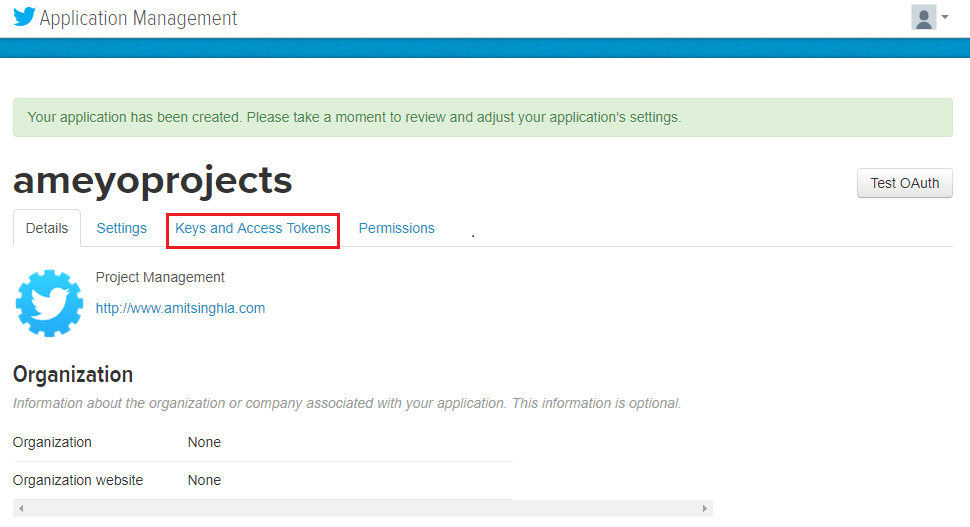
Figure: Twitter App Page
- Switch to "Key and Access Tokens" Page.
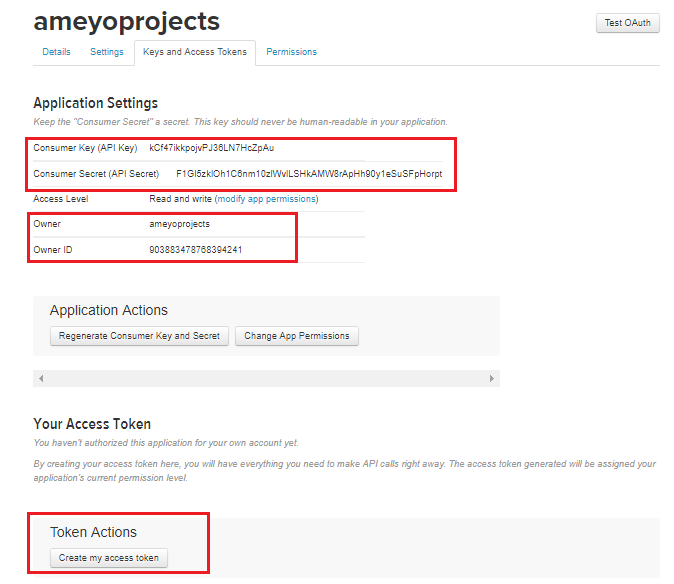
Figure: Keys and Token Page
- Click "Create my access token" to generate the access token.
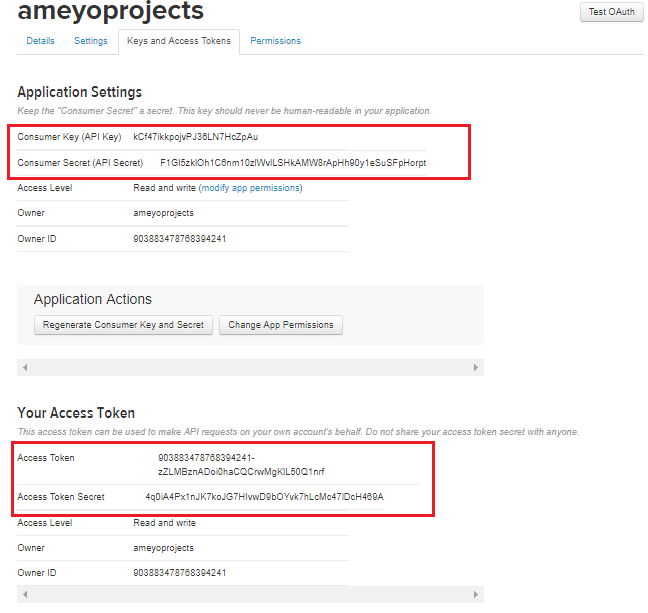
Figure: Access Token
- Note down the following items.
- Twitter Username
- Consumer Key
- Consumer Secret
- Access Token
- Access Token Secret
Integrate the Twitter App with Ameyo
Perform the following steps to integrate the Twitter App in Ameyo through backend.
- Access the Operating System through Putty and execute the following commands to enter the PostgreSQL system.
psql -U postgres
- In the PostgreSQL console, execute the following command to enter your database.
\c <DB_Name>
Replace <DB_Name> with the name of database that has been integrated with your Ameyo App. - Execute the following command to enter Media Profile ID, Screen Name, Access Token, Access Token Secret, Consumer Key, and Consumer Secret in "twitter_profile" table.
INSERT INTO twitter_profile (<media_profile_id>, <screen_name>, <accesstoken>, <access_token_secret>, <consumer_key>, <consumer_secret>, should_fetch_messages) VALUES ('mediaProfilehereid', 'screenName', 'accessToken', 'accessTokenSecret', 'consumerKey', 'consumerSecret', 'true');
Replace the following fields.Samle Attribute
Required Value
<media_profile_id>
Provide a unique ID for your media profile.
<screen_name>
Twitter Handle
<accesstoken>
Access Token
<access_token_secret>
Access Token
<consumer_key>
Consumer Key
<consumer_key>
Consumer Secret
- Execute the following command to enter the Media Profile details in "media_profile" table.
INSERT INTO media_profile(contact_center_id, media_profile_id, media_entity_name, media_profile_type, fetch_timer_interval, is_incoming_allowed, is_outgoing_allowed) VALUES ('<contact_center_id>', '<media_profile_id>', '<media_entity_name>', '<media_profile_type>', '60', true, true);
Replace the following values.
Samle Attribute
Required Value
<contact_center_id>
Provide the ID of the Contact Center where you want to create this Twitter Media Profile.
<media_profile_id>
Provide the same Media Profile ID that you have entered in "twitter_profile" table.
<media_entity_name>
Provide a unique name for your Media Profile. If you are creating multiple media profiles, make sure that all have unique names.
<media_profile_type>
Type TWITTER.
- Execute the following command to make an entry in "interaction_resolver_configuration".
INSERT INTO interaction_resolver_configuration (media_profile_id, resolver) VALUES ('<media_profile_id>', '["socialmediainteractionresolvervalue"]');
Replace <media_profie_id> with the ID of your Media Profile that you have provided in "twitter_profile" table.
- Now, execute the following command to exit from database console.
\q
- Execute the following command to restart the appserver service.
ameyoctl service appserver restart
Twitter Media Profile has been created now. You can now use this media profile in the campaign.
View and Modify Settings of Twitter Media Profile
Select a Twitter media profile in the list to view its settings on the right side under "Settings" tab.

Figure: Settings of Twitter Media Profile
You can modify the settings here and click "Apply" to apply the same. Rather, you can click "Refresh" to discard the changes.
Delete Twitter Media Profile
The deleted Twitter Media Profile cannot be retrieved back. The campaigns, queues, and users using this Media Profile will be disabled to use the Twitter to interact with your clients.
Also, it is associated with your Twitter App. If you delete it now and again try to create a new Twitter Profile, you have to go through the Command Line Interface to execute the commands. Also, you may have to re-submit the App again to Twitter for review.
Perform the following steps to delete a Twitter media profile.
- Select a Twitter media profile.
- Click "Delete" to delete it. It shows the following warning message.

Figure: Asking to delete the Twitter Media Profile
- Click "Yes" to delete the Twitter media profile. Rather, you can click "No" to not delete it.
Ticket Resolver for Twitter Profile
This tab lets you manage how the tickets in a campaign (where the selected media profile is added) will be handled. Following is a screenshot of Ticket Resolver Tab of Twitter Media Profile.
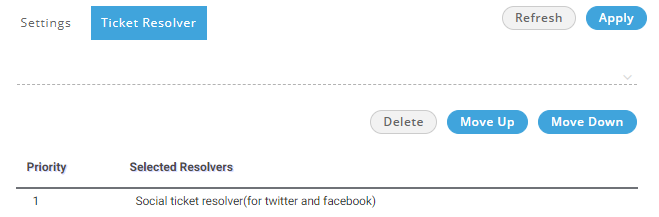
Figure: Ticket Resolver of Twitter Media Profile