Download PDF
Ticket State
This tab lets you define the External States of Tickets in the default Internal States of Tickets.
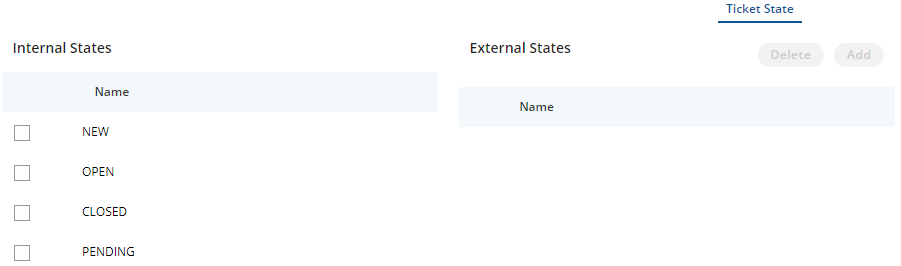
Figure: Ticket State Tab
Following are the default internal states.
- New: It specifies the new tickets.
- Open: It specifies the open tickets.
- Closed: It specifies the closed tickets.
- Pending: It specifies the pending tickets.
Do not create the external states with the same names of internal states to avoid any issue.
Create an External State
Perform the following steps.
- Click the checkbox of an internal state to select it. "Add" button will be activated in "External State" column.
- Click "Add" button. It shows the following pop-up.
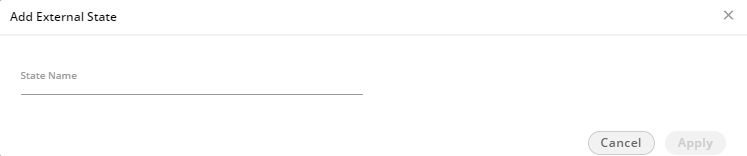
Figure: Create New External State
- Provide a name for the new external state.
- Click "Apply" to create it.
Rather, you can click "Cancel" to not create it.
You can create multiple steps by performing these steps. Following screenshot shows some external states created in "New" Internal State.
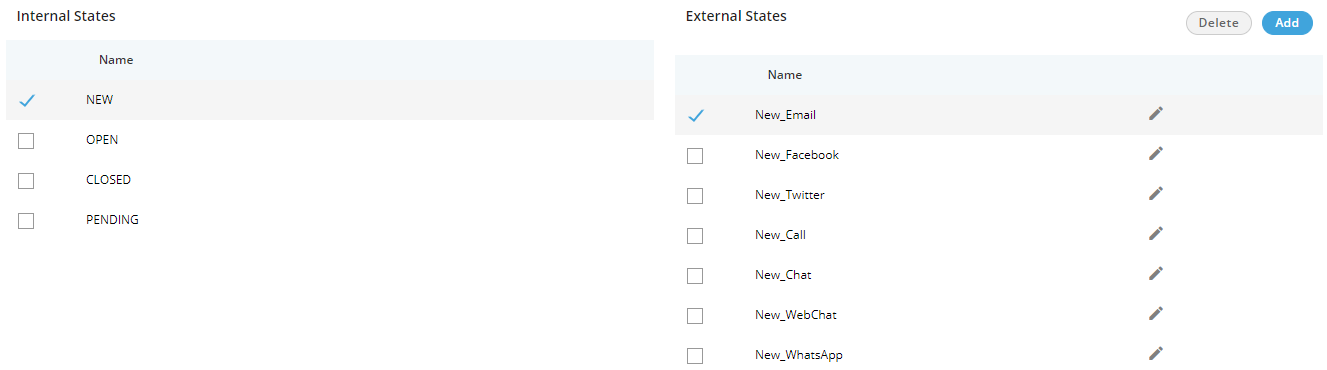
Figure: Created Multiple External States in "New"
Example
For an example, you can create the following external states in internal states.
- New
- New_Chat
- New_Call
- New_Email
- New_WebChat
- New_Facebook
- New_Twitter
- New_WhatsApp
- New_WhatsApp_For_Business
- Open
- Open_Assigned
- Open_Unassigned
- Open_Reopened
- Pending
- Pending_Customer_Have_to_do
- Closed
- Resolved
- Unresolved
- Unresolved_Customer_Have_to_go
- Unresolved_Customer_Have_to_do
- Unresolved_Unsupported_Issue
- Escalated
Edit an External State
Perform the following steps to edit an External State.
- Check the box of an internal state. It lists all of its external states.
- Click
 icon to edit it using the following pop-up.
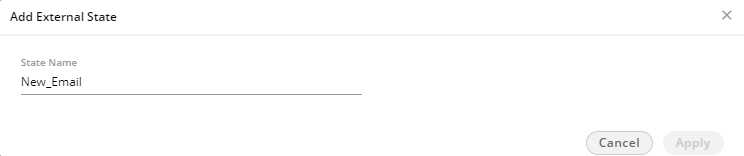
Figure: Edit External State
- You can change the name of External State here.
- Click "Apply" to make the changes.
Rather, you can click "Cancel" to discard the changes.
Delete an External State
Perform the following steps to delete an external state.
- Check the box of an internal state. It lists all of its external states.
- Check the box of an external state and click "Delete" button. It shows a warning message before deleting the external state.

Figure: Warning before deleting an External State
- Click "OK" to delete the external state.
Rather, you can click "Cancel" to not delete it.