Administrator Console
Administrator can navigate below mentioned tabs:
- System
- User
- Campaign
- Reports
- Call Manager
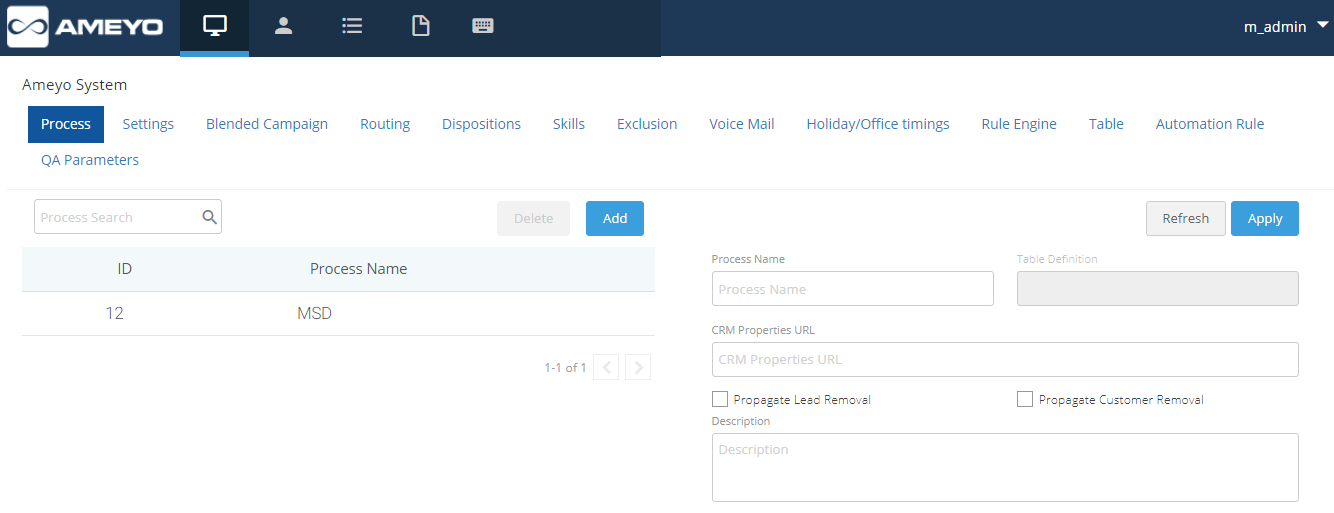
Figure: Ameyo Administrator Workbench
System Tab
Administrator can configure system level/process level settings through this tab. Following sub tabs are available in the "System Tools" tab.
- Process
- Settings
- Blended Campaigns (Licensed Feature)
- Routing
- Dispositions
- Skills (Licensed Feature)
- Exclusion
- Voice Mail Configuration (Licensed Feature)
- Holiday/ Office Hour (Licensed Feature)
- Table
- QA Parameters
- Rule Engine
- Automation Rule
Process
Campaigns and Users created in different processes will have no relation between them. Interactions of one process will not be visible by the users of another process.
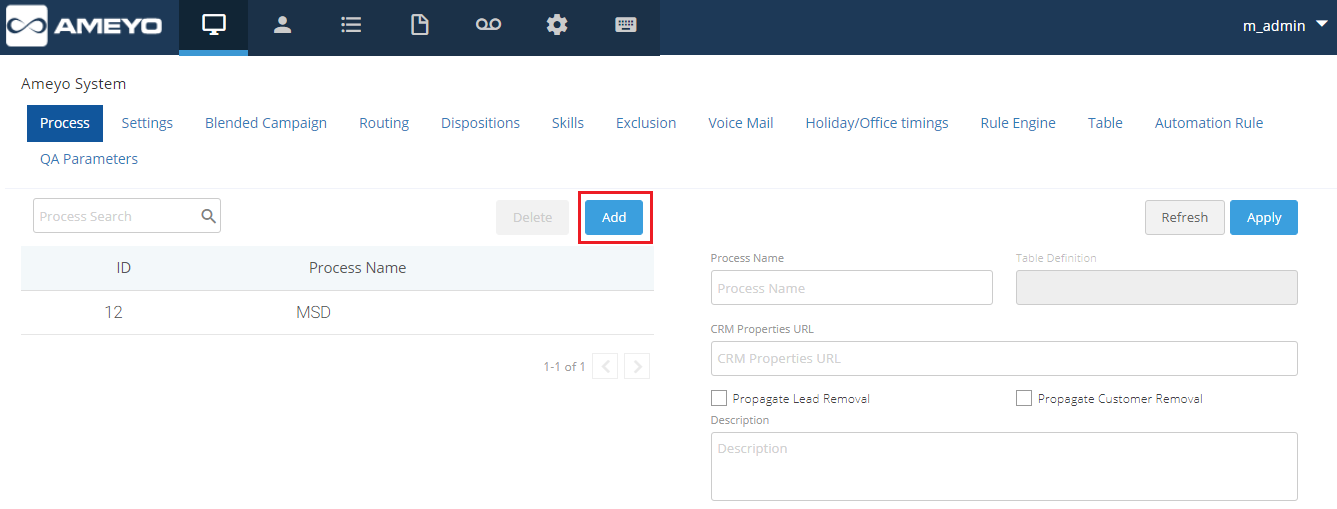
Figure: Process
Administrator can perform the following steps.
- Create Process: Perform the following steps to create a process.
- Click "Add" to create a process using the following pop-up.
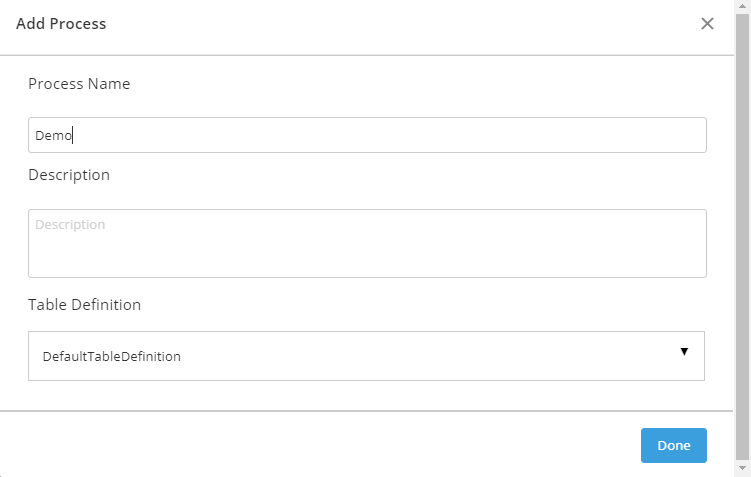
Figure: Add Process
- Administrator need to enter the Process Name, Description and can select the required table definition from the provided drop down box.
- Click on "Done" button.
- Delete Process: Administrator can delete any process by following below steps.
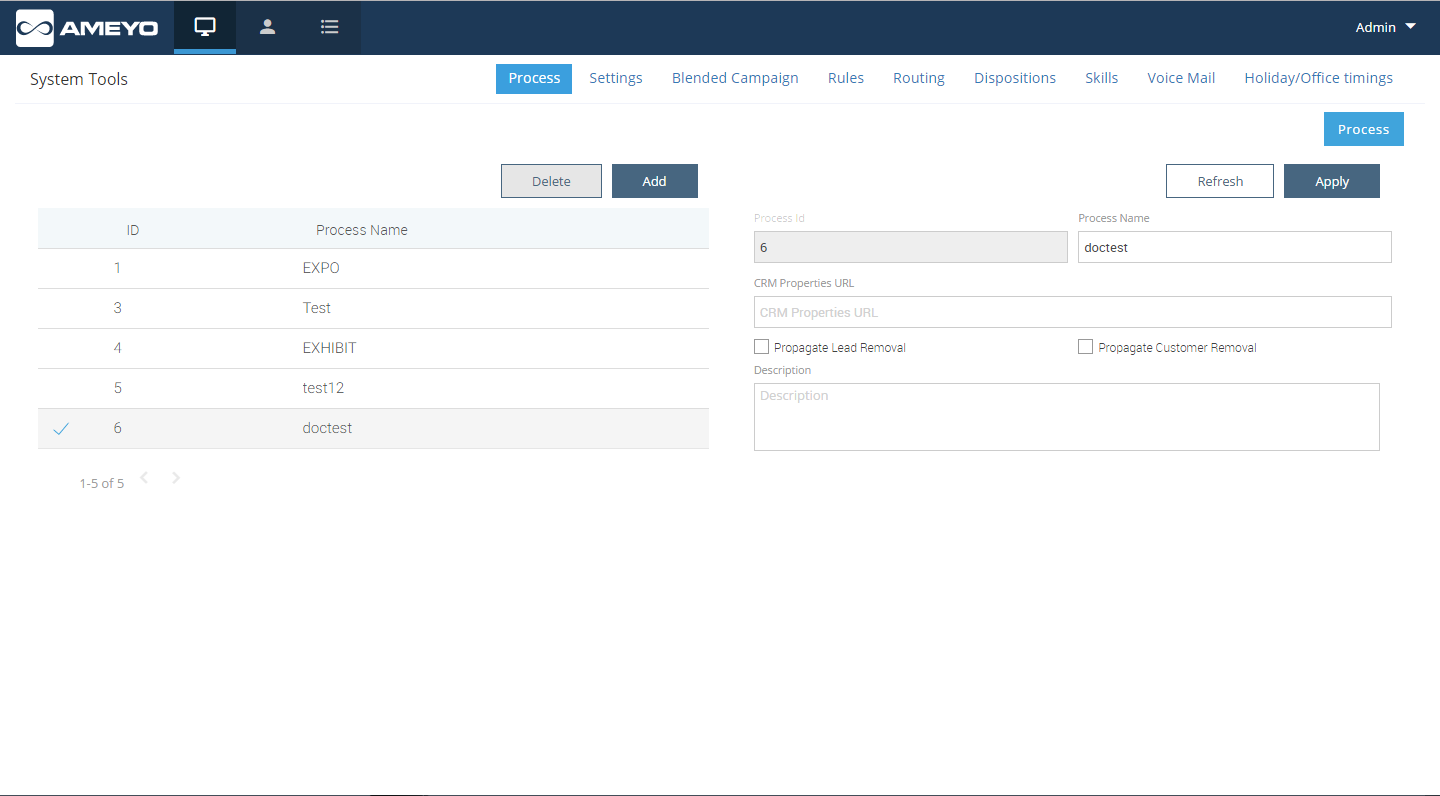
Figure: Delete Process
- Select the process that needs to be deleted.
- Click "Delete".
- Process Details:
- Process ID: It shows auto generated (non editable) Id of the selected process.
- Process Name: It shows the name of the selected process.
- CRM Properties URL: User can enter the the URL of the CRM that needs to be configured for a particular process.
- Propagate Lead Removal
- Propagate Customer Removal
- Description: User can edit the description of process.
- Click on "Apply" button to apply the changes made to the process.
- Click on "Refresh" button to discard the changes.
Settings
The administrator can configure system settings and mapping policies through below mentioned tabs.
- System Settings
- Mapping Policies
System Settings
- User Mapping Policy: Administrator can map the phone device with the respective user's machine. Agent telephony shall be assigned with static IP, same can not be on DHCP.
- The Administrator can select the phone mapper type values from the drop down to map the extensions with particular IP. This option can be used to avoid wrong selection of Telephony Channel by the user while logging into the system.
- IP user call leg details provider: To map one IP with single extension. The Agent need not to select the extension as the IP is already mapped with an extension while logging into the system. The applied settings will be applicable for the user who gets the option to select the call context while logging into system.
- IP multiple user call leg details provider: This mapper can be used to map an IP with multiple call contexts. The applied settings will be applicable for the user who gets the option to select the call context while logging into system. This phone mapper type will be enabled after procuring appropriate license component at the center.
- User ID based call leg details provider: This mapper can be used if webRTC is being used. This phone mapper type will be enabled after procuring appropriate license component at the center.
- Manual user call leg details provider: This mapper policy can be used when if no mapping needs to be done.
- Knowledge Base Settings: The Administrator can define the knowledge base page URL here. Supervisor, agents etc will be able to view this page on the Home screen of their workbench.
- After Login Behaviour : Using this feature user can configure that after the agent has logged in, the system should automatically make agent available (by selecting System radio button) or agent should be provided authority to make himself available (by selecting the User radio button).
- Auto Answer: If "Enable Auto Answer"is checked then call will be auto answered in all the campaigns of respective contact center. Users with auto call on status will automatically receive the auto dialed and inbound calls and they don't have to answer each call manually. Only first call offered to the user needs to be answered manually after that all calls thrown by dialer will be auto answered.
- Internal Chat : The Administrator can enable or disable the internal chat option using the Enable Internal Chat check box.
- Break Reasons: Administrator can add the break reasons for the contact center. Created break reasons will be applied at system level and same will be visible to agents on Ameyo Webaccess. While going on break, agents can select the respective break reason.
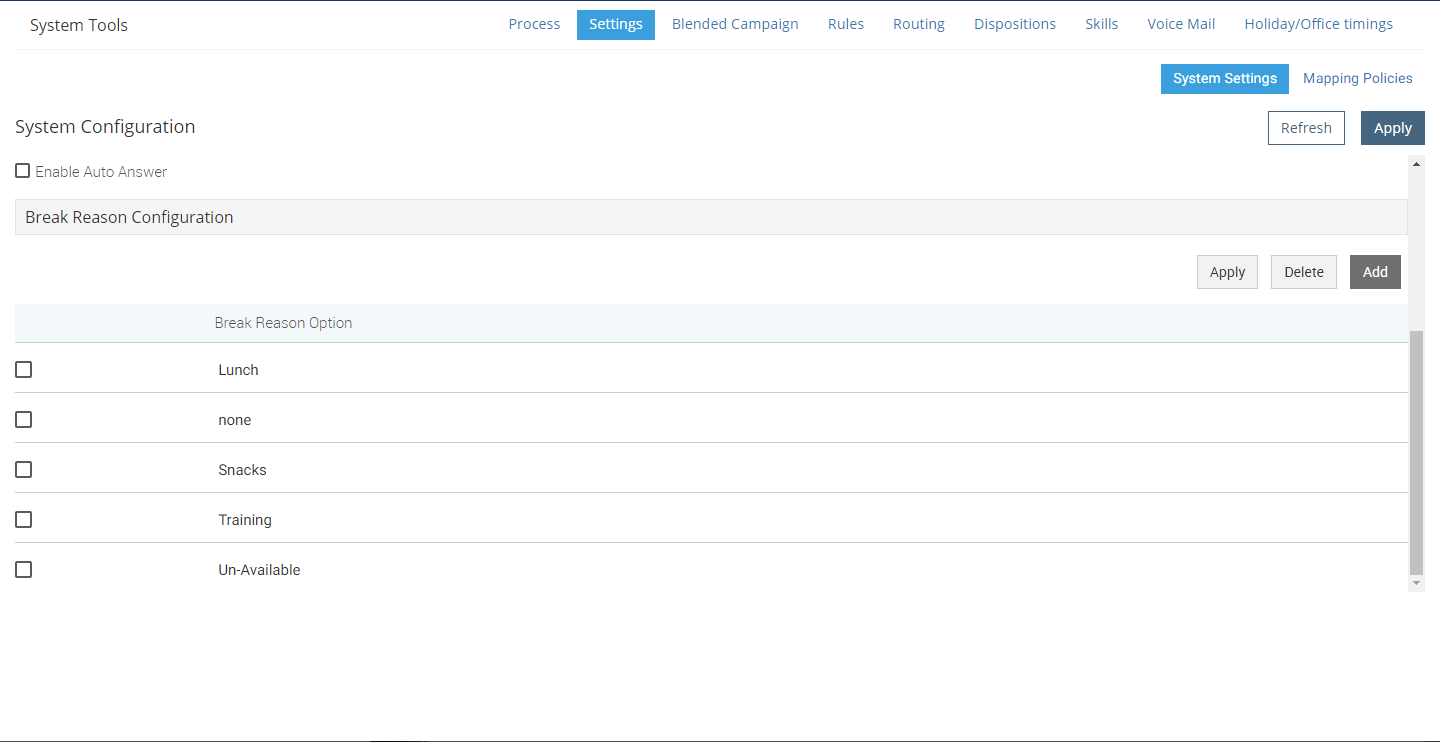
Figure: Break Reason Configuration
Perform following steps to add break reason.
- To add a break reason, click on "Add" button.
- Enter the name of break reason.
- Click "Apply" button to create the break reason.
- To delete any existing break, select the break name and click "Delete".
Mapping Policies
Through this tab, Administrator can define mapping policies.
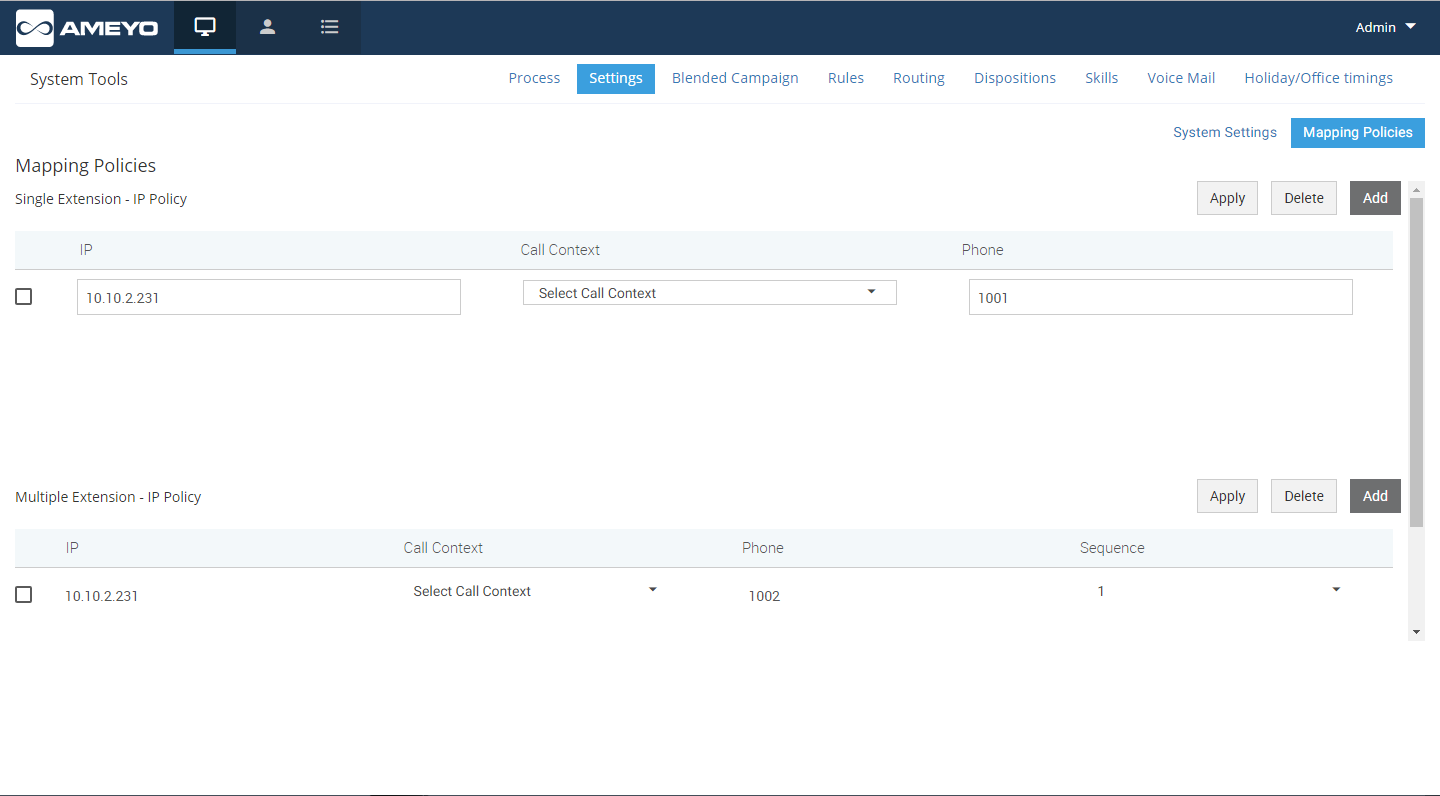
Figure: Mapping Policies
- Single Extension - IP Policy: To map one IP with single extension, Administrator needs to follow below steps:
- Click on "Add" button.
- Enter the IP Address.
- Select the Call Context.
- Enter the Phone number (extension).
- Click on "Apply" button.
- To delete any existing mapping, select the same and click on "Delete" button.
- Multiple Extension - IP Policy: To map an IP with multiple call contexts, Administrator needs to follow below steps:
- Click on "Add" button.
- Enter the IP Address.
- Select the Call Context.
- Enter the Phone number (extension).
- Select the Sequence.
- Click on "Apply" button.
- To delete any existing mapping, select the same and click on "Delete" button.
Blended Campaign (Licensed Feature)
Blending simply means a group of inbound and outbound campaigns. It allows the agents to login in a predefined set of campaigns simultaneously. The same agent can login in Inbound as well as in Outbound campaign at the same time Admin can select the campaigns which need to be blended from the available campaigns list by clicking  icon. After selecting the required campaigns click "Apply" button.
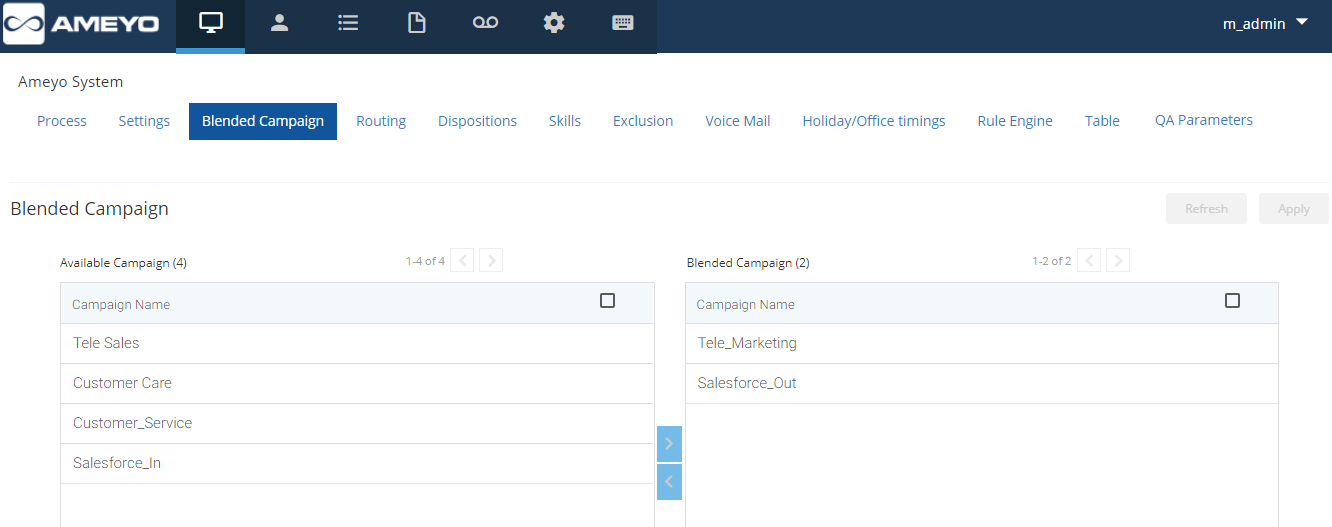
Blended Campaign
Routing
Administrator can configure incoming call routing policies and profiles based on incoming channel, DID or source phone. Administrator can perform the following steps.
- After clicking on routing tab, a window will open containing following policies and their types:
- DefaultDestinationPhone: This policy is used to route the calls landing on a particular DID number. These calls can be routed to a particular node flow in a campaign. Let's suppose if we want to do routing for a particular DID number or toll free number. We will select the"DefaultDestinationPhoneProfile" and define the profile plans.
- DefaultSourcePhone: This profile is used to identify a particular source phone and route the calls coming from that number to a particular node flow in campaign. Let's suppose if we want to do routing based on the phone number of caller. We will select the"DefaultSource Phone Profile" from Profiles tab and define the profile plans
- DefaultCallContext: - We can define the call contexts (like Zap trunks, SIP minutes) and route the calls through these contexts to a particular node flow in a campaign. Here we need not to identify the Source / Destination number.
- Policies can be assigned by checking the "Assigned" checkbox.
- Order of policies can be moved from the "Up" and "Down" button. Policy will be followed order wise.
- Click "Apply" button to save the changes.
- Click "Refresh" to cancel the changes.
- The Administrator can define the routing plan for the policies. To define the profile, follow below steps:
- Select the Policy by checking the checkbox.
- Click on "-" option present under Plans header adjacent to a policy for creating a new profile plan.
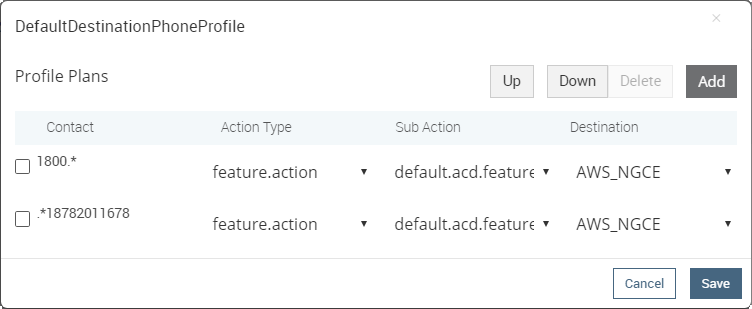
Figure: Default Destination Profile
- A pop-up will appear. Click on "Add" button and fill the following fields:
- Contact: Enter the contact number.
- ActionType: It has two types:
- Profile.action: Call routed to another Profile Plan
- Feature.action: Call routed to nodeflow
- Sub Action: They are associated with the Action Type selected. It lists the options which are associated with the selected Action Type like manual.dial.feature, default.acd.feature or did.based.phone.feature. .
- Destination: - Enter the destination where the call has to land finally.
- To delete the created "Profile Plan", select that particular profile plan and click on "Delete" button.
- Any incoming call will be routed depending on the sequence of profiles defined. Profile moved at the top level will be followed first and then next defined profile will be followed.
- To Move Up or Down any profile, administrator simply selects the profile and click on "Up" and "Down" buttons respectively.
- Click on "Save" button to store the changes.
- Click on "Cancel" button to discard the changes.
- Click "Apply" button to save the made changes.
- Click "Refresh" button to discard the made changes.
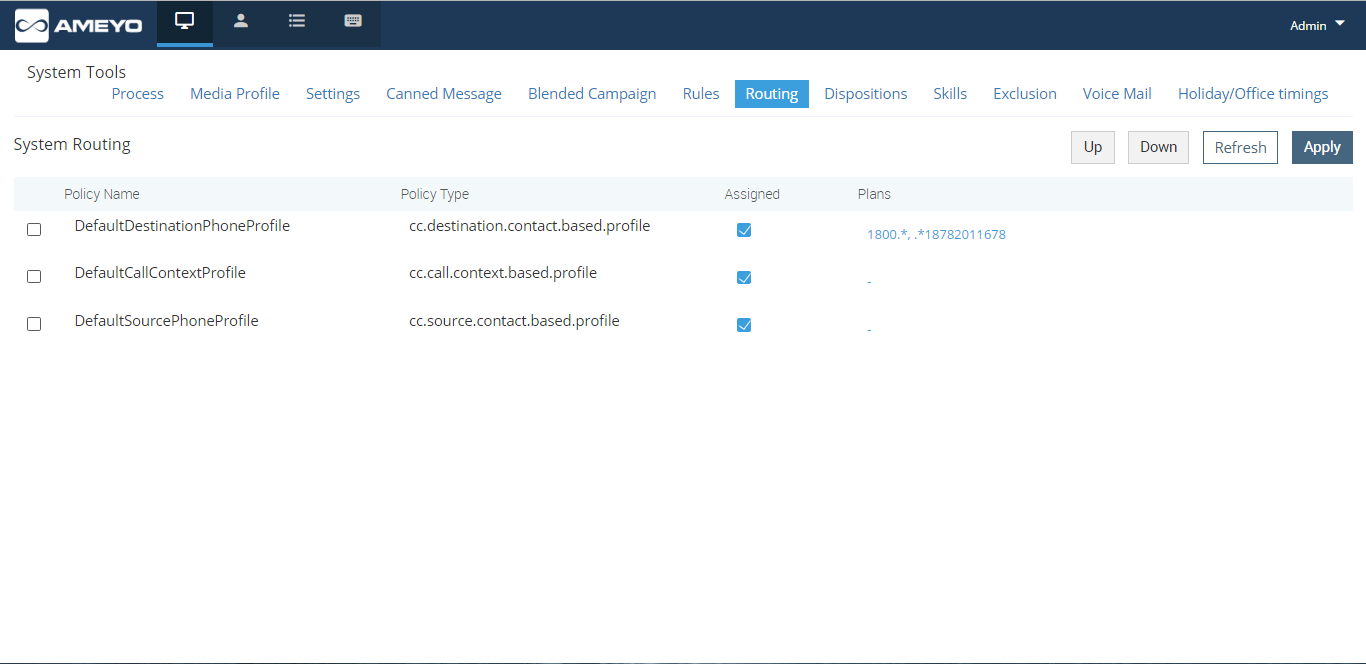
Figure: System Routing
Dispositions
Disposition Class
This tab is used to define disposition codes and classes for the calls. Disposition code is the reason of call disconnection which agent selects while disposing any call.
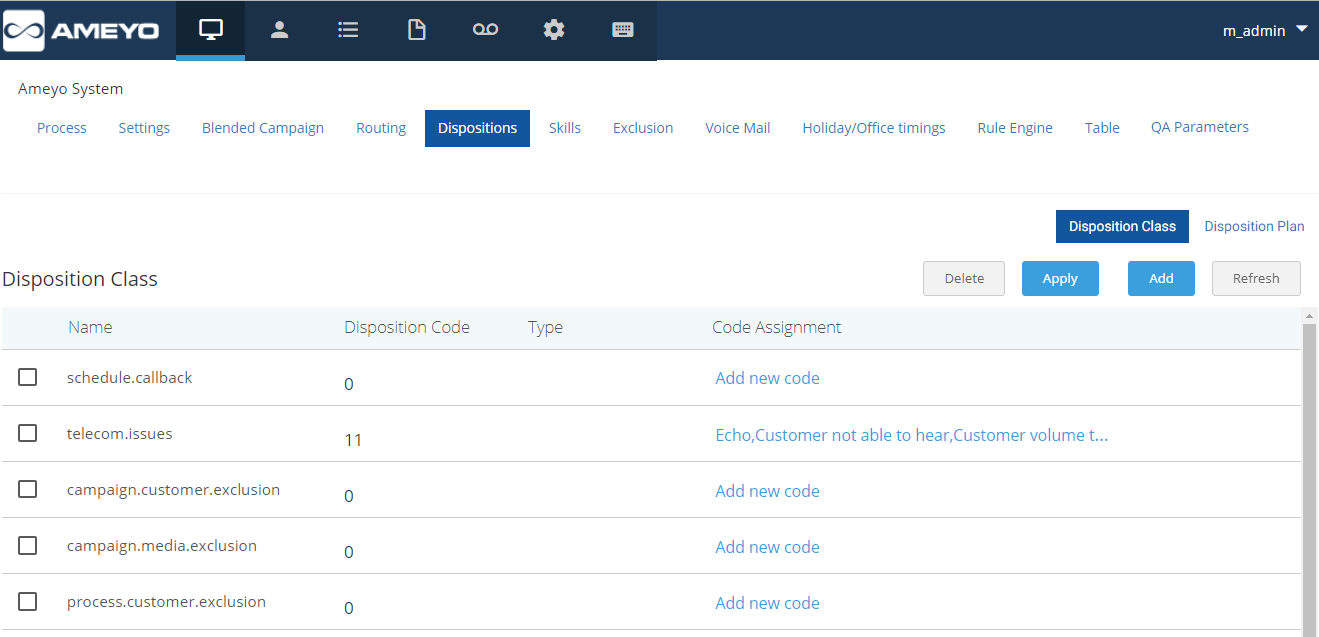
Figure: Disposition Class
- The Administrator can add "Disposition Class" by clicking "Add" button. Disposition class is a set or logical grouping of disposition codes.
- The Administrator can also add "Disposition Code" by clicking "Add New Code" option. To create disposition code, administrator first needs to select "Disposition Class" in which disposition code needs to be added.
Disposition Plan
This tab is used to create disposition plan and assign the disposition codes in that plan. From here, administrator can select the disposition codes which needs to be assigned in created disposition plan.
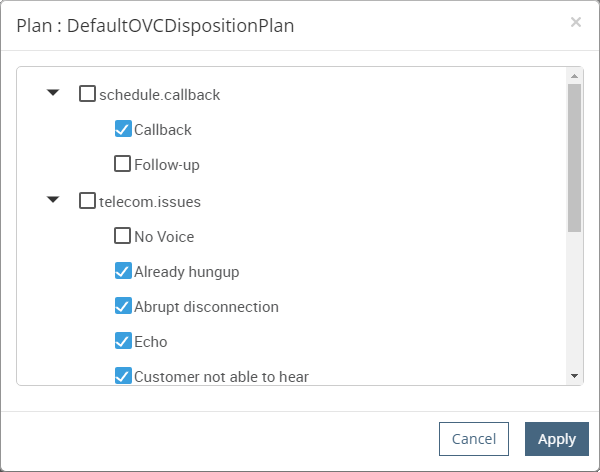
Figure: Disposition Plans
Perform the following steps.
- Select the disposition plan in which disposition codes need to be assigned and click on the code assignment option against the particular disposition plan.
- Select the checkbox of different disposition codes which has to be assigned in that disposition plan.
- Click on "Apply" button to save the changes.
- Click on "Refresh" button to discard the changes.
- Administrator can also delete a particular disposition plan by selecting that plan and click on "Delete" button.
Skills (Licensed Feature)
- Skill-based routing (SBR) is a component of automatic call distributor (ACD) systems that filters and directs incoming inquiries to call center agents with the most applicable skill sets.
- By closely matching an incoming call to the call center agent best-prepared to address a particular issue, callers experience shorter wait times and faster resolution of their issues, reducing average handle time (AHT). Because agents are trained for more specific skill sets, less training is required.
- Furthermore, the most highly-skilled agents can be assigned to important clients, targeting resources where they will provide the most return for the call center. These factors significantly reduce abandon rates and increase agent utilization, productivity and overall call center efficiency.
- Administrator may create new Skills by following below steps.
- As per different Queues/ DIDs, different skills can be created. Click on "Add" button under "Skills" tab of System Tool.
- Enter Skill name and define skill levels by clicking on "Add Skill Level".
- A pop-up will appear and click on "Add" button to add a skill level. Enter the skill level and its weightage.
- Click on "Save" button to save the changes.
- To delete a skill level, select that particular skill and click on "Delete" button.
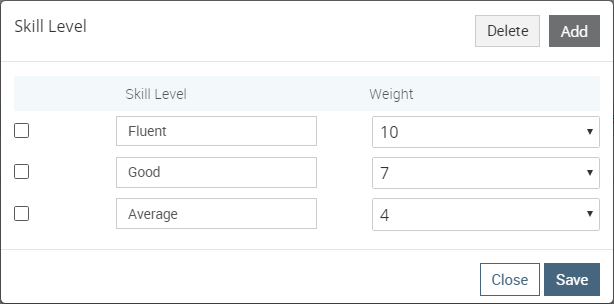
Figure: Skill Level
- Assign the users in the respective skill by clicking "Manage Users" button.
- Select the user from "Available" section.
- Click on ">" symbol to assign the user. If administrator wants to unassign a user from the campaign, then simply select the user and click on "<" symbol to unassign that user.
- Assigned users will be listed in "Assigned" section.
- Skill Levels can also be updated for each user assigned in the skill. As shown in screenshot below for english skill, 2 users are assigned i.e. nayan and john. For user Nayan, skill level fluent has been selected and for user john, skill level good is selected.
- Click on "save" button to store the changes.
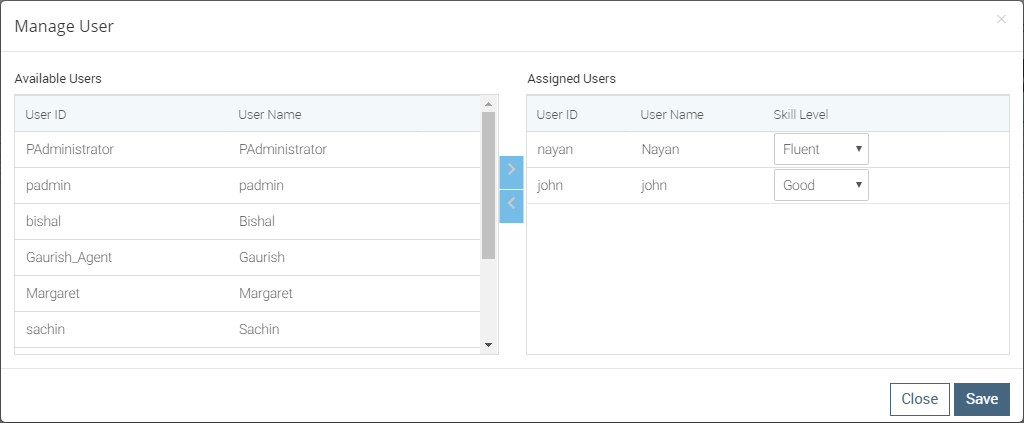
Figure: Manage User
- Under Skill in queue header, queue and campaign will be shown in which that particular skill is assigned. Assignment of skills in different queues is shown in Section 3.3.5 "Default Working".
- To delete a skill , select that particular skill and click on "Delete" button.
- Click on "Apply" button to save the changes.
- Click on "Refresh" button to discard the changes.
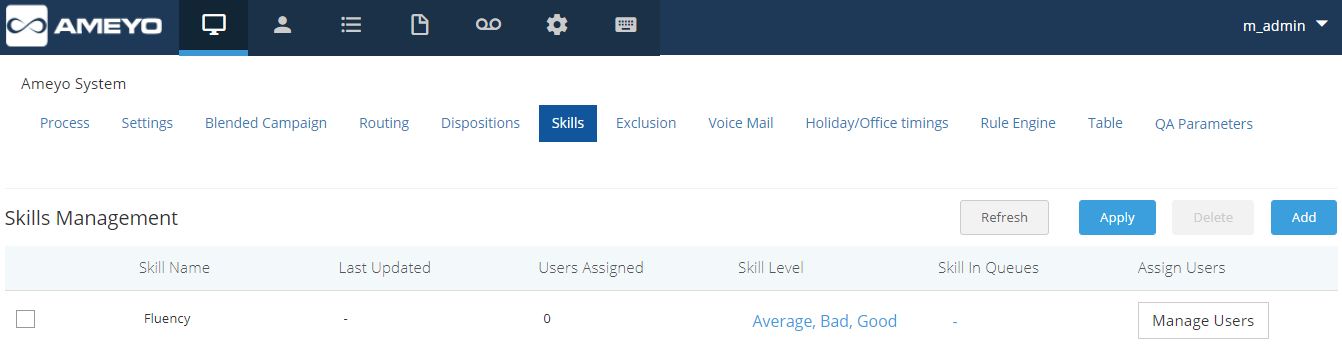
Figure: Skills Management
Exclusions
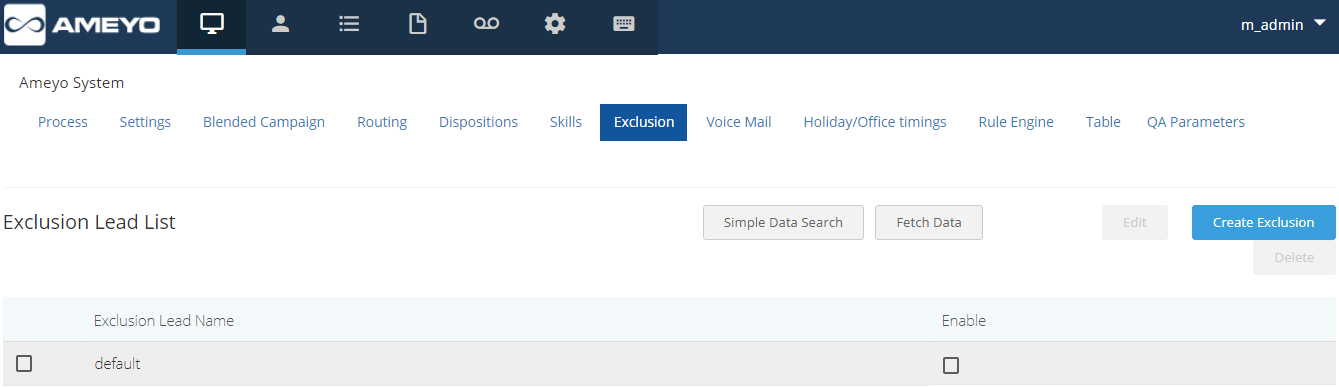
Figure: Exclusions
If administrator wants to exclude few numbers i.e. numbers which should not be dialled in ameyo system, then they can be uploaded under exclusion tab by adding leads.
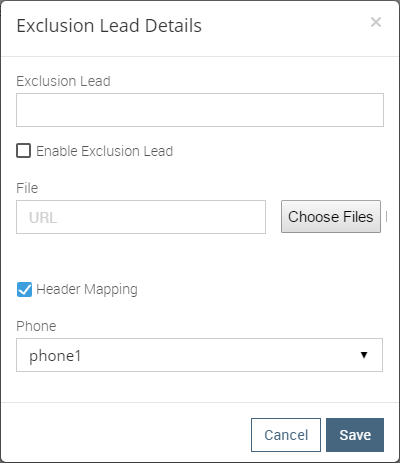
Figure: Exclusion Lead Detail
- Create Exclusion: This tab is used to create exclusion lead by clicking on "Create Exclusion" button.
- By clicking on "create exclusion", a pop-up will appear. Now administrator can fill the exclusion field details.
- In exclusion lead column, add the name of the lead and enable that lead.
- Choose the csv file which is to be uploaded by clicking on "Choose Files", once the file has been chosen click on "upload" button to upload that file.
- Administrator can map the csv file headers of lead with phone1, phone2, phone3, phone4, phone5, timezone and name headers.
- Click on "Save" button to save the changes.
- Fetch Data: Administrator can select a lead and directly click on "Fetch Data" button to fetch all the record that has been uploaded in that particular lead.
- Simple Data Search: This button is used to filter out the data from uploaded lead on the basis of certain filters.
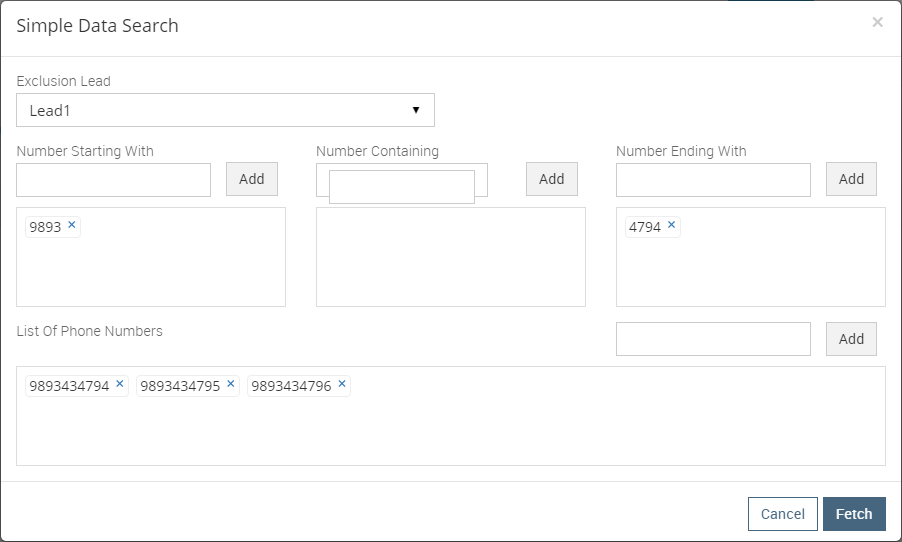
Figure: Simple Data Search
- After clicking on "Simple Data Search" button, a pop-up will appear and certain fields need to be filled to filter out the data as per the necessity.
- Select the lead from which the data has to be filtered.
- There are following filters which can be filled accordingly:
- Numbers starting with: Administrator can enter the initial digits of phone numbers to filter out the records, e.g. 1234, 3456, etc.
- Numbers containing: Administrator can enter the phone number digits to filter out the records, e.g. 1234, 3456, etc.
- Numbers ending with: Administrator can enter the last digits of phone numbers to filter out the records, e.g. 1234, 3456, etc.
- List of phone numbers: Administrator can also add the complete phone numbers to filter out the records, e.g. 9896323683, 9654484787 etc.
- Click on "Add" button to save the changes.
- Delete: Administrator can also delete a particular lead simply by selecting the lead which is to be deleted and click on "Delete" button.
- Edit: The leads can also be edited by selecting that particular lead which is to be edited and click on save button after doing the necessary changes.
Voicemail (Licensed Feature)
Voicemail is a method of storing voice messages electronically for later retrieval by administrator and supervisor.
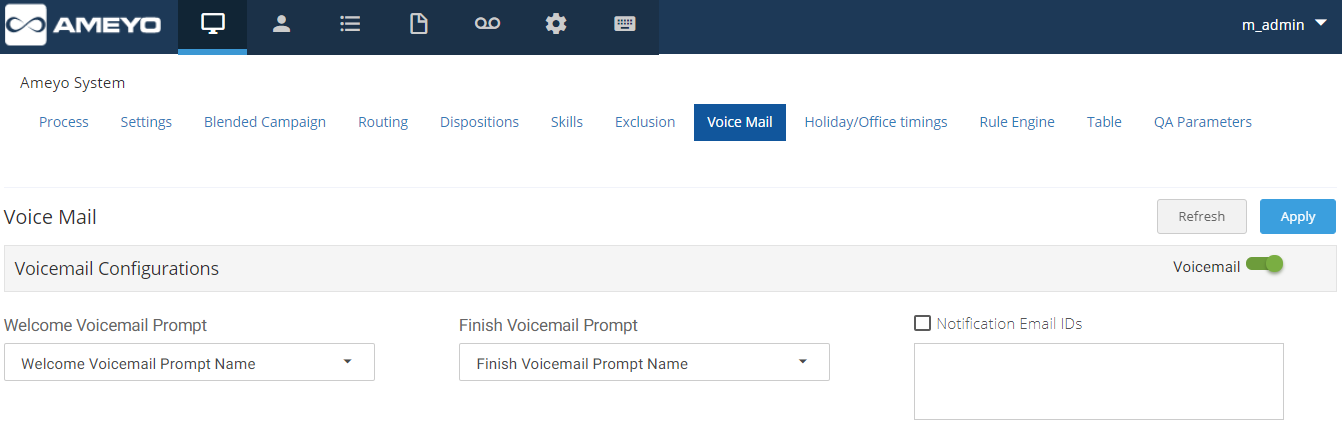
Figure: Voicemail
- This feature is licensed. This tab will be only visible if voicemail license is procured at the center.
- The Administrator can enable Voicemail feature at system level if enabled by sliding the "voicemail" bar towards right. If this is not enabled, then voicemails will not be recorded.
- To enable sending the voicemail's notifications, administrator needs to check the "Notification Email IDs" checkbox.
- Notifications Email IDs: Administrator can enter the multiple email ids (gmail domain only) separated by comma eg, testemail@domain.com, testemail@domain.com, and others.
- Welcome Voicemail Prompt: Select the welcome voicemail prompt from the drop down field.
- Finish Voicemail Prompt: Select the finish voicemail prompt from the drop down field.
- Click "Apply" button to save the changes.
- Click "Refresh" to discard the changes.
Holiday/Office Timings (Licensed Feature)
Holiday/Office Timings is a feature which defines the holiday and office hour timings. This feature is licensed. This tab will be only visible if holiday/ office timing license is procured at the center.
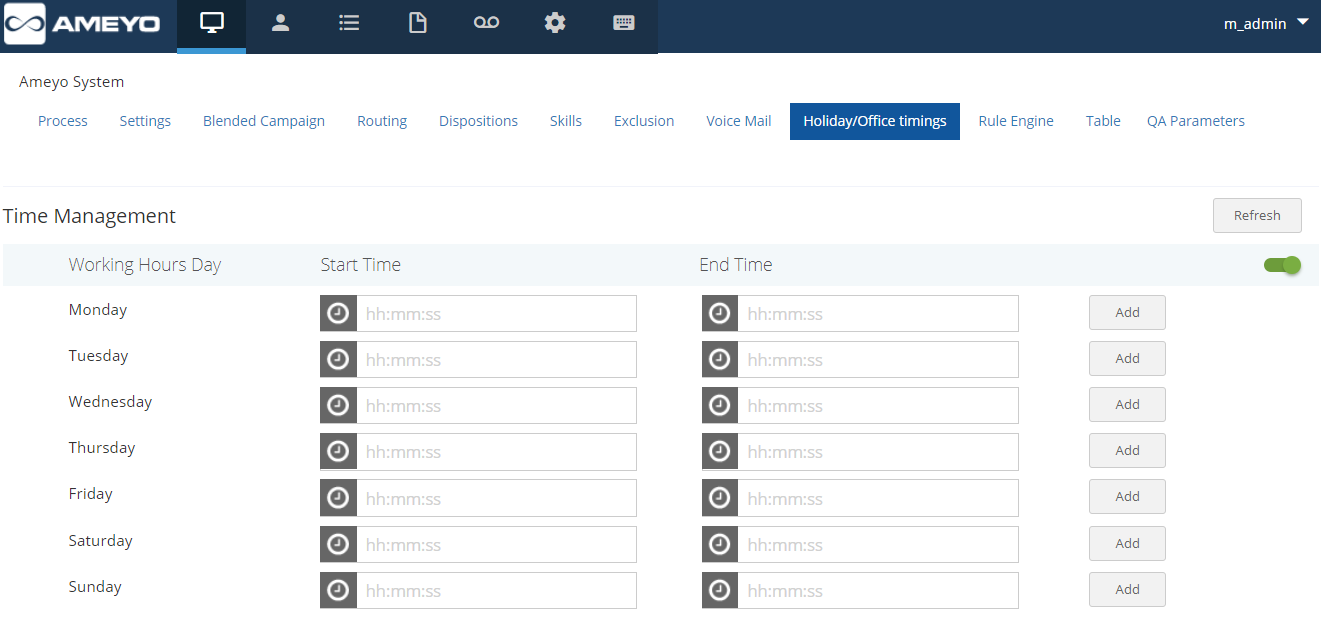
Figure: Holiday/Office Timings
- Working Hour Configuration:
- The Administrator can enable office hour at system level under Time Management by sliding the working hours bar towards right to enable working hours. If this is not enabled, then office hour configuration will not be configured.
- Administrator can add office hours for each day of week by clicking on "Add" button. Select the weekday on which office hour needs to be configured.
- Administrator can select the office start time and end time.
- Administrator can also delete the added office hour by clicking on "Delete" button.
- Holiday Configuration:
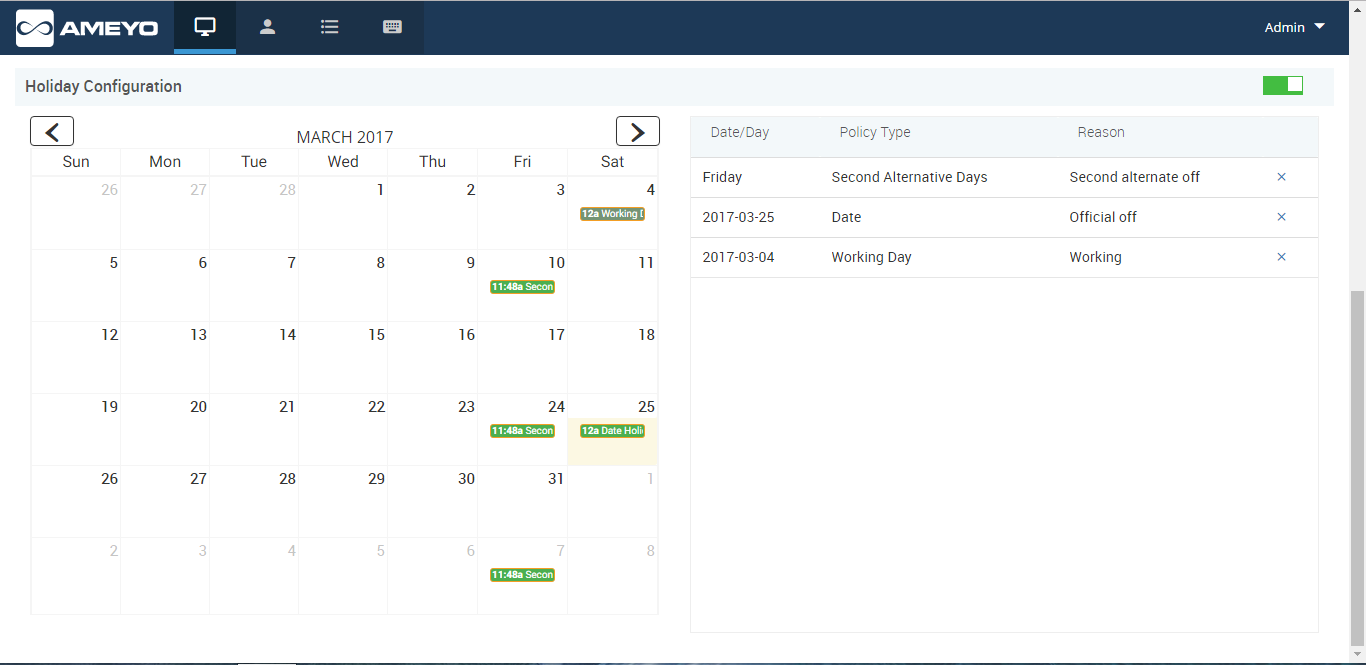
Figure: Holiday Configuration
- The Administrator can enable Holiday at system level under this option by sliding the holiday configuration bar towards right. If this is not enabled, then holiday configuration will not be configured.
- Administrator can select the date from calendar to mark different days as holiday.
- To create a day as holiday or working day, click on that date and a pop-up will appear, e.g. if 25th March has to be an off for all the employees, then click on 25th march from calendar and a pop-up will appear.
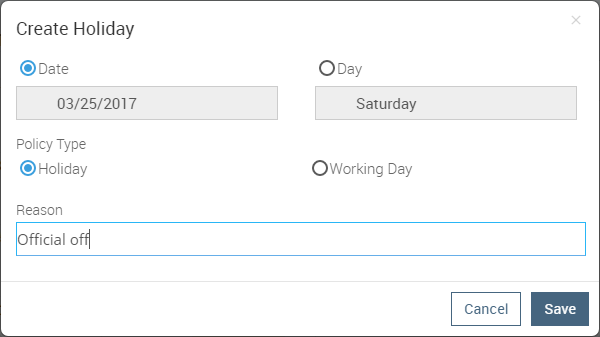
Figure: Create Holiday
- Select the policy type as holiday or working day and state the reason for the same.
- Click "Save" button to store the changes.
- Administrator can also select the policy type day wise, e.g. select the day which is to be taken as an off and select the following policy types.
- All Days: Administrator can select the weekday on which holiday needs to be configured.
- First Alternate Days: Administrator can select the weekday on which holiday needs to be configured. Holiday will be configured on first alternate weekday.
- Second Alternate Days: Administrator can select the weekday on which holiday needs to be configured. Holiday will be configured on second alternate weekday (as selected below).
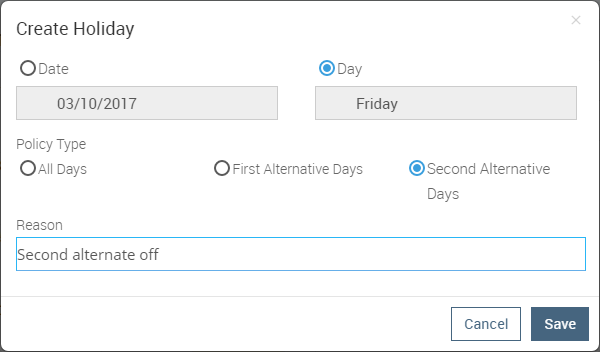
Reason to create holidays
- Enter the reason for holiday.
- Click "Save" button to store the changes.
Rule Engine
"Refer Doc"
Table
Table tab stores the customer information (configuration related) in Ameyo. There are some fields required for the integration with Ameyo (Primary Key etc.). In that case, we define the data types or columns.
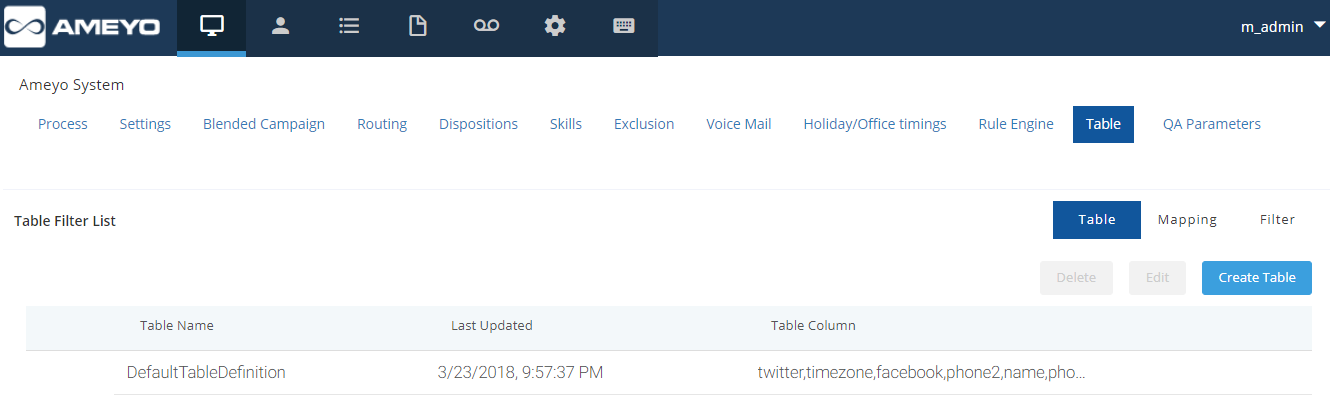
Figure: Table
Create Table
Administrator needs to follow below steps for creating new data table.
- Click on table tab and click
 button. A pop-up will appear.
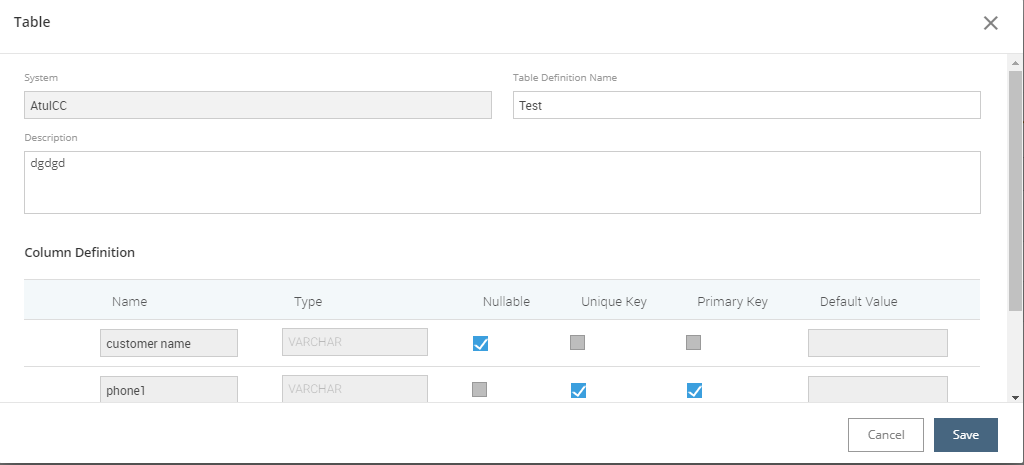
Figure: Create Table
- Administrator needs to fill following details:
- System: This contains the system ID which is taken by default.
- Table Definition Name: Enter the name of the table.
- Description: Enter the description regarding the table.
- Column Definition: Click on Add button for creating the columns for the table and define the columns by entering following details: column name, type(Boolean, Varchar, Integer), and check the check box whether it will be considered as nullable, unique key, primary key or none.
- Click "Save" button to create the table.
- Click "Cancel" button to refresh the changes.
Table Mapping
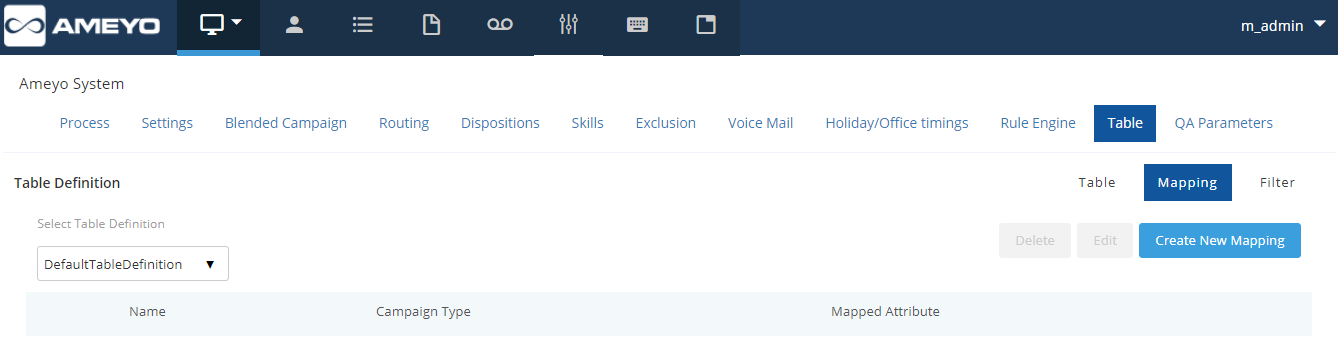
Figure: Table Mapping
Administrator needs to follow below steps for creating new mapping:
- Click on table tab and click on Create New Mapping button. A pop-up will appear.
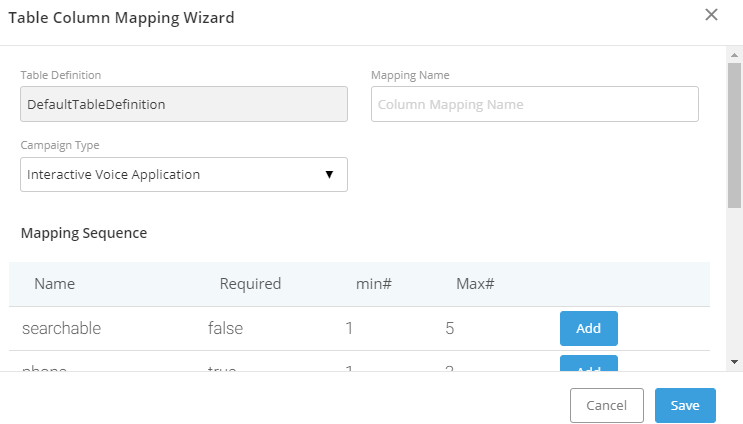
Figure: Table Column Mapping
- Administrator needs to fill the following details in order to create new mapping.
- Mapping Name : User can enter mapping name.
- Campaign Type : User can select the Campaign type from the provided drop down.
- Mapping Sequence : User can add the mapping sequence by clicking on Add button.
- Attribute : User can select the attributes required for column mapping.
- Click "Save" button to create the table.
- Click "Cancel" button to refresh the changes.
Table Filters
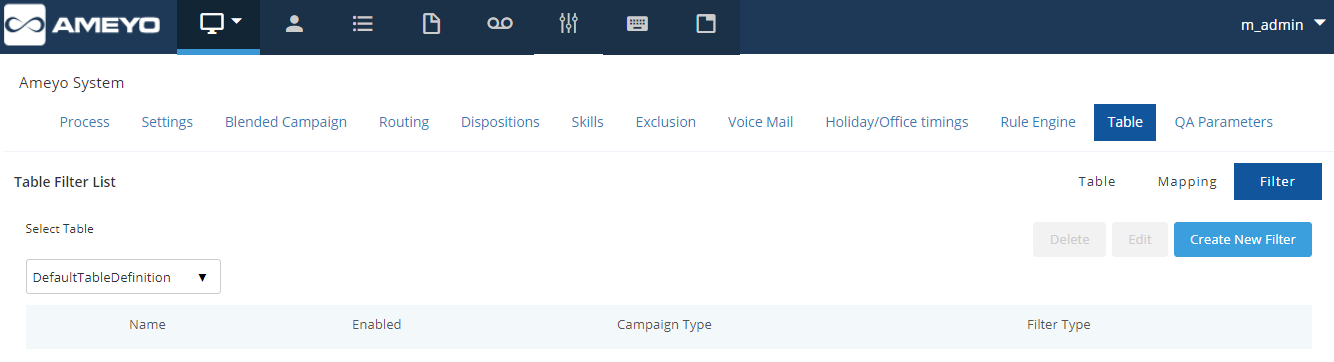
Figure: Table Filters
Administrator needs to follow below steps for creating new filters.
- Click on table tab and click on Create New Filter button. A pop-up will appear.
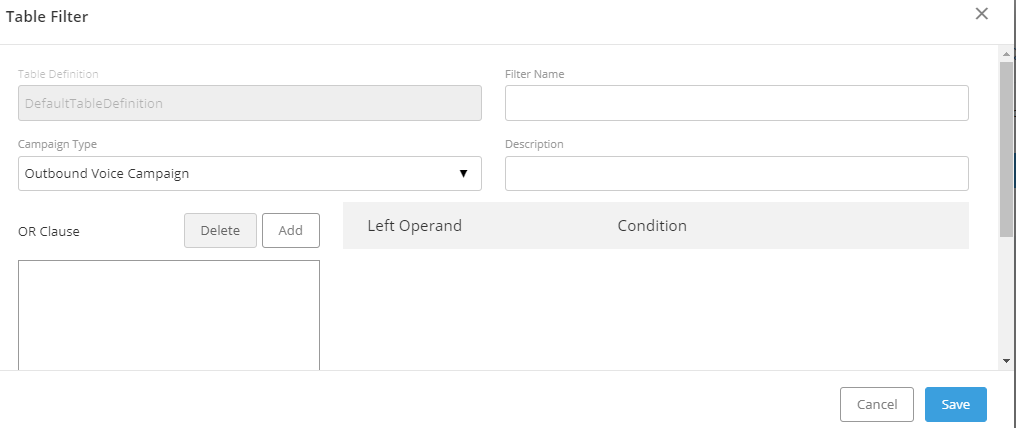
Figure: Create a Table Filter
- Administrator needs to fill the following details in order to create new mapping.
- Filter Name: User can enter filter name to be created.
- Campaign Type: User can select the Campaign type from the provided drop down.
- Description: User can enter the description regarding the filter.
- User needs to click on the Add button to create new filter by mentioning the required condition.
- Click "Save" button to create the table.
- Click "Cancel" button to refresh the changes.
QA Parameters
Administrator can define different quality parameters which help the Administrator to rate the quality of a particular call. Administrator can create new parameter by performing the following steps.
- Click
 . A pop-up is displayed on the screen.
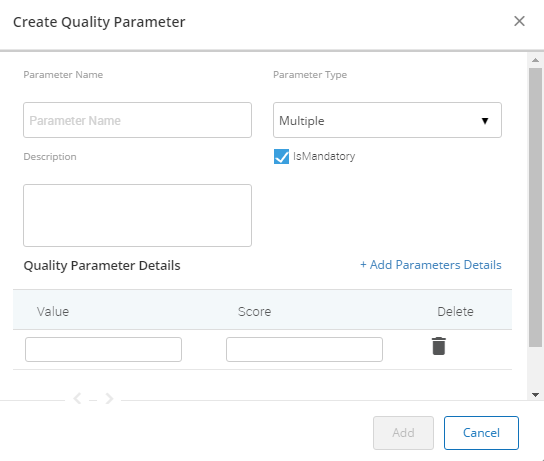
Figure: Create Quality Parameter
- Administrator needs to fill following details.
- Parameter Name: Enter the name of parameter.
- Parameter Type: Select the parameter type from the dropdown field i.e. boolean, multiple, comment, range and add parameter details.
- Description: Enter the description of parameter.
- Is Mandatory: Check the check box if this parameter has to be made mandatory i.e. supervisor has to rate the call.
- Click
 button to add the parameter.
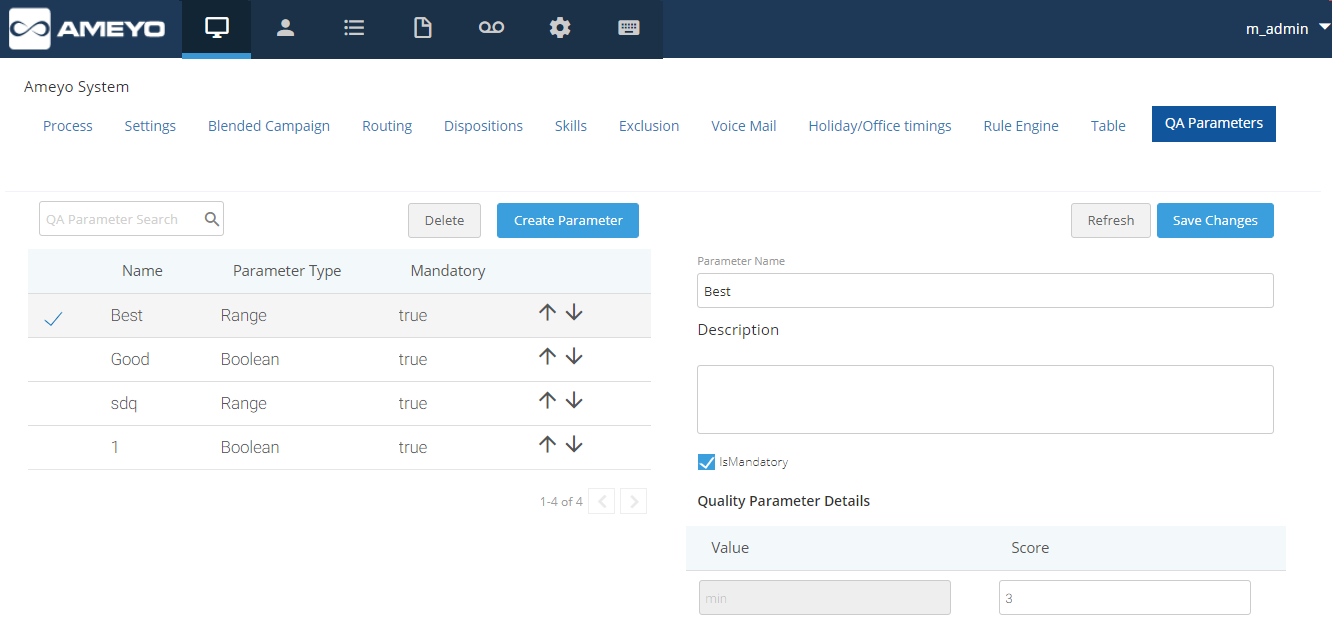
Figure: Adding QA Parameter
- Administrator can make the changes in QA parameter by selecting the particular parameter and update the changes.
- Click
 button to save the changes.
- Click
 button to discard the changes.
Users
The Administrator can create new users and delete the existing users from Ameyo system.
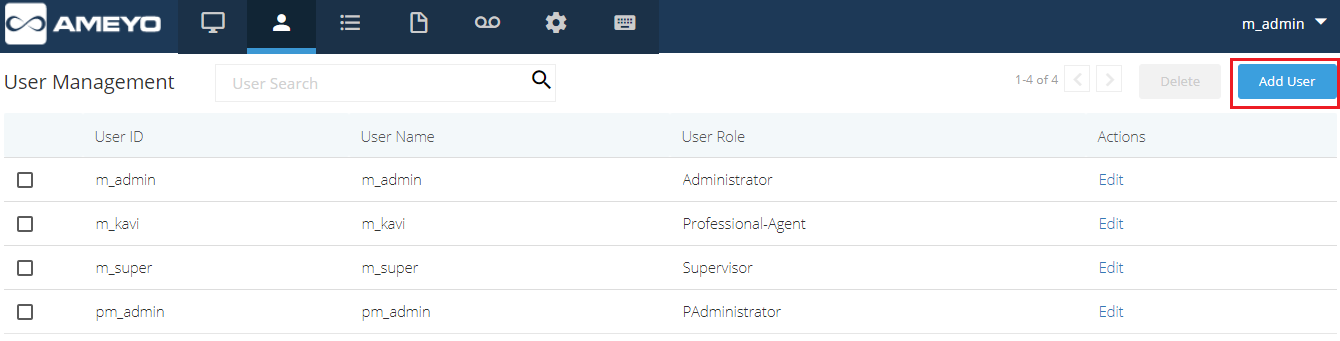
Figure: User Management
- Add User: To add a new user, click on "Add User" button.
- Enter the User ID, User Name in the provided text boxes.
- Select the user role from the "System Role" drop down field such as Agent, Supervisor, Administrator, and others.
- Enter the password in the provided text box and confirm the password by re entering the same in "Confirm Password" text box.
- Enter the description about the user in the provided text area.
- Select the Allowed Interaction Extensions from the drop down field. Allowed Interaction Extension means that number of media interactions i.e. chat, mails, social media etc. can a Agent handle.
- To enable E-mail ID for user check the checkbox provided and enter the E-mail ID of the user in the textbox.
- Login Policy: Select the Login policy from the provided drop down box.
- Click on "Save" button to add the user.
- Click "Cancel" button to discard the changes.
- Delete User: Perform the following steps to delete the user.
- elect the user to be deleted by checking the checkbox.
- Click on "Delete" button to delete the selected user.
- Edit User: Administrator can edit the general information of user and also change different privileges given to that particular user. To edit a particular user, select that user by checking the checkbox provided and click on edit option which is there in front of the name of that user. There are following information which needs to be edited:
- General Information: Under this category, general information such as User Name, User ID, Password, etc. can be edited.
- Campaign Masked Privileges: The administrator can restrict some action for particular user and campaign (in which respective user is assigned) by simply checking the respective checkboxes. Following privileges can be restricted for any user:
- Manual Dial
- View disposition of a call
- Listen to self campaign voice logs
- Voice Mail Configurations: This feature is licensed. This tab will be only visible if voicemail license is procured at the center.
The Administrator can enable Voicemail feature at system level is enabled by sliding the "voicemail" bar towards right. If this is not enabled, then voicemails will not be recorded. To enable sending the voicemails notifications, administrator needs to check the "Notification Email IDs" checkbox.
- Notifications Email IDs: Administrator can enter the multiple email ids (gmail domain only) separated by comma. For example, email1@domain.com, email2@domain.com, and others.
- Welcome Voicemail Prompt: Select the welcome voicemail prompt from the drop-down field.
- Finish Voicemail Prompt: Select the finish voicemail prompt from the drop-down field.
- Click "Apply" button to save the changes.
- Click "Cancel" to discard the changes.
Campaigns
This tab is used for managing the campaigns. Select the campaign by clicking on symbol present in left panel. Perform the following steps to create a new campaign.
- Select the campaign by clicking
 icon located in the left panel.
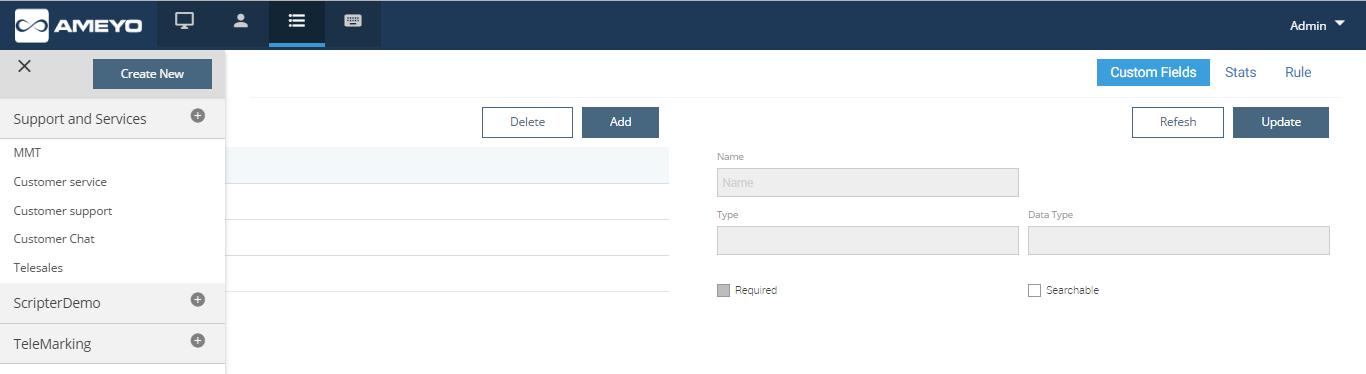
Figure: Campaign Page
- To create a new campaign, click "Create New Campaign" button. A new page is displayed on the screen.
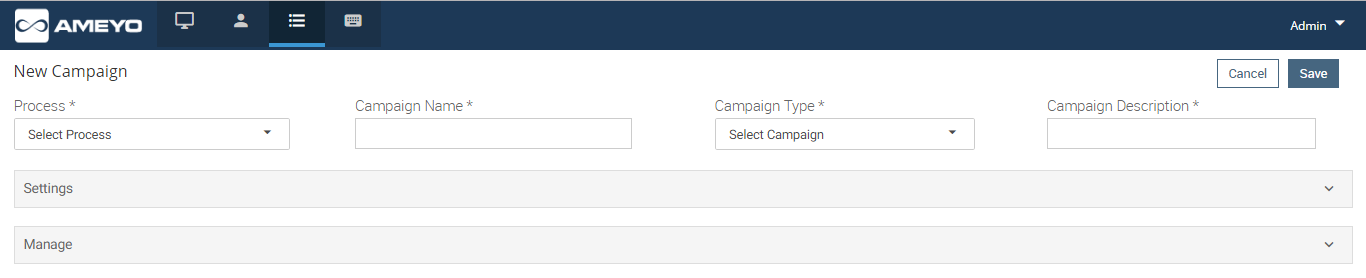
Figure: Create New Campaign
- Following fields need to be entered:
- Process: Select the process in which the campaign is to be created.
- Campaign Name: Enter the campaign name.
- Campaign Type: Administrator can choose different types of campaign i.e.: Outbound voice campaign, Interactive voice campaign, chat campaign, and Interaction campaign.
- Campaign Description: Enter the description of the campaign.
- Administrator can do the general settings for the campaign(explained in Section 3.3.1.1 General) and also assign the users in the campaign.
- Administrator can delete a particular campaign by clicking
 button. When administrator clicks "Delete Campaign" button, a small window will pop-up regarding the confirmation of deleting that campaign.
Settings
The Administrator can edit the campaign settings through this tab. Following sub-tabs are available in this tab.
- General
- Advanced
- Dial Profile
General Settings
Under General Settings, there are following options in which administrator can change/edit different settings.
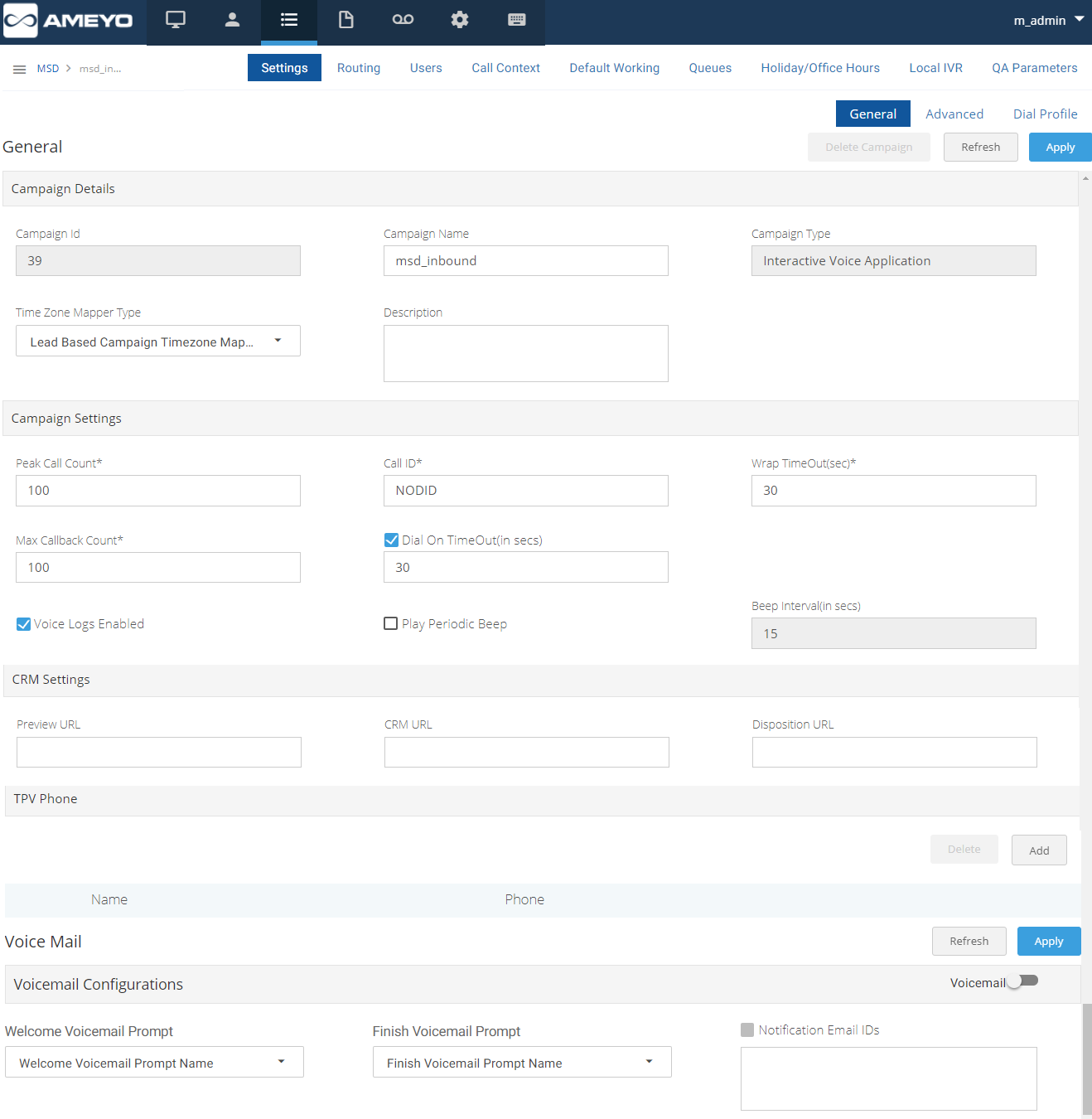
Figure: General Settings of Campaign
- Campaign Details: Under this option administrator can edit general details of a campaign.
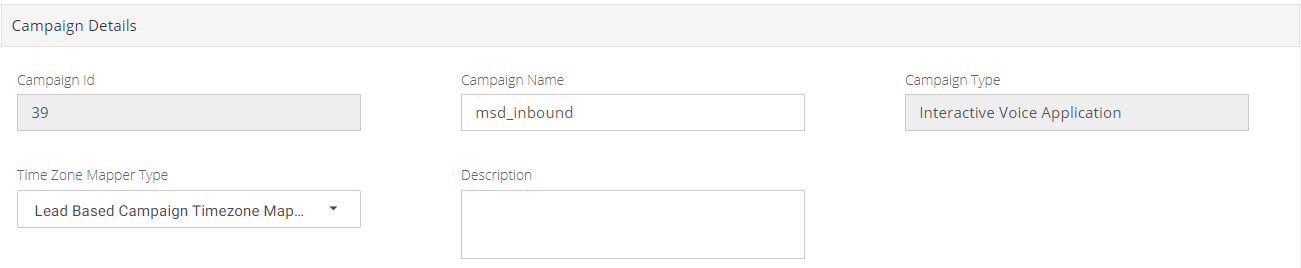
Figure: Campaign Details
- Campaign ID(Non editable field): This is the unique id to identify a campaign.
- Campaign Name: In this name of the campaign can be edited/changed.
- Campaign Type(Non editable field): In this campaign type is entered which is done while creating a campaign, i.e. Interactive Voice Application, Outbound Voice Application, Chat campaign, Interaction campaign, and others.
- Time Zone Mapper Type: Select the time zone mapper type from the drop down:
- lead.based.campaign.timezone.mapper: In this case timezone of the customer is specified from the timezone set in the lead settings.
- default.campaign.timezone.mapper: In this case time zone is determined from customer data. We get the timezone info from the column specified against timezone column mapping in the campaign.
- phone.pattern.based.campaign.timezone.mapper: Phone Pattern Based Campaign Timezone Mapper is related to number management in Ameyo. Suppose, a company has customers in various parts of the world. The company makes an auto-dial to its customers using ameyo dialer. The company wants to group the customers based on the country code and area code of the customer number to a specific timezone and dial to those group of customers based on some specific criteria. With phone pattern based campaign timezone mapper, country code and area code can be mapped to a timezone and all numbers with that country code and area code will be dialled according to that timezone restriction/criteria.
- Description: Campaign description can be added.
- Campaign Settings: Administrator can change the following campaign settings under this feature.
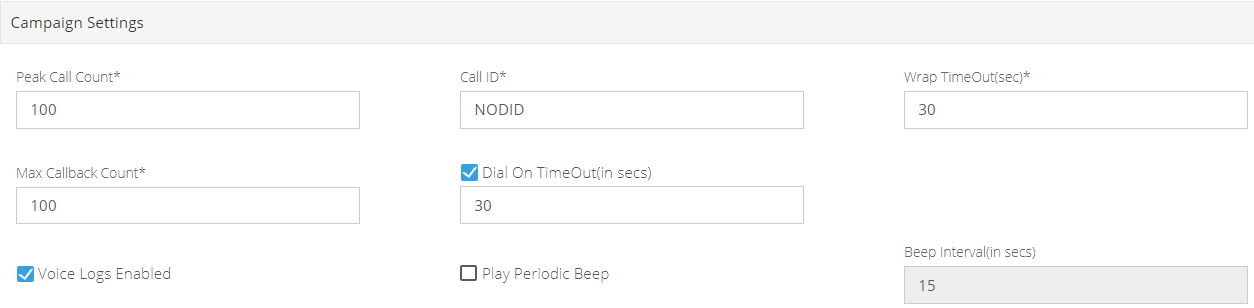
Figure: Campaign Settings
- Peak Call Count: It is the maximum number of simultaneous calls which should be dialed by the dialer for particular campaign.
- Call ID: This is the call identification number for the customer. Specified caller id will be displayed to the customer end, customer will see the specified caller id. If "NODID" is selected then, no caller id will be displayed to end customer. DID defined here shall be allowed by PRI provider.
- Wrap TimeOut(sec): The Administrator can specify the maximum time for agent to dispose the call after call disconnection. If agent doesn’t dispose the call within this time then call will be disposed automatically.
- Max CallBack Count: The maximum number of callback calls that can be dialed out simultaneously.
- Voice Logs Enabled: Select this checkbox option to enable the voice call recording for respective campaign.
- DialOn TimeOut Enabled: Dial On TimeOut is the maximum time allowed for the agents to initiate the call. In case of Preview dialing mode, preview (customer details- CRM) is displayed to agent. If agent doesn’t dial the number after the "Dial on Timeout" then dialer will dial the number automatically. If this option is checked then, dial on time out feature will be enabled.
- Play Periodic Beeps: User can choose whether to play periodic beeps or not by enabling or disabling this check box.
- Beep Interval (in secs): User can enter the Beep Interval Time.
- CRM Settings:

Figure: CRM Settings
- Preview URL: If agent previews the call, then page corresponding to this URL will be displayed to the agent.
- CRM URL: URL to display the CRM on call.
- Disposition URL: The specified URL will be called to send the disposition of the call to CRM. "Basically this is used when Third party CRM Integration will be deployed."
- TPV Phone: As per the process requirement, there may be a few numbers on which transfer of call is very frequent. Here those frequently used numbers are added so that the agent can directly transfer the case to those numbers. So, third party verification number is used to transfer the call to verifier.

Figure: TPV Phone
- Enter the name and phone number of third party in the respective text box provided and click "Add" button to add that number.
- To delete an already added TPV number, select the checkbox and click "Delete" button.
- Click "Apply" button to store the changes.
- Click on "Refresh" button to discard the changes.
Advanced Settings
You can change the configuration in advanced settings.
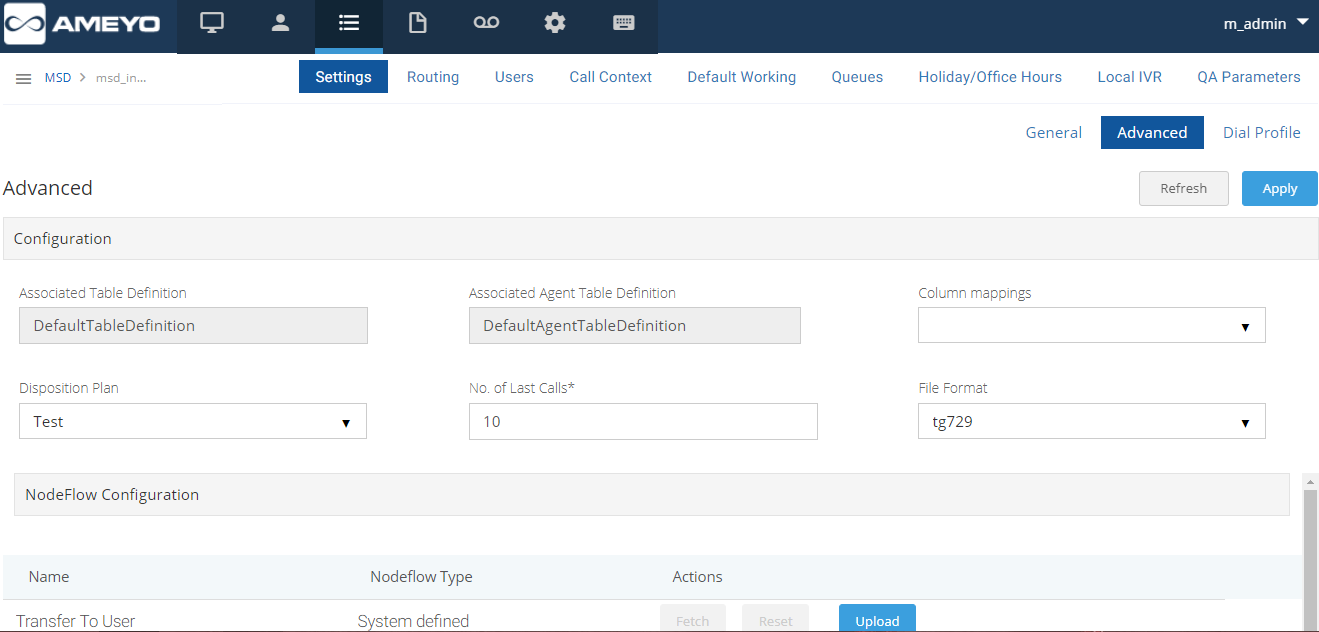
Figure: Advanced Settings
Under advanced settings, there are following options in which administrator can change/edit different settings:
- Configuration:
- Associated Table Definition: This shows the name of the data table which is configured/ enabled in a particular campaign. This field is non-editable.
- Associated Agent Table Definition: This shows the name of the agent table definition which is configured/ enabled in a particular campaign. This field is non-editable.
- Disposition Plan: Administrator can select the Disposition Plan to activate in the campaign.
- Number of Last Calls: Administrator can enter the count of calls for which the information is available for supervision in the call detail tab.
- File Format: Administrator can select the Format of the voice log in which recording is to be done.
- Node Flow Configuration :Suppose if we require some customization in the default dialing behavior of Ameyo. We need to do the changes in the Default Nodeflow and upload the same here. To upload the Nodeflow, specify the directory path from the Browse button and click on the Upload button.
Dial Profile Settings
It is a media through which a call .
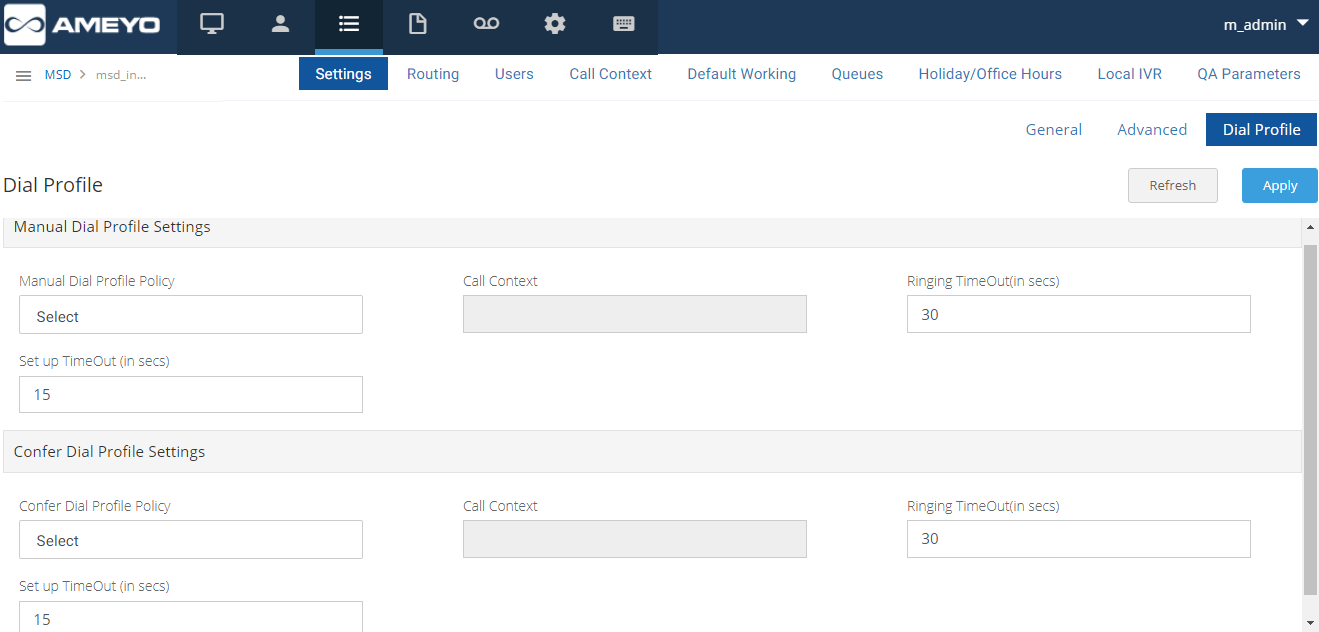
Figure: Dial Profile Settings
There are following dial profile settings which can be defined by administrator.
- Manual Dial Profile Settings: The Administrator can define the manual dial profile settings from here.
- Manual Dial Profile Policy: Select the routing policy which will be used for manual calls.
- Call Context: Call context is basically the SIP channel that is visible and will be used by the agent to initiate the calls. Enter the name of the call context.
- Ringing TimeOut(in secs): The maximum ringing time out allowed.
- Set up TimeOut(in secs): Setup time is the time from initiation of a call till the connection established. The maximum setup time out allowed.
- Confer Dial Profile Settings: The Administrator can define the confer dial profile settings from here.
- Confer Dial Profile Policy: Select the routing policy which will be used for conference calls.
- Call Context: It is basically the SIP channel that is visible and will be used by the agent to initiate the calls. Enter the name of the call context.
- Ringing TimeOut(in secs): The maximum ringing time out allowed.
- Set up TimeOut(in secs): Setup time is the time from initiation of a call till the connection established. The maximum setup time out allowed.
- Auto Dial Profile Settings: The Administrator can define the auto dial profile settings from here.
- Auto Dial Profile Policy: Select the routing policy which will be used for auto calls.
- Call Context: Call context is basically the SIP channel that is visible and will be used by the agent to initiate the calls. Enter the name of the call context.
- Ringing TimeOut(in secs): The maximum ringing time out allowed.
- Set up TimeOut(in secs): Setup time is the time from initiation of a call till the connection established. The maximum setup time out allowed.
- Click "Apply" to store the changes.
Alternatively, Click "Refresh" to discard the changes.
Routing Settings
The Administrator can define the routing of inbound and outbound calls through this tab.
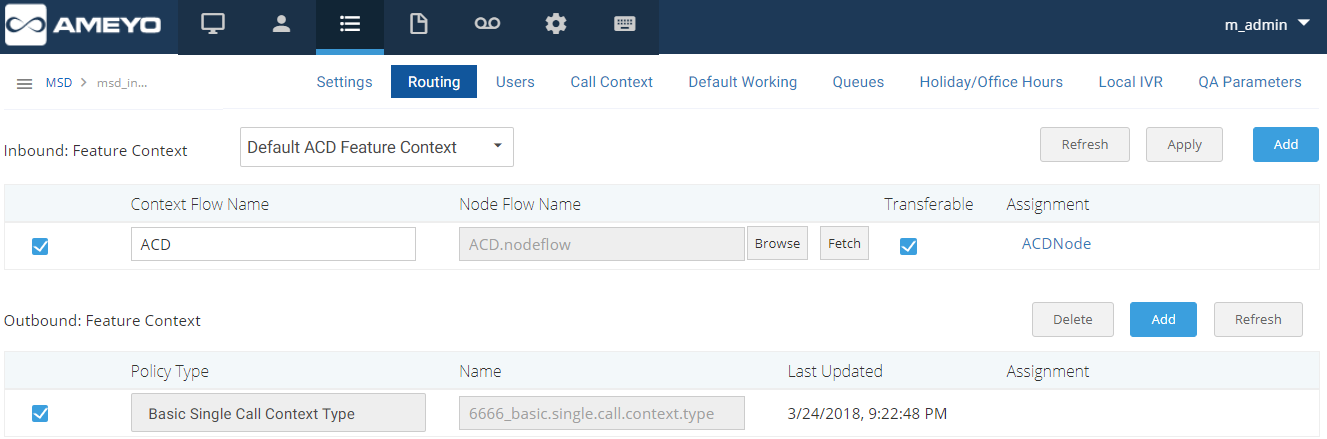
Figure: Routing Settings
- Under Inbound: Feature Context, Administrator can upload the nodeflow here and can also define the mapping of ACDs with queues.
- To add a new feature context (nodeflow/ IVR) the nodeflow, click on "Add" button.
- Enter the Context Flow Name.
- Upload the nodeflow by clicking on "Browse" button and administrator can also fetch the uploaded nodeflow (IVR) by clicking on "Fetch" button.
- If "Transferrable" checkbox is checked then call can be transferred from this IVR. If it is unchecked then call can’t be transferred anywhere else.
- To map the ACDs of IVR with created queues, click on the box under "Assigned" option.
- Click "Save" button to store the changes.
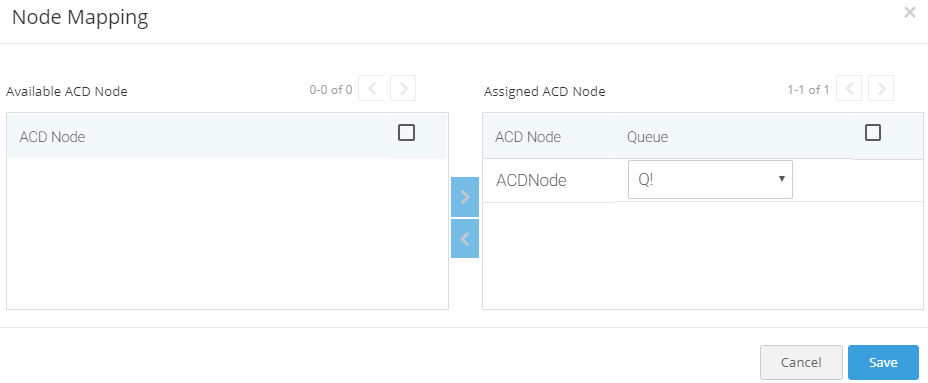
Figure: Node Mapping
- After uploading and mapping the nodeflow, click "Apply" button to save the changes.
- In "Outbound" "Feature Context", Administrator can add the routing policy for Outbound calls.
- To add the call context determination policy, click "Add" button.
- Select the Policy type from the drop down field.
- basic.single.call.context.type: It is the policy type in which outbound calls will be dialed out from the single call context.
- phone.based.call.context.type: It is the policy type in which administrator can define the pattern on basis of which numbers will be dialed out from multiple call context. It will only reflect after procuring appropriate licenses.
- basic.multiple.call.context.type: It is the policy type in which outbound calls will be dialed out from multiple call context. It will only reflect after procuring appropriate licenses.
- Enter the name for the policy.
- Assign the call context by clicking the box under "Assignment" option.
- Click "Delete" button to delete call context policy.
Users
In this tab, Administrator can assign the user to a particular campaign.
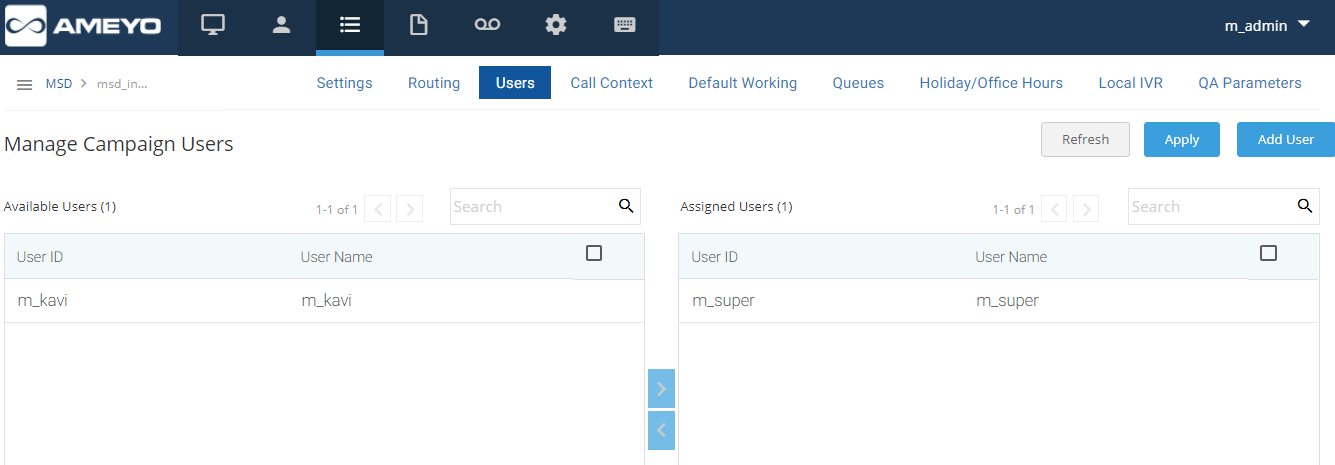
Figure: Manage Campaign Users
Perform the following steps to assign a user to a particular campaign.
- Select the user from "Available" section.
- Click '<' symbol to assign the user. If administrator wants to unassign a user from the campaign, then simply select the user and click '>' symbol to unassign that user.
- Assigned users will be listed in "Assigned" section.
- Click on "Apply" button to save the changes.
- Click on "Refresh" button to discard the changes.
- Administrator can also add user in that campaign by following the same steps which are explained in section 3.2 (Users).
- Administrator can also search a user by simply writing his/her name in search box provided.
Call Context
The Administrator can assign the call contexts in the campaign through this tab.
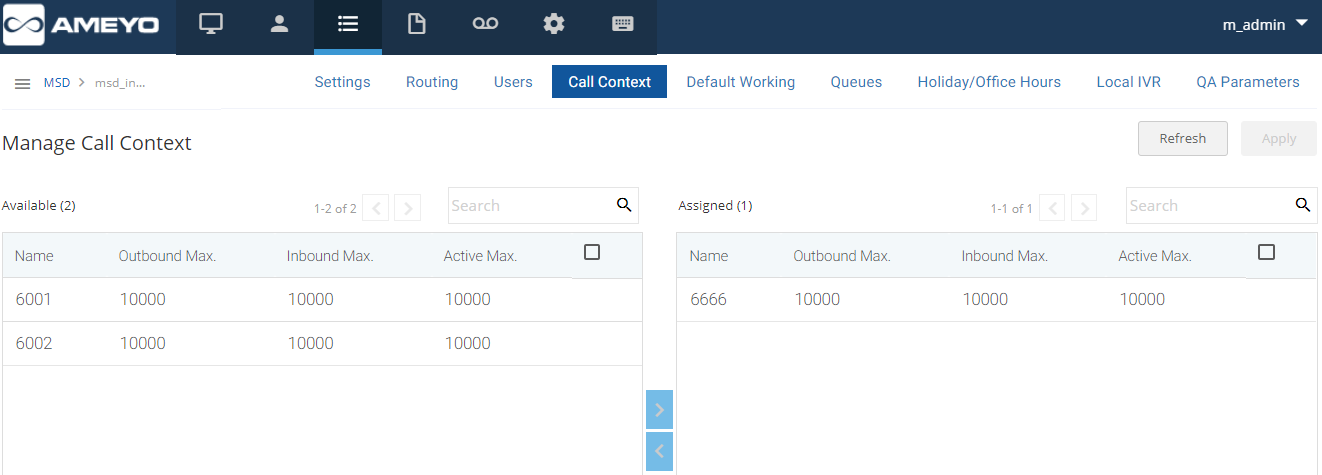
Figure: Call Context
Perform the following steps to assign a call context.
- Select the call context from "Available" section.
- Click ">" button.
Assigned call contexts will be listed in "Assigned" section.
To unassign any call context, perform the following steps.
- Select the call context from assigned section and click on "<" button.
- Click on "Apply" button to save the made changes.
- Click on "Refresh" button to discard the changes.
Default Working
Administrator can select whether default working in a campaign should be enabled or disabled for a particular user. If "Default Working" for a campaign is enabled, the agent will be automatically logged in to the campaign. The agent will not get the option to select the campaigns, which usually comes just after the login.
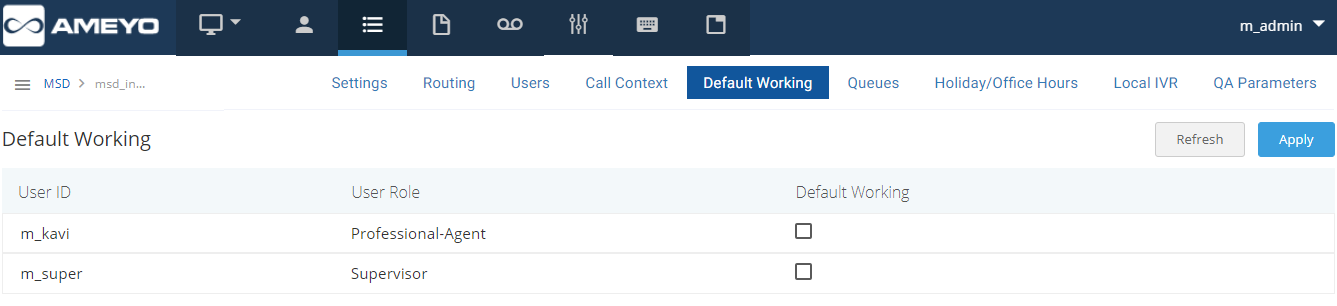
Figure: Default Working
Queues (Applicable for Inbound Campaigns Only)
The Administrator can create queues in inbound campaign. This tab is not applicable for outbound campaign. Queue is a group of agents to in which call can be routed through IVR. The agents assigned in the queues can only take the calls from respective IVR.
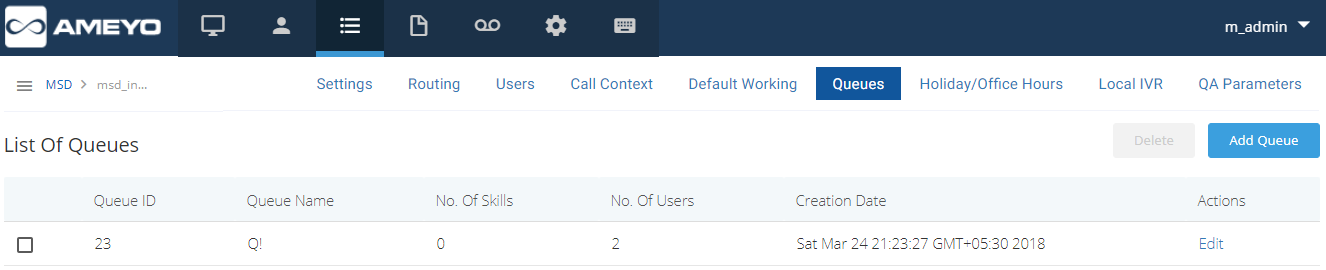
Figure: List of Queues
Perform the following steps to create a queue.
- To add a new queue in the campaign, click on "Queue" tab and click on "Add Queue" button.
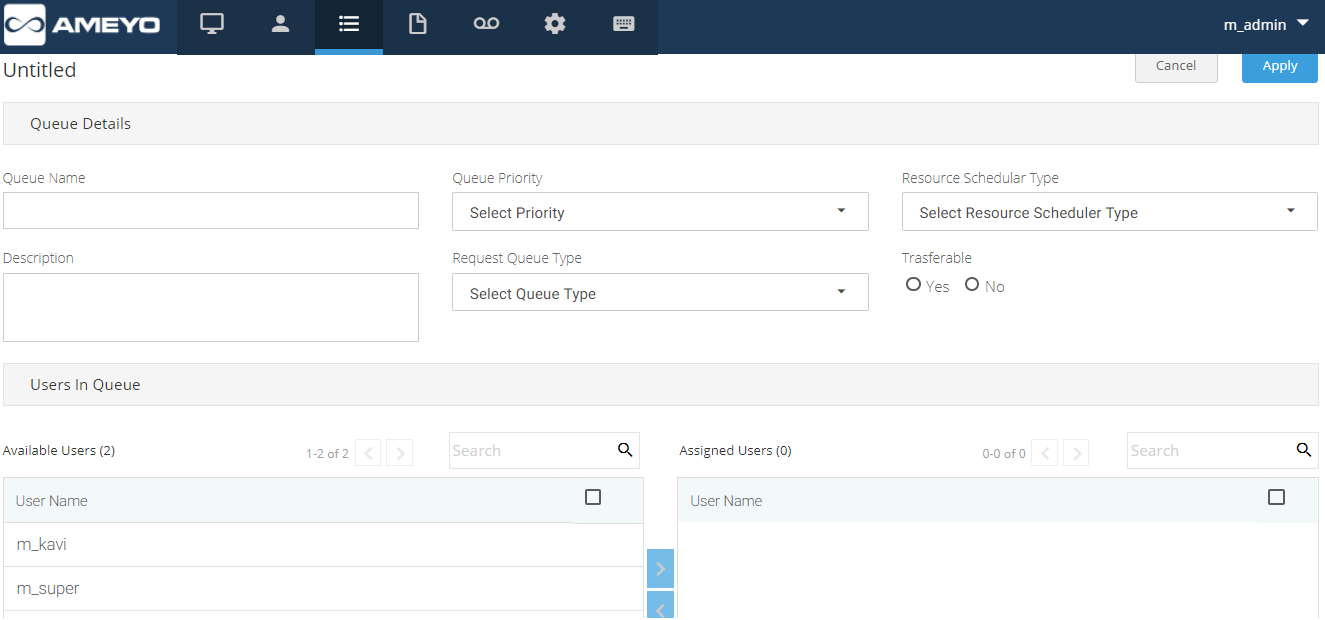
Figure: Create a Queue
- Enter the following details.
- Queue Name: Enter the name of queue.
- Queue Priority: Select the priority of that queue. If the agent is busy then call of queue which has highest priority will be routed first to agent. Call of low priority queue will be routed later.
- Resource Scheduler Type: Select the resource scheduler type like Least Recent used, multiple extension, multimedia or skill based.
- Least Recent Used: To route the call to the agent with highest idle time.
- Multiple Extension: If this option is selected then, agents of respective queue can handle both voice call and chat (agent must login into chat campaign as well). Appropriate licenses must be procured for the same.
- Multimedia: If this option is selected then, agents of respective queue can only handle chat (agent must login into chat campaign). Appropriate licenses must be procured for the same.
- Skill Based: If this option is selected then, agents of respective queue can handle the calls on the basis of skills and levels defined for them.
- Description: Enter the description for the queue being created.
- Request Queue Type: Select the request queue type i.e. FIFO (First in first out) or queue priority type.
- Transferable: Select the transferrable status for respective queue. If this option is selected as Yes, then agent can transfer the calls from this queue.
- Administrator can also assign the users to that particular queue by selecting the user in "Available Users" and click on ‘>’ symbol to assign the user.
- Assigned users will be listed in "Assigned User" section.
- Click on "Apply" to save the changes.
- Administrator can also edit a particular queue by selecting that queue and click on "Edit" option.
- A window will pop-up. Administrator can change the queue details or the users assigned.
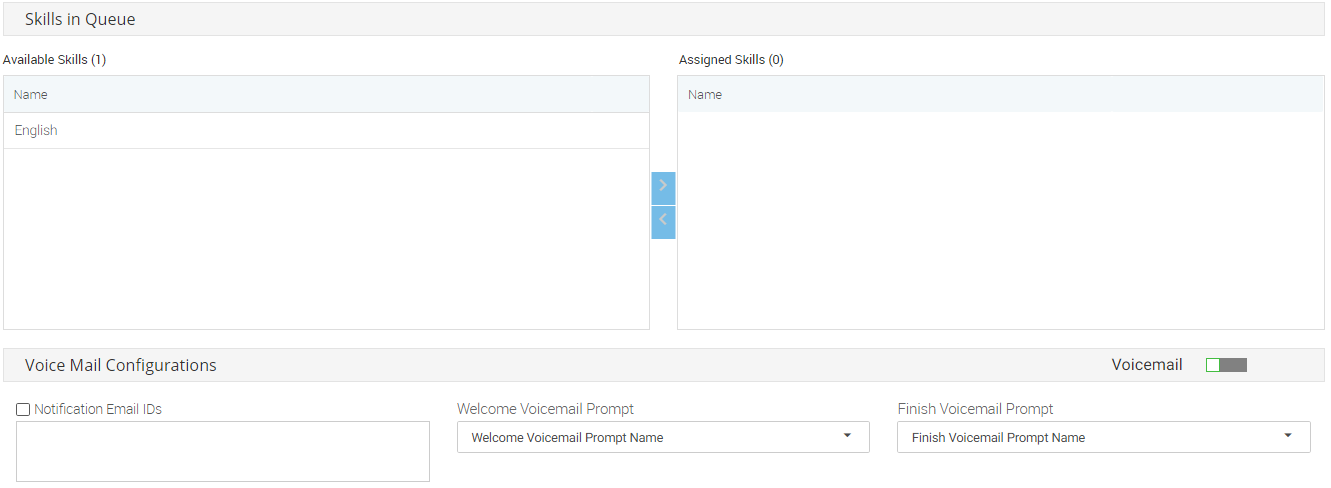
Figure: Skills in Queue
- Skills can also be assigned in that queue by selecting that skill in "Available Skills" and click on '>' symbol to assign that skill to that queue. To unassign any skill, select the skill from assigned skill section and click on "<" button.
- Assigned skills will be listed in "Assigned skills" section.
- The Administrator can enable Voicemail feature on queue level by checking sliding the "Voicemail" bar towards right. If this is not enabled, then voicemails will not be recorded.
- To enable sending the voicemails notifications, administrator needs to check the "Notification E-mail IDs".
- Notifications Email IDs: Administrator can enter the multiple email IDs (Gmail domain only) separated by comma. For example: email1@gmail.com, email2@gmail.com.
- Welcome Voicemail Prompt: Select the welcome voicemail prompt from the drop-down field.
- Finish Voicemail Prompt: Select the finish voicemail prompt from the drop down field.
- Click "Apply" button to save the changes.
Alternatively, click "Cancel" to discard the changes.
Holiday/Office Hours
Admin can configure the Holiday and Non Office Hours at campaign level and same is explained in "Section 3.1.9 Holiday/Office Timings".
Local IVR
Local IVR is a fully fledged IVR running locally. Call routing in Local IVR encompasses getting a placed call from one end point to another through network. Perform the following steps to create a Local IVR.
- Click "Local IVR" Tab.
- Click "Add" button. The following page is displayed.
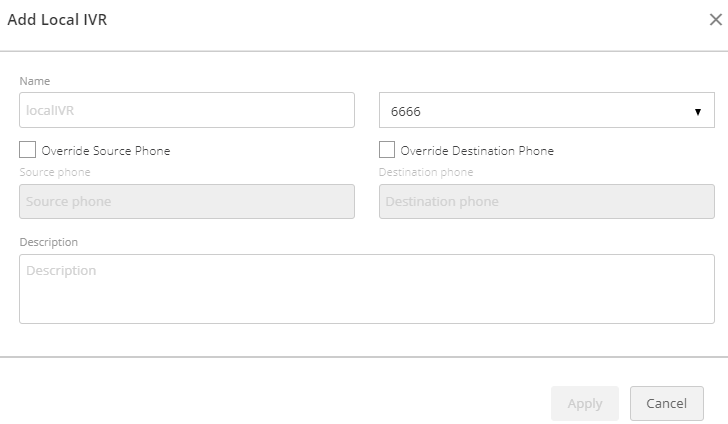
Figure: Add Local IVR
- Name: Enter the name for the Local IVR.
- Call Context: User can select the call context from the respective drop-down box.
- Override Source Phone: User can select whether to Override the source phone and can enter the source phone in the provided text box.
- Override Destination Phone: User can select whether to Override the destination phone and can enter the destination phone in the provided text box.
- Description: User can enter the description regarding the Local IVR.
- Click on "Apply" button to save the details and create local IVR.
Alternatively, click on "Cancel" to discard the changes.
User can also edit the existing Local IVR by selecting that particular IVR.
QA Parameters
The Administrator can assign the QA parameters in the campaign through this tab.
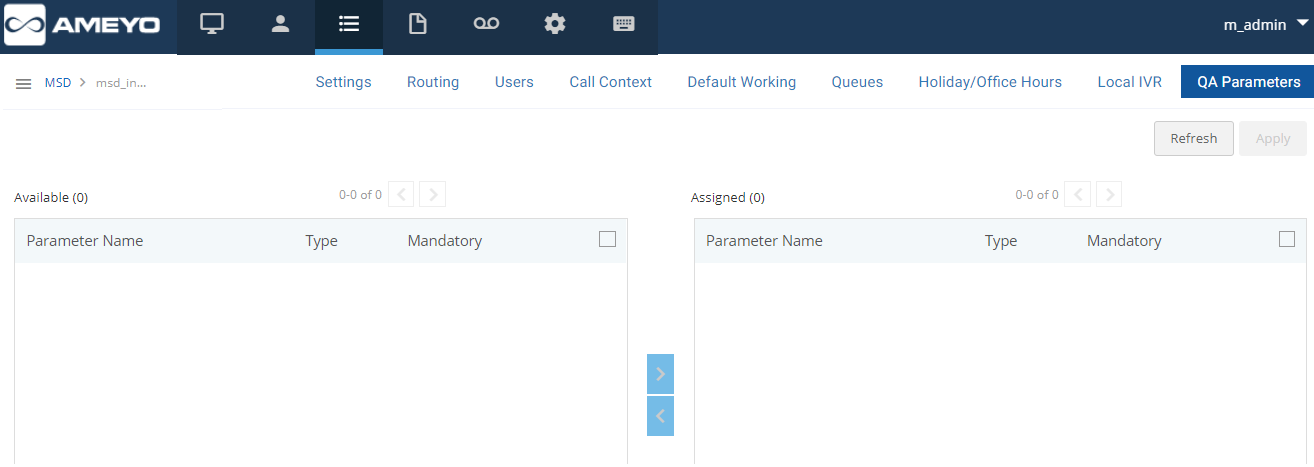
Figure: QA Parameters
Perform the following steps to assign the QA Parameter in any campaign.
- Select the call context from "Available" section.
- Click ">" button.
- Assigned QA parameters will be listed in "Assigned" section.
- To unassign any QA parameter, select the call context in the Assigned section and click "<" button.
- Click on "Apply" button to save the made changes.
Alternatively, click on "Refresh" button to discard the changes.
Reports
Reports are explained in a separate manual.
Call Manager
A call manager/call server is a particular form of application server that manages the setup or connection of telephone calls. The call server will receive call setup request, determine the status of destination devices, check the authorization of users to originate and/or receive calls, and create and send the necessary messages to process the call requests.
The Administrator can configure settings for voice resources, call context, entities, etc through "Call Manager" tab. Administrator configure Call Manager at the system level and then assign call contexts at the campaign level.
Following tabs are available in call manager:
- Call Context
- Voice Resource
Call Context
Call context is basically the SIP channel that is visible and will be used by the agent to initiate the calls. Administrator can create call context through following steps.
- Select the voice resource from the drop-down menu (located on the left side) in which call context is to be created.
- Before creating call context, an entity has to be created.
- Click on "Add" button. A pop-up is displayed for adding entity that contains the following fields.
- Voice Resource Name: It contains the name of voice resource.
- Default Entity Name: Enter the name of entity.
- Default Entity Type: Select the type of entity. It contains the following options.
- Default_SIP: To create the entity for VoIP or SIP.
- Default_ZAP_Trunk: To create the entity for whole PRI trunk.
- Description: Enter the description about the entity.
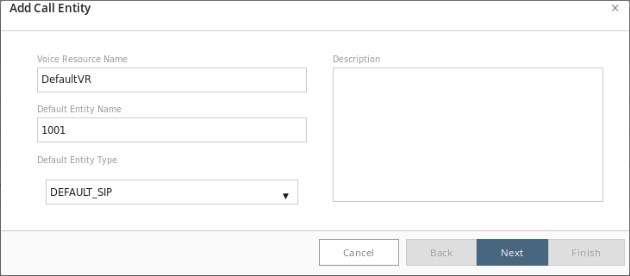
Figure: Add Call Entity
- Click "Next" button.
- As per entity type, further fields will vary.
- If entity type is "Default_SP", then following fields have to be filled.
- SIP Context: The context of SIP entity.
- Hostname: The hostname or IP address of client host.
- Port: The communication port of SIP entity.
- From Domain: Set the domain name if client host is behind the NAT or Domain.
- DTMF Mode: DTMF mode supported by the SIP Entity.
- Number RE: The Number pattern use to connect with receiver.
- Username: The username of client. If client SIP entity require authentication.
- Password: Authentication password to be connect with SIP client.
- Can Reinvite: SIP Entity to allow SIP Reinvites. Select the checkbox to enable reinvite.
- NAT Supported: If NAT (Network Address Translation) is supported on the SIP Entity. Select the checkbox to enable reinvte.
- Custom Configuration: This field is used to configure specific parameters allowed only for particular SIP entity.
- Click "Next" to add call context for created entity.
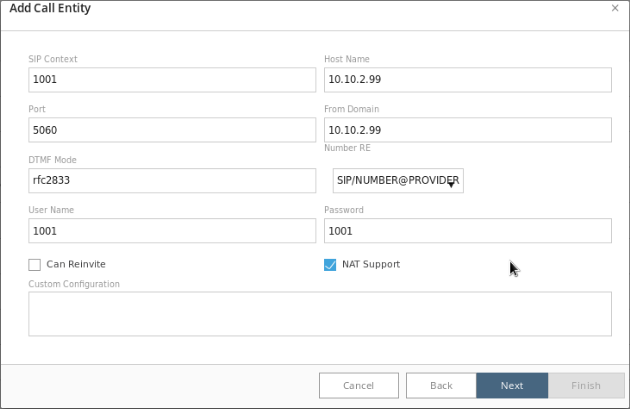
Figure: Add Call Entity
- Again a pop-up will appear which contains following fields which is to be filled.
- Context Name: Enter the context name.
- Is Local: If this is checked then entity will be visible to agent.
- Is Endpoint: No other agent can select that entity.
- Allow Incoming: Allow incoming calls using the selected call context. If not set, then the incoming calls on this call context would be automatically rejected.
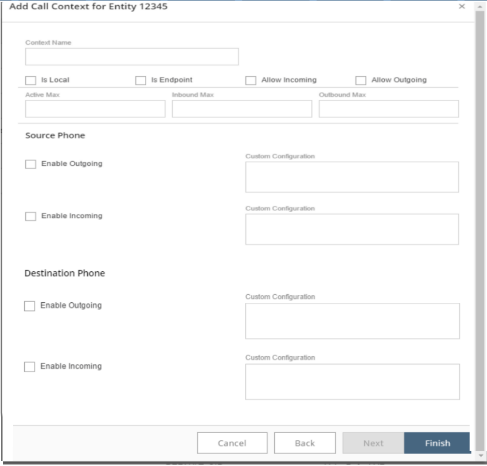
Figure: Add Call Entity
- Allow Outgoing: Allow outgoing calls using the selected call context. If not set, then the request for outgoing calls on this call context would be rejected.
- Active Max: Maximum allowed active channels. It allows system not to maintain active calls beyond the configured range with this call context.
- Inbound Max: Maximum allowed incoming channels. It allows system not to receive incoming calls beyond the configured range with this call context.
- Outbound Max: Maximum allowed outgoing channels. It allows system not to dial outgoing calls beyond the configured range with this call context.
- Click on "Finish" button to add the call context.
Administrator can also edit the entities created by selecting that particular entity and click "Edit" button. Use "Delete" button to delete an already selected entity.
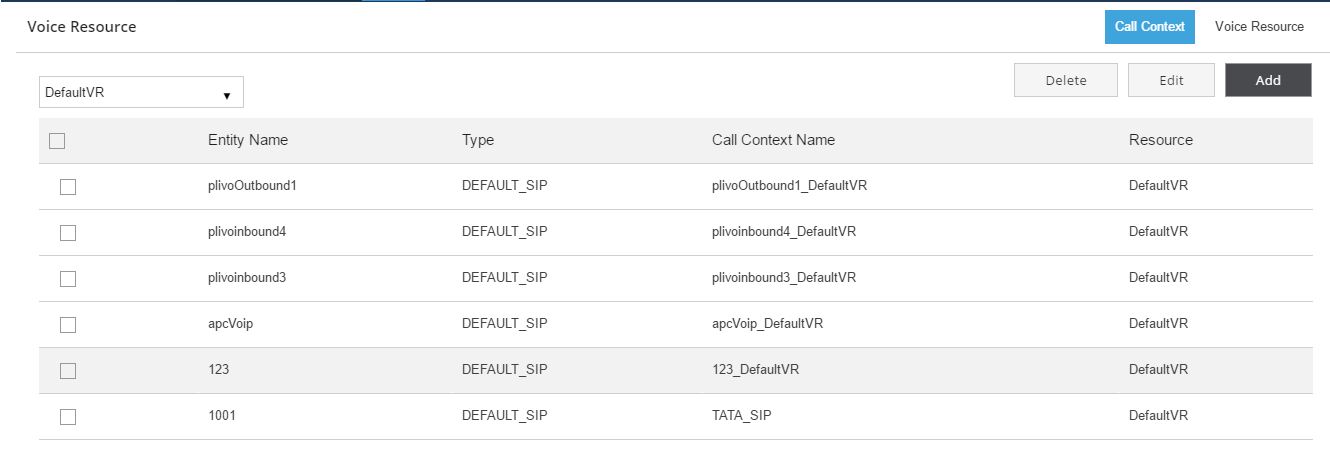
Figure: Call Context
Voice Resource
These are asterisk call servers where we can configure the SIP/ VOIP minutes and PRI ( Zap Trunk ).

Figure: Voice Resource