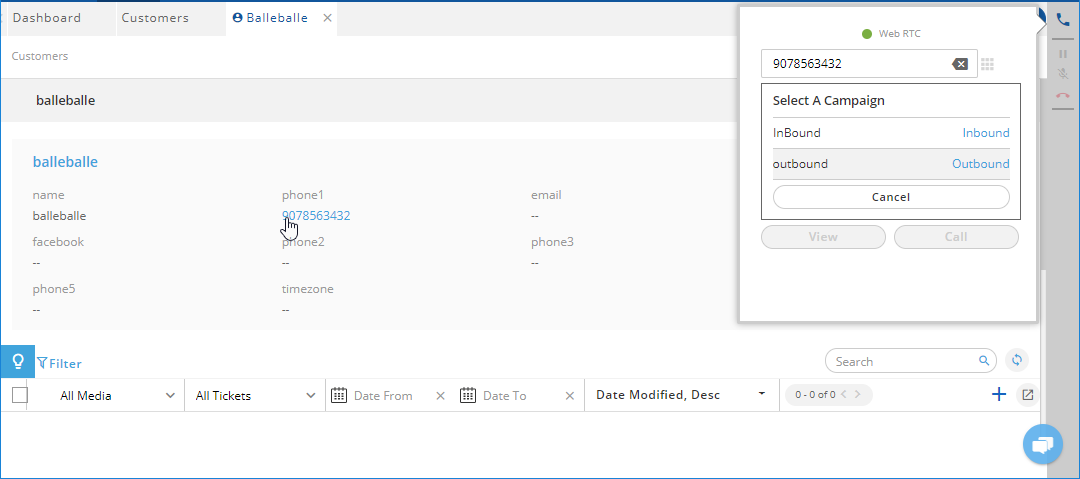
Figure: Calling a Customer through Customer Information
After selecting the campaign, the call is connected and the dialer starts to dial the customer's number.
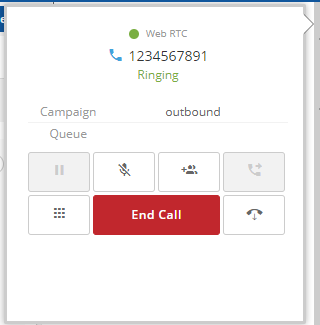
Figure: Calling a Customer
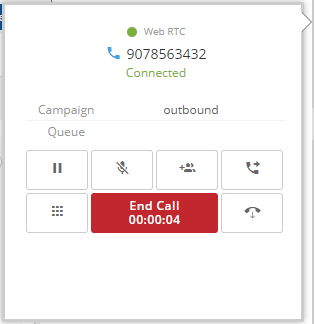
Figure: Ongoing Outbound Call
Now, the Keypad will be replaced with the call control functions. Know more...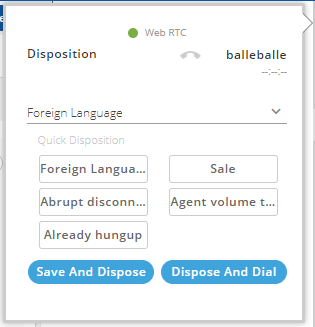
Figure: Dispositions of an Outbound Call
- Save and Dispose: Click it to dispose the ticket associated with the call using the selected disposition.
- Dispose and Dial: Click it to dispose the current call ticket and continue to make a manual dial call. It shows a textbox in the WebRTC at the bottom.
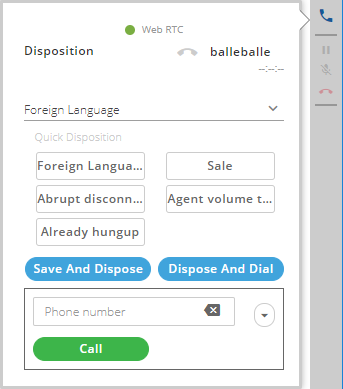
Figure: Continue to Manual Dial after Dispopsing Current Call
After entering the number, click "Call" to dispose the current call with the selected disposition and make a new outbound call with manual dial.
Administrator can define the call dispositions for the outgoing (outbound) calls in the Settings of Inbound, Outbound Campaign, and Parallel Predictive Campagin. The dispositions for incoming and outgoing calls in an Inbound Campaign will be same.