New Features
Agents can now perform Single Sign-on on Ameyo Toolbar using their domain's Active Directory User Credentials using its Federation Services and Ameyo's SAML. SAML has to be integrated with Active Directory using ADFS. It provides consistency with all integrated platforms and centralizes the security. The behaviour is consistent with Ameyo and App Agent Workbench from the backend implementation. In case of multiple Single Sign-Ons, multiple login buttons will be displayed.
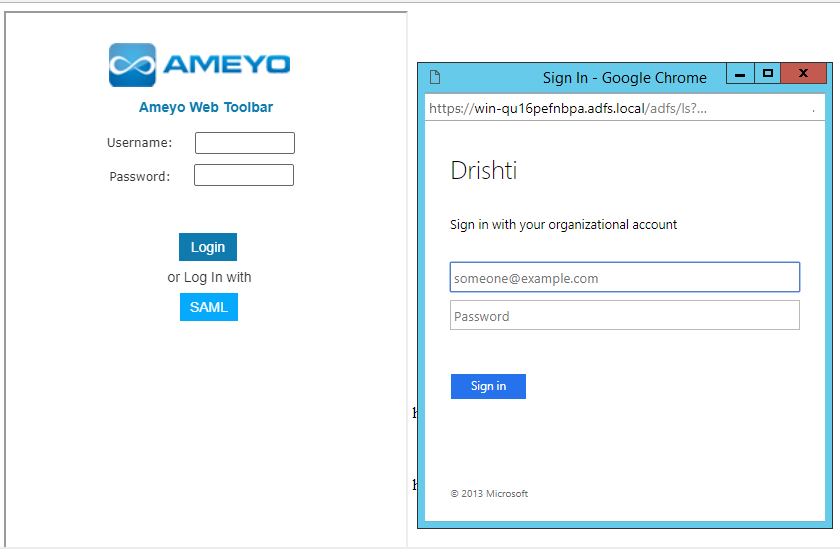
Figure: Single Sign-On on Ameyo Toolbar using Active Directory
Reference Document
https://sites.google.com/a/ameyo.com/engineering/configure-saml-sso-with-adfs
The customer can add its own customizable button on its Website. The customer can configure Ameyo Web Chat to hide "Let's Chat" button by clicking "X" icon on its pop-up. The chat pop-up can be displayed again only when the Website visitor clicks on the customizable chat icon provided by the customer.
Reference Document
https://sites.google.com/a/ameyo.com/engineering/customizable-chat-form
Administrator can add customized themes for the Web Chat. The operations like add theme, modify theme, and delete theme can be performed by calling different APIs. The Administrator just have to provide the values of parameters and browse a designated URL to call an API.
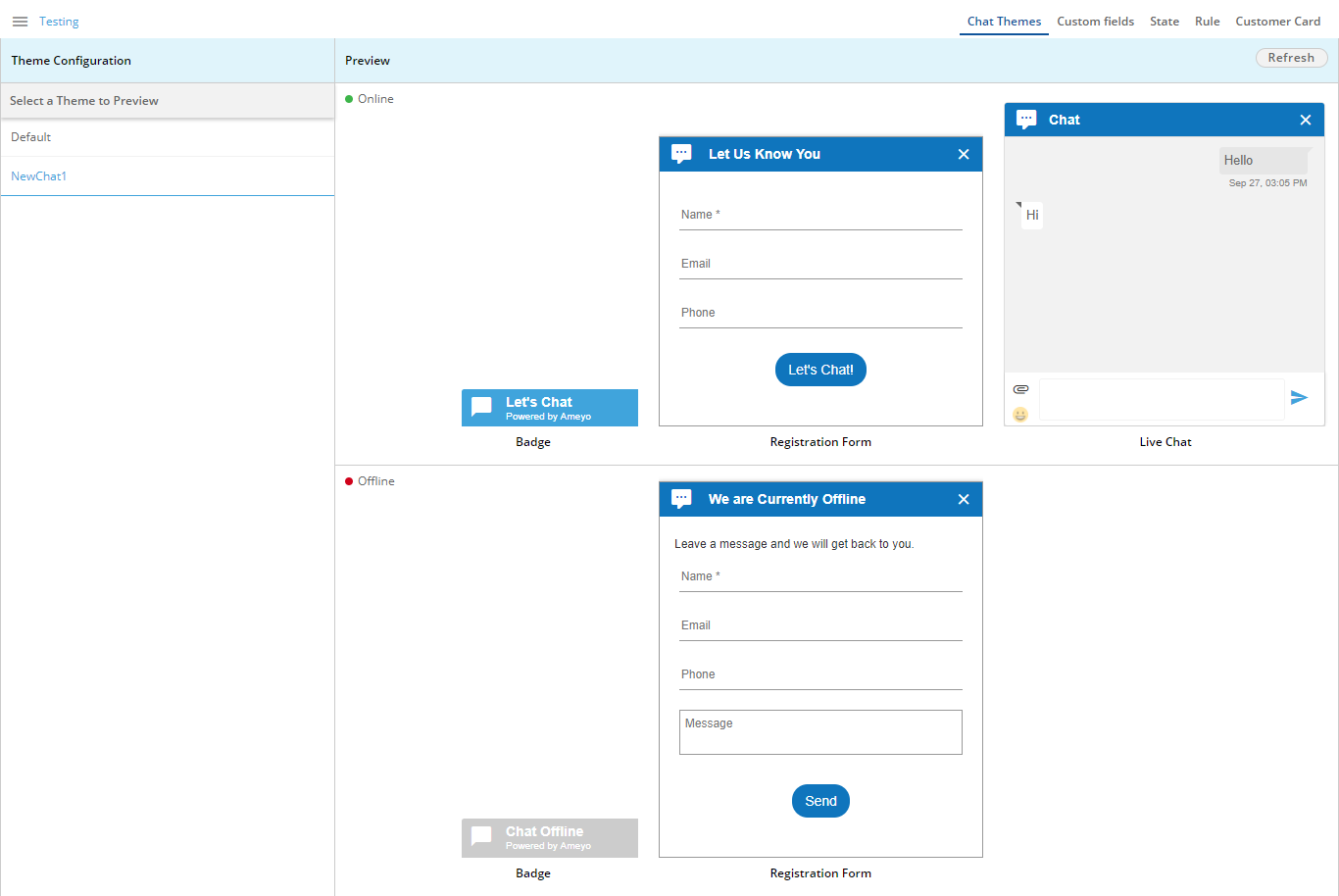
Figure: Chat Themes
Preview Support is also added. The Chat Themes can be browsed in Process settings and the settings of any Chat Campaign.
Reference Document
https://sites.google.com/a/ameyo.com/engineering/theme-in-webchat
Prompts Management has been added in the Campaign Settings in the Administrator interface. Here, Administrator can select the required prompts for a campaign.
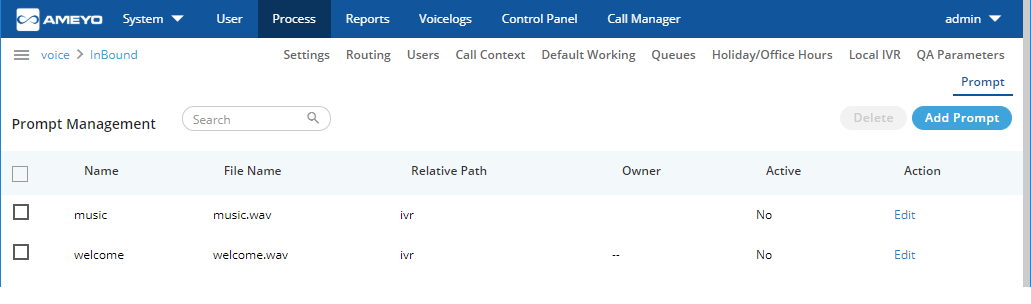
Figure: Prompts Management
Following new chat reports have been added in Archiving and Reporting Tool (ART).
- ChatAgentProductivityReport
- ChatChannelReport
- ChatDetailReport
- AgentChatReport
A new Lite Ticket Widget has been added on the Supervisor Dashboard. It allows the tracking of number of Lite tickets raised and their status. The inbuilt pie chart displays "Top five states of Lite Ticket" and others. Data is displayed in both chart and table formats. This will help supervisors to keep a tab on the flow of low complexity conversations and their state with filters for the duration to select from, to comprehend and gain clarity on "No Task" conversations that are being done by the agents.
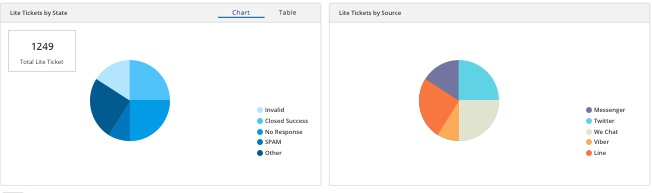
Figure: Lite Ticket Widget
Now, Feedback can be triggered automatically upon detecting specific events. This feedback can be sent through email to the customer along with a set of questions regarding any recent conversation or ticket. The Feedback Schema can be configured both at the campaign level and at the queue level. "Event Automation Rule Engine" now has an action named "Send Feedback on Email to Requester". It is also listed in Feedback Scheme drop-down menu.
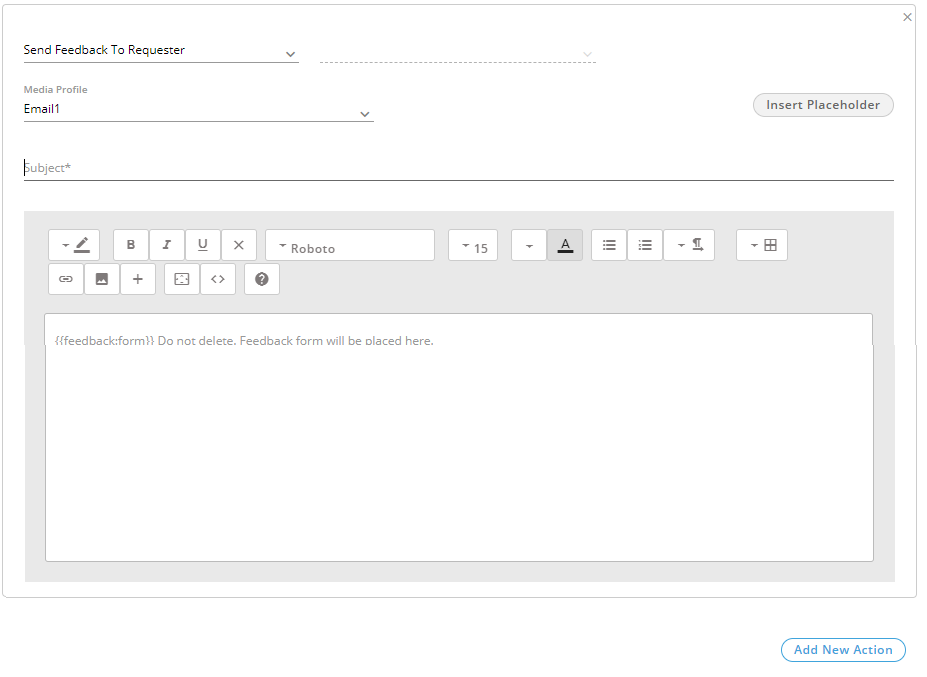
Figure: Send Feedback to Requester
When "Send Feedback to Requester" action is selected while creating an Event-based Automation Rule, the placeholder code {{feedback:form}} is added by default in the text area (as shown in the above image). This code auto-renders the Feedback form while sending the email to the requester. Following screenshot shows a sample feedback form that will be sent to the customer.
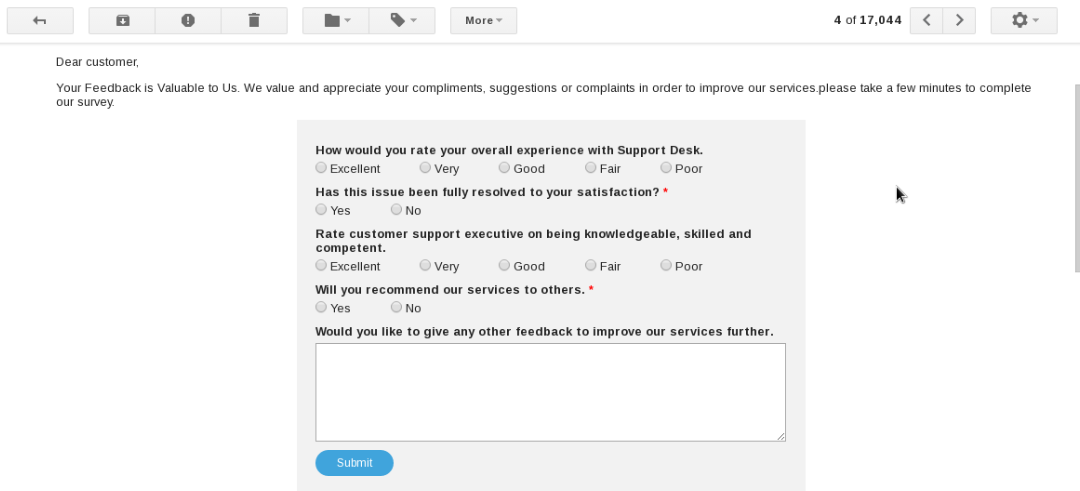
Figure: Feedback Template
Reference Document
A new widget CSAT has been added on the Supervisor Dashboard. It is the number of feedbacks received from the customers divided by the number of feedback emails sent to the customers. Both values are updated automatically.
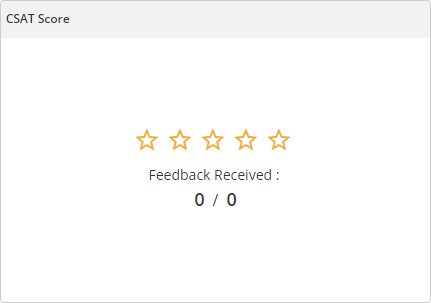
Figure: Average CSAT Score
Ameyo now shows the historical chat log in the Ameyo Web Chat of the last chats for a customer that has been identified. After creating a Chat Campaign, the Administrator can specify in its settings whether to show the Chat logs or not.

Figure: Option to show Chat History
In the "Chat" window, "Load Previous Chat" option is displayed. The agent can click it to see the previous chats conducted with the customer through all channels such as Facebook, Twitter, Web Chat, and App Chat. It is not required to load the historical chat logs for Web Chat in the Client Widget.
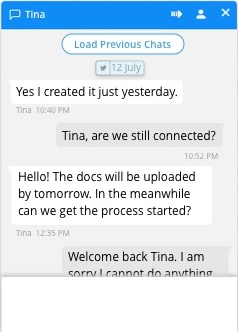
Figure: Load Previous Chats
Session-less Customer Management API has been introduced. It makes the integration with third party CRMs easy. This API has been provided to the SI team (rather than the client) and can be called from CRM server alone. The recommended mode is https (HTTP with SSL). It is backward compatible and uses unique token per user. This API supports simultaneous requests from the different IP Addresses of CRM. The SI or Engineer can add a token per tenant or user for this API. Its Audit History and failures in database are available on API calls and can be downloaded as a report from the Customer Management API Audit History.
Reference Document
<GetProductName> is now displaying the ID and name of the agent to the customer in the Customer widget during the chat.
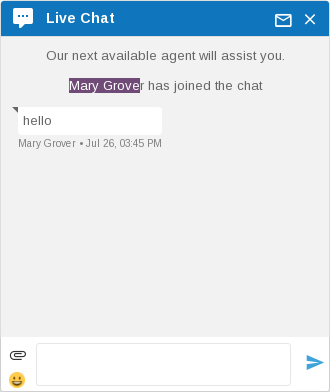
Figure: Agent Name is displayed to Customer
Additional required information is also being displayed by nodeflow (GetWhichInformation).
Earlier if the agent was not assigned to the queue, the agent was not able to see the interactions made earlier with the customer in that queue. This issue has been fixed now.
The Administrator can configure the following settings in "System" → "System Configuration" → "Settings" → "Ticket Settings".
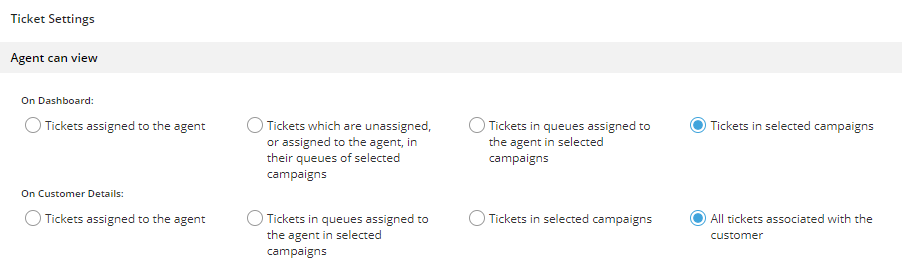
Figure: Settings to allow the Agent to view Tickets of others
Here, "On Dashboard" option lets you select what agent can see on the dashboard). Whereas, "On Customer Details" option lets you select what agent can see in the customer details. Both of these radio buttons have the same following options. You can select any one of them.
- Tickets assigned to the agent: Select it to let the agent view only those tickets in its queue that are assigned to the agents.
- Tickets assigned to the agent and all unassigned tickets: Select it to let the agent view all unassigned tickets and those tickets that are assigned to the agents in its queue.
- All Tickets: Select it to let the agent view all tickets such as assigned tickets to the agent itself, unassigned tickets, and tickets assigned to other agents in its queue.
This Settings can again be configured in any Interaction Campaign → "Settings" → "General" Settings.
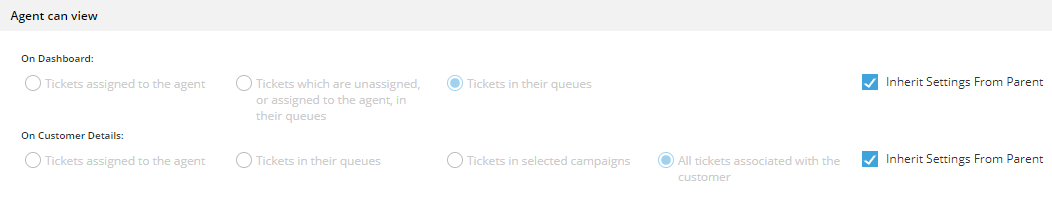
Figure: Ticket Visibility Settings in Genreal Settings of Interaction Campaign
Here, "Inherit from Parent" option can be checked to inerhit settings from "Ticket Settings" of "System Configuration". Administrator can uncheck it to configure the different invididual Ticket Visibility Settings for any individual Interaction Campaign settings.
Ticket Visibility Settings configured in any Interaction Campaign will override the Ticket Visiblity Settings configured in "System Settings".
Earlier the user could mark its status as "Available" even if WebRTC is not connected to the Asterisk. It has been fixed now.

Figure: Media State is not available
Application is now aware about the status of WebRTC. If WebRTC is facing an issue in establishing the connection with the Asterisk (Calling Server), the user cannot mark or change its status to "Available". The system will not allow the agent to make a call or put on "auto call" option if the agent's IP-phones and softphones are not registered with SIP. The agent receives an alert message.
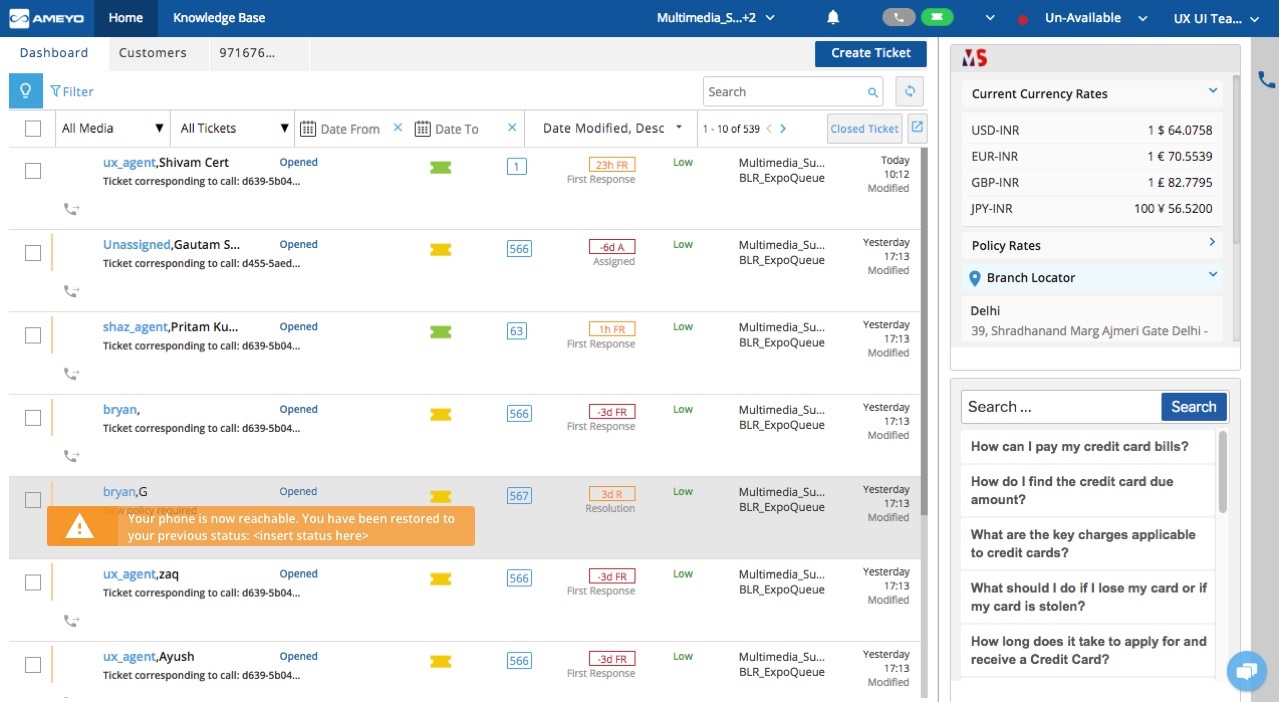
Figure: Warning Message: Media is not available
The Supervisor also gets a browser notification on desktop when the agent is not available because of an issue with the agent's media.
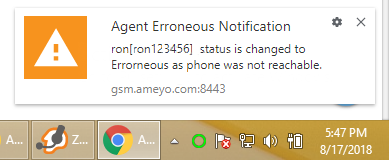
Figure: Notification: Agent Erroneous
In Administrator Console, Holiday Hours are now added as operators for hour-based conditions in "Timer-based Automation Rules".
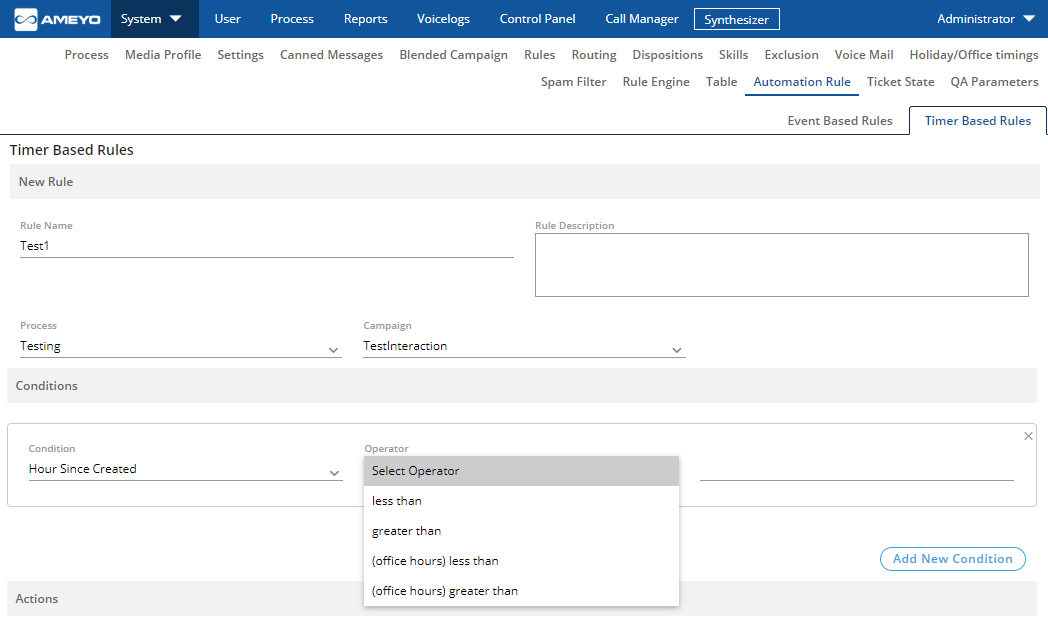
Figure: Holiday/Office Hours Configuration
The Administrator can go to "System" → "System Configuration" → "Automation Rule" → "Timer Based Rules" and create a new or modify an existing rule to access these new Holiday Hours operators for the following conditions.- Hour Since Created
- Hour Since Resolved
- Hour Since Reopened
- Hour Since Unassigned
- Hour Since Agent Responded
- Hour Since Requester Responded
- Hour Since First Response Due
- Hour Since First Assign Due
- Hour Since Ticket Resolution Due
All of these conditions now have the following operators.
- less than
- greater than
- (office hours) less than <NEW>
- (office hours) greater than <NEW>
Supervisor will now be able to modify the Holiday/Office Hours for Queues in "Manage" Tab for Interaction and Chat Campaigns.
This feature is not available for Voice Campaigns including Inbound, Outbound, Parallel Predictive, and Voice Blaster.
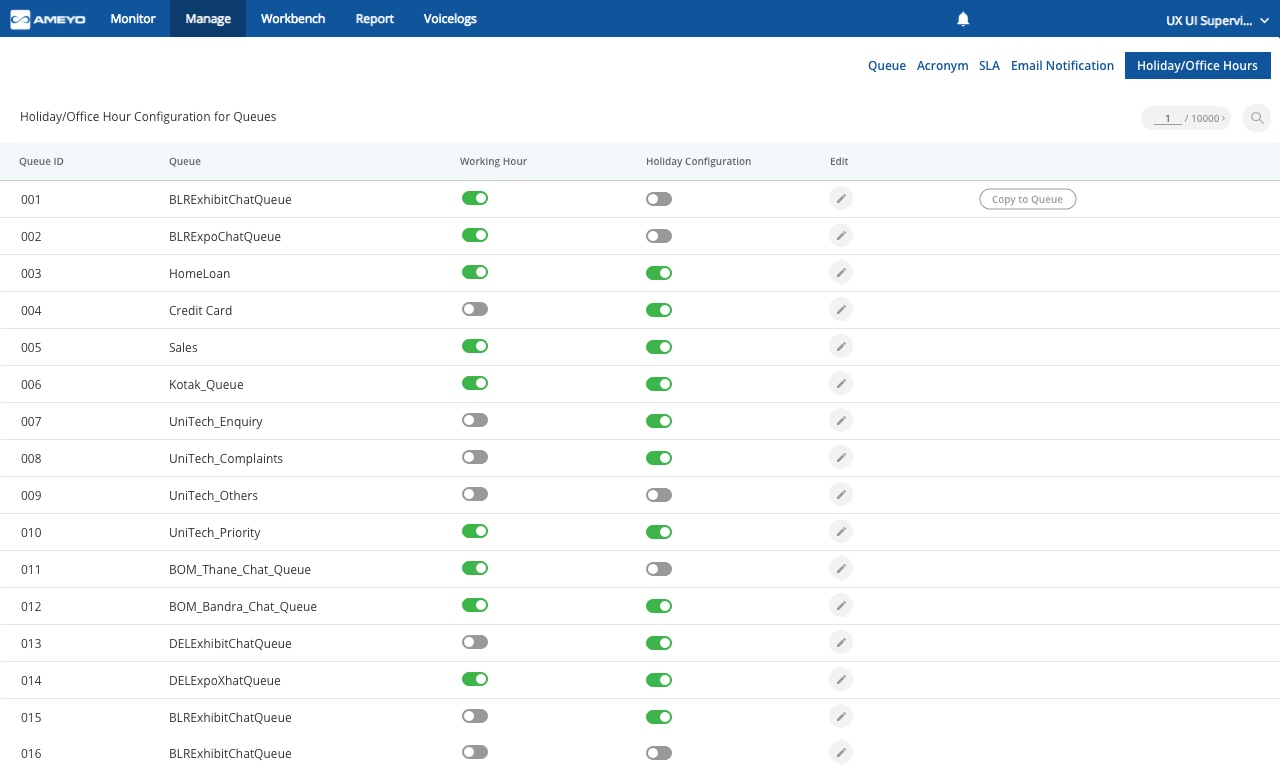
Figure: Configure Office Hours at Queue Level
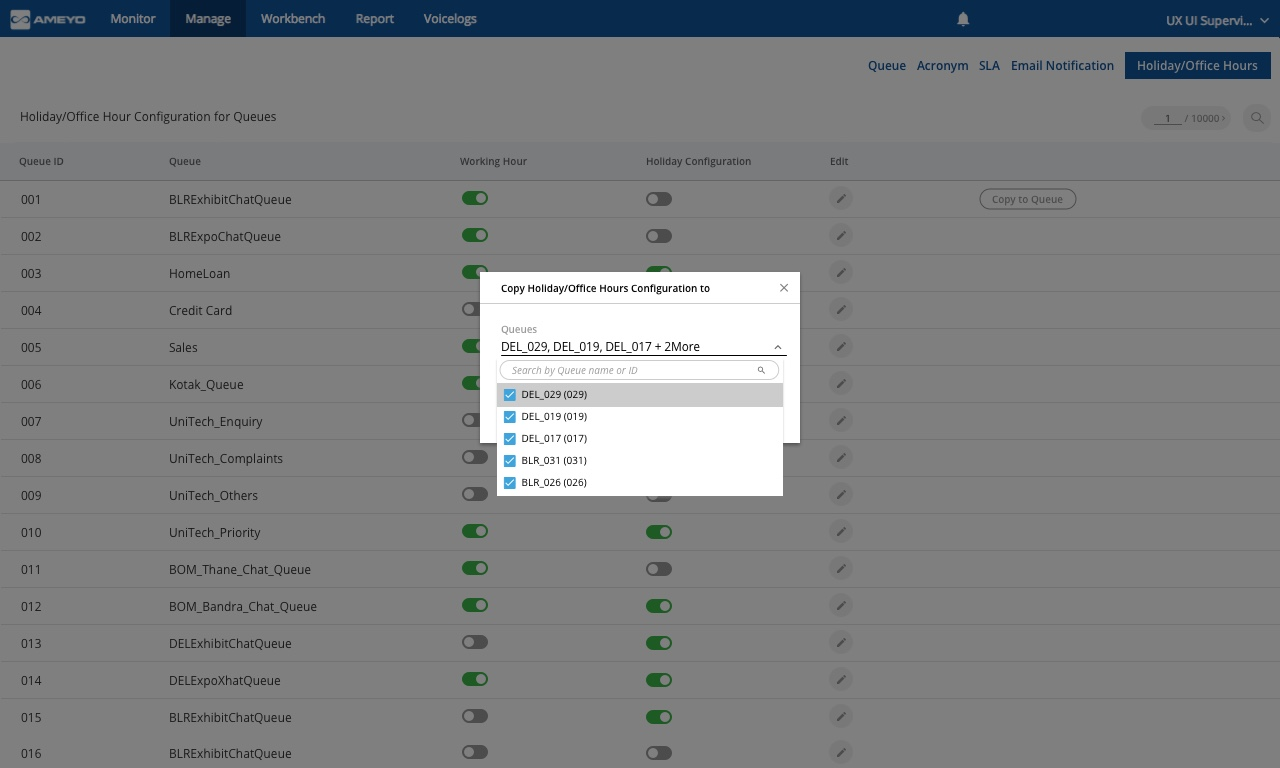
Figure: Office Hours Configuration in Supervisor Interface at Queue Level
The customer can now mask the phone numbers in the agent console. It has to be enabled from the backend. Masking would now be handled for the numbers on the Conference, Transfer case and Dispose and Dial cases. Browser notification and Voicelog file name will also have masked numbers to ensure customer data privacy. Following is an example.
| Sample Number | Masked Number |
|---|---|
18001281389 |
12345678911 |
If the customer is transferring the calls to a third-party, the third-party will not be able to see the masked numbers. When an incoming call comes, for every phone number corresponding unique number will be generated which is called Masked Number.
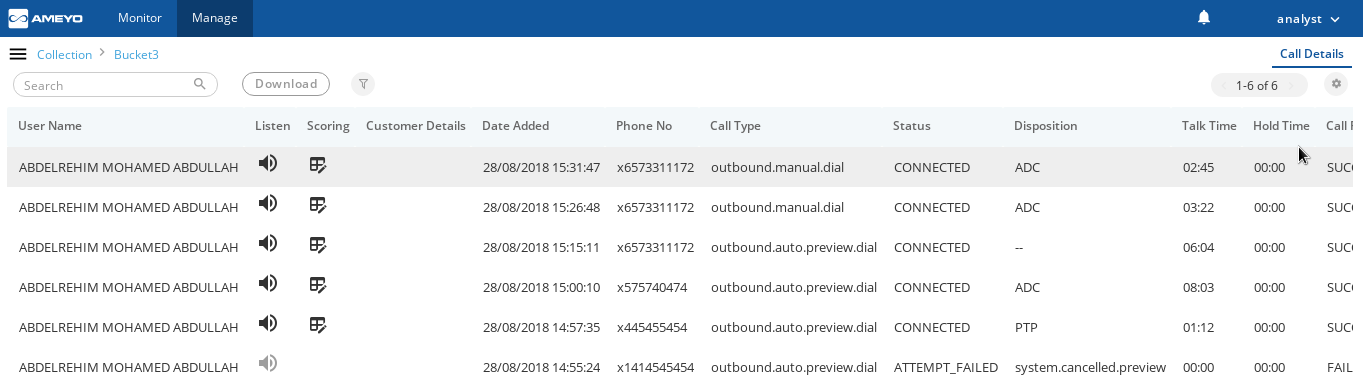
Figure: Displaying Masked Numbers
The numbers are masked also for Analyst user role. Both masked and unmasked numbers are searchable.
Number Masking is not available for Ameyo Archive and Reporting Tool (ART). The original numbers will be displayed as it is.
Reference Document
https://sites.google.com/a/ameyo.com/engineering/number-masking-configuration
During the call transfer and call conference, if the mouse is hovered over the agent's name, the agent ID will be displayed.
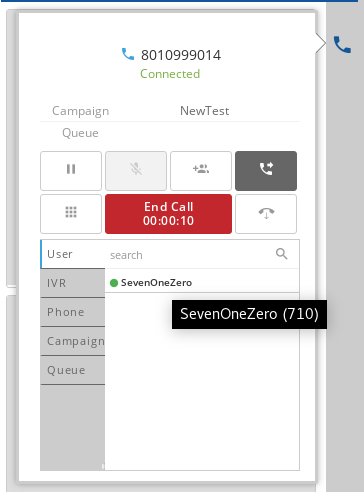
Figure: Agent ID on Mouse Hover
In the Live Monitoring Reports, a new column "Agent ID" has been added that shows agent IDs for all the agents.

Figure: Agent ID Column
Filtration and search can also be made using "Agent ID".
If the customer is registered, then its name will be clickable in the chat header. Upon mouse hover, an underline below the name and an external link icon with the name is being displayed. The agent can click the name to open the customer detail in a new tab in the workbench. Multiple tabs will be created for the multiple customers when their names are clicked in the chats.
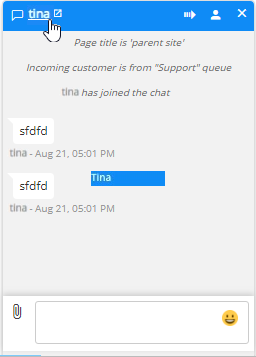
Figure: Registered Customer Name is clickable.
Earlier, the username was being used to send the emails. However, in most cases, both "@" and domain name (such as "mailserver.com") were missing in the usernames. This issue has been fixed with the addition of "Send from Email" and "Send From (Name)" fields in the Administrator console. The administrator can here configure the aliases for the users.
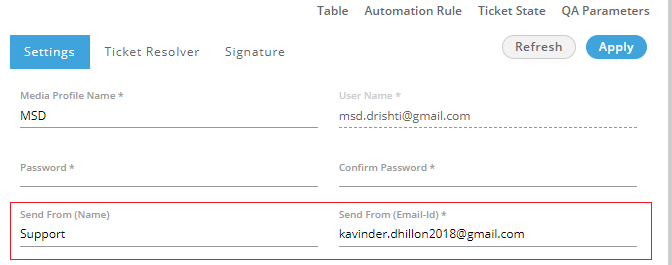
Figure: Send from Email Fields
Now, the emails will be delivered through the email address provided in "Send from Email" field by the sender's name provided in "Send From (Name)".
If there are more than one contact centers are configured in the system, then the user of one contact center, in Archiving and Reporting Tool (ART) only, can view the email profile of another user who belongs to another contact center.
A new user role named "UAM" (User Access Manager) has been added in the Ameyo. In addition to the basic normal mode, two new modes have been introduced.
UAM Mode |
AUAM Mode |
|---|---|
|
Only UAM can create, edit, and delete the users. The Administrator will not have any privileges for the same. |
Both UAM and Administrator can create, edit, and delete the users. |
Administrator can assign or unassign the users only at the Campaign Level. |
Both UAM and Administrator can assign and unassign the users at the campaign level. |
Both Administrator and Supervisor can assign and unassign the users at the queue level. |
Both Administrator and Supervisor can assign and unassign the users at the queue level. |
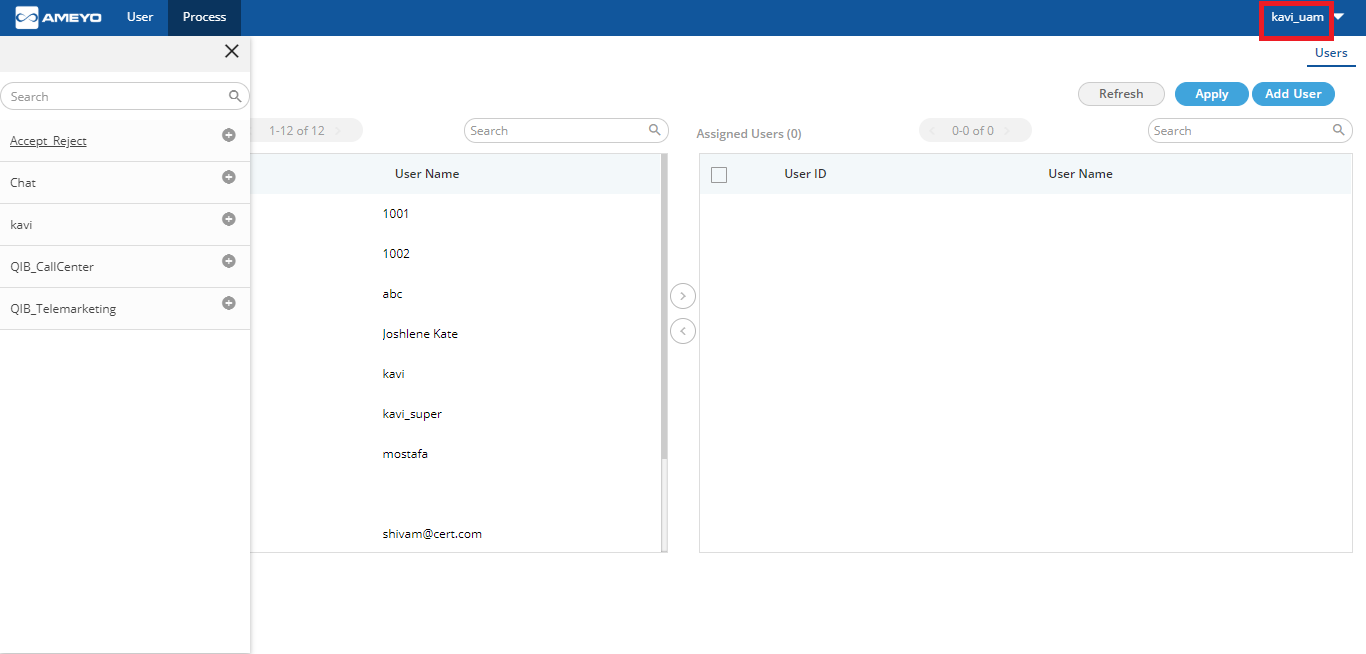
Figure: A User with UAM Role
Reference Document
The auditing is available only for REST framework also. The configuration changes of which history is not maintained in Ameyo, are now audited and their history is stored in comamnd_audit_hsitory_table.
Majorly, following events are being audited with this new feature.
- Reload Server Preference Store
- Reload System configuration parameter
- Reload License Configuration
- Reload Logging Configuration
- Reload Processing Configuration
- Reload Metric Configuration
- Creation, Modification, and Deletion of
- Process
- Campaign
- User
- Queue
- Rule
- Call Context
- Un-assignment and Assignment
- Call Context Entity Assignment and Un-assignment
- Addition of routing rules
- Default working
- Holiday /office hours
Reference Document
https://sites.google.com/a/ameyo.com/engineering/Home/rest-auditing---command-audit-history-1
When a customer sends a message through any third-party direct message application such as Facebook Messenger, Twitter Direct Message, WhatsApp, and WhatsApp for Business, the ticket is created in the system. Now, when the user opens this ticket (created through any third-party direct message application), a "Continue Chat" button is displayed. The user can click this button to start the chat directly through the same medium using which the customer has connected.
This feature is not available for Ameyo Web Chat.
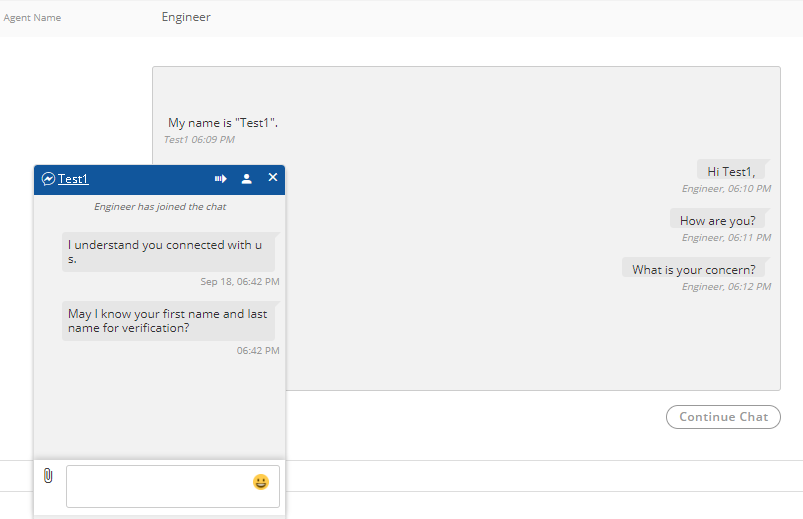
Figure: Click to Chat
While browsing the CRM, the user gets a button to create the ticket.
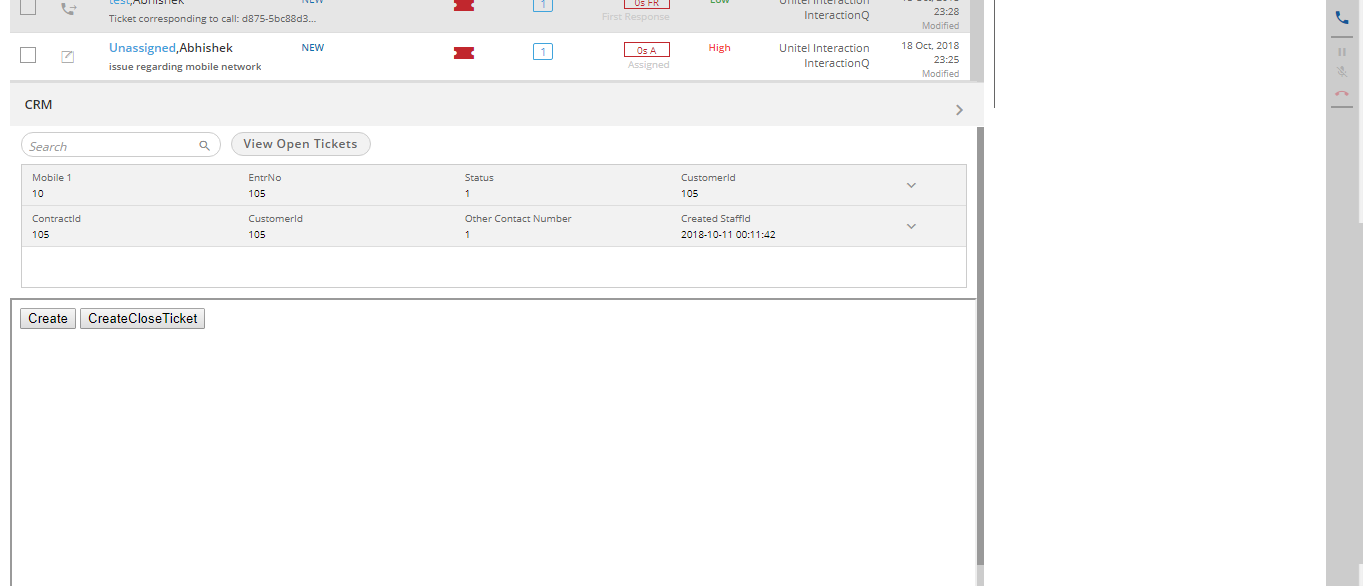
Figure: Click to Chat
The agent can click "Create Ticket Button" to create the ticket from the CRM itself. It opens "Create Ticket Tab".
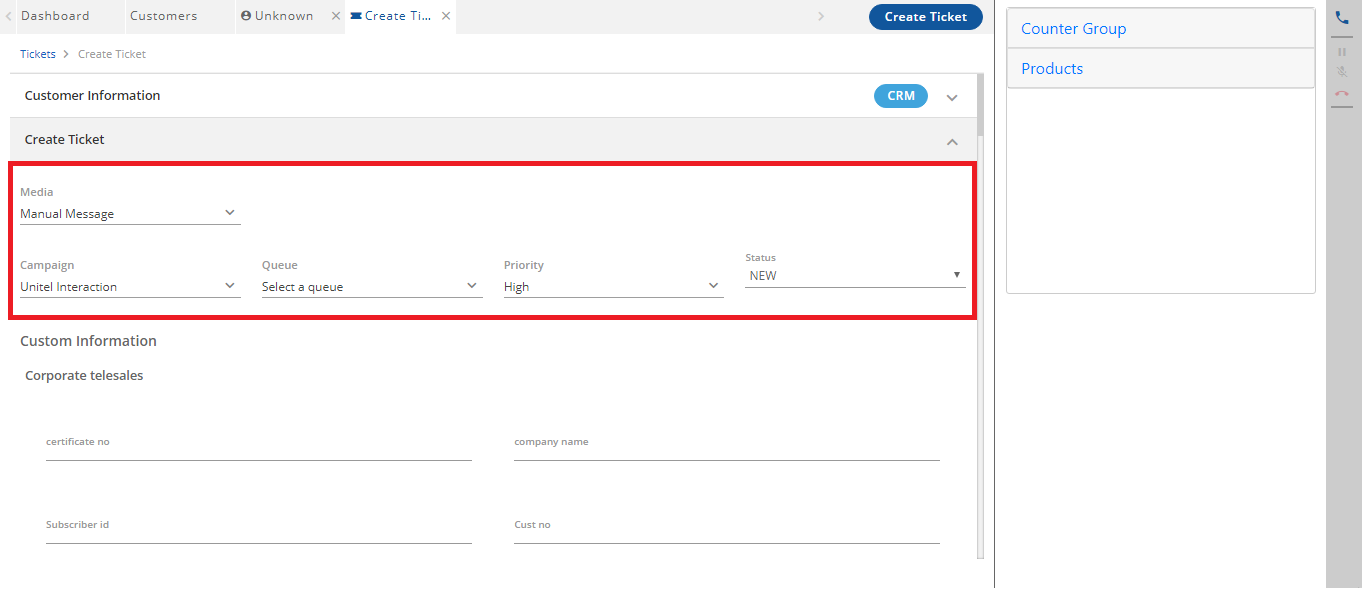
Figure: Creating Ticket from CRM
The downloads of voicelogs, in Archiving and Reporting Tool (ART) only, is now auditable in this new version. An entry will be made in the table for every single file downloaded from the User Interface. The system will audit both single file download and zip file download containing multiple voicelogs.
This feature is not available in "Reports" and "Voicelogs" without Archiving and Reporting Tool (ART). If the voicelogs are downloaded from Archiving and Reporting Tool (ART), then only the auditing logs will be displayed in the table otherwise not.
Reference Document
https://sites.google.com/a/ameyo.com/engineering/Home/voicelog-download-in-art-auditing
When there is no notification, the following message is displayed in the notifications section.
"You are all caught up".
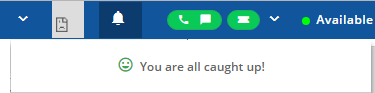
Figure: Message for "No New Notifications"
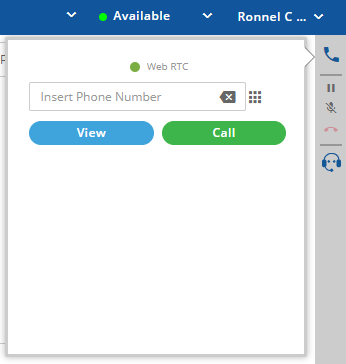
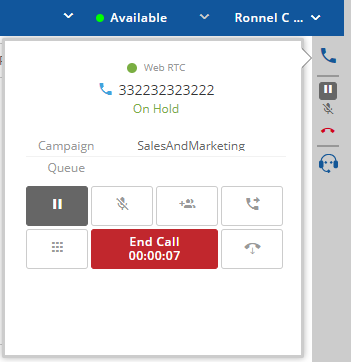
Earlier, the options to manage the telephony operations like mute, transfer, conference, and others were given only in the telephony panel. During the call, if the user is browsing through different pages in the workbench, these options get hidden.
This issue has been fixed. Now, the quick buttons for such telephony operations are given on the right side that are visible when the user is idle, busy at the call, or browsing through pages during the call.
Figure: Telephony Operations on Right Bar in Idle State |
Figure: Telephony Quick Operations on Right Bar during call |
Earlier the node becomes unusable because of disk full and the service may malfunction. Also, there was no way of knowing or self-recovery if master failed other than after troubleshooting, customer came to know that slave was already behind/disconnected from the master. Now, this issue has been handled. Two limits – soft limit and hard limit has been introduced.
The new failover notification keeps the customer informed if database slave lags behind or disconnects from the master in HA setup. A notification is delivered when the soft limit of the disk storage will be reached. Another notification is sent when the hard limit of disk storage will be reached, and after that, the service is transferred to another node.
Notification messages to the administrator generated in the HA layer are enhanced with the IP of the machine where it started and hostname of the machine.
HA takes care of recovering the service in case of a service failure or there is a node failure for the scenarios where the node does not fail as such but becomes unusable then HA moves that service on the secondary node.
Reference Document
Voicelogs are created on the call server machine's storage, say A. In High Availability (HA) setups, in case of a failover, the call server is moved to another machine, say B. Now, the voicelogs that were created on the Call Server A will continue to remain there and the ones that are created on Call Server B will be present on Server B. When the Server A is brought back on the network, then the voicelogs from both of the machines Call Server A and Call Server B are available for download from the User Interface as well as available for archival.
Voicelogs are neither synchronized nor replicated on both the machines, but are fetched from the correct machine automatically.
Earlier, by default, the Agent does not have the option to reject the calls. The Administrator had to obtain a separate license and had to use a Accept-Reject Node in nodeflow to provide the options of "Accept" and "Reject" (that too) for Inbound Calls only. Even with this Nodeflow, this feature was not available for Outbound calls. All inbound calls (without this feature) and all outbound calls provided by the dialer were being auto-answered.
Now in Ameyo 4.3, a new feature has been added that shows pop-up with "Accept" and "Reject" options on the screen for all inbound calls and all outbound calls provided by the dialer. The agent can click "Accept" to accept the calls and click "Reject" to reject the calls.
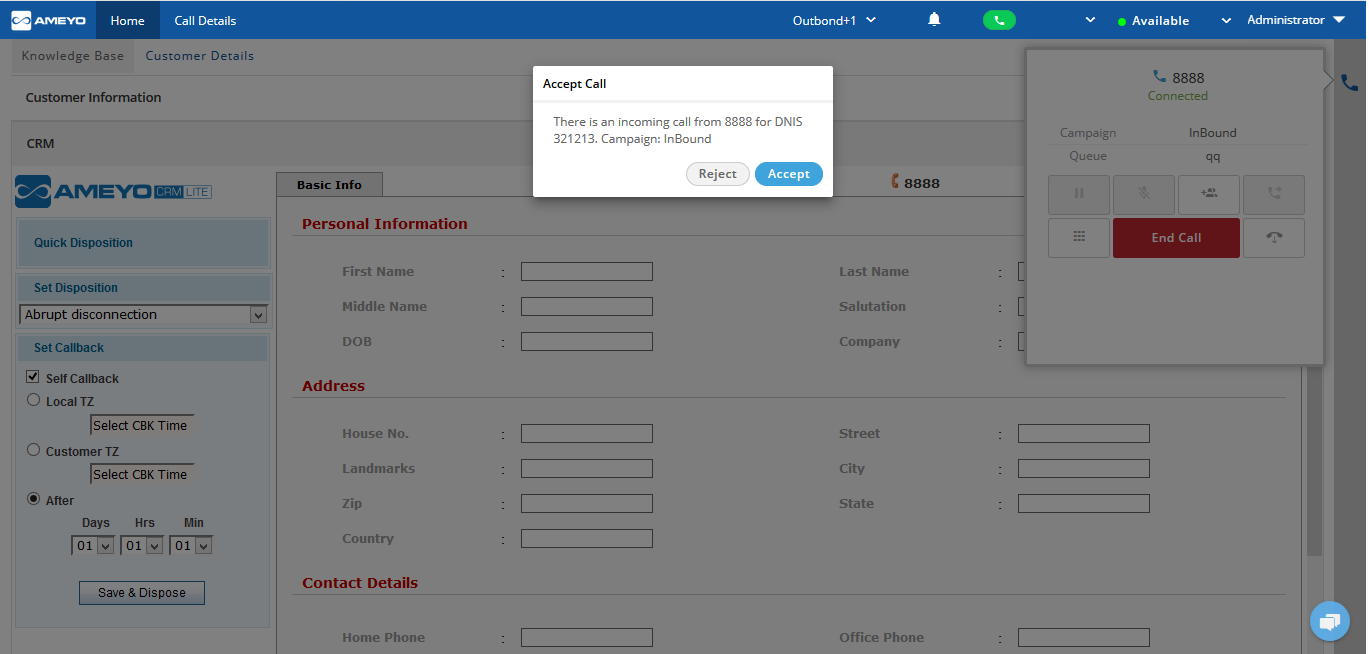
Figure: Call Accept and Reject Feature
This Call Accept and Call Reject feature is non-licensable now in Ameyo 4.3 and will be available by default.
After upgrading to Ameyo 4.3 in the environments where "Accept-Reject" node is already activated, perform the following steps to disable this node. Else it may cause conflict with Ameyo 4.3.
Access the command line of Server Operating System where Ameyo Server is installed and execute the following commands one by one.
psql -U postgres //Enter the PostgreSQL Console.
\c ameyodb //Enter the database
Insert into server_preference_store (context_type,context_id,key,value) values ('campaign','<campaign_id>','userCallAcceptPermissionFlag','false');
Replace "campaign_id" with the ID of your campaign.
"Accept" and "Reject" pop-up will not be available in the following scenarios.
- Manual Operations
- Manual Dialling of Outbound Calls
- Supervisor's Snoop and Barge operations
- Other Manual Operations of Agents and Supervisors
- Auto-Preview Dial
- Dial User App
Ameyo 4.3 now comes with Zabbix. It's both Server and Agent packages has to be installed. It is an enterprise-level software designed for real-time monitoring of servers, virtual machines, and network devices. Zabbix Server enables collecting metrics from Zabbix Client’s devices, systems, applications and automatically detects problem states with the incoming metric flow. It also takes automatic actions upon adding/removing/changing elements, does network discovery and escalates problems according to flexible user-defined Service Levels. Together with Zabbix, Ameyo have brought in capabilities to ensure easy to use fault management.
- Zabbix also monitors SIP Trunk and PRI Ports.
- Zabbix shows notification whenever a SIP Trunk is up.
- Zabbix Server shows notification whenever any monitored Zabbix Agent is down.
- The database of Zabbix has been unified. Zabbix is storing the logs in a single database.
- Administrator can configure the SMS Settings in the Zabbix. Once configured, Zabbix can send SMS alerts to the required recipients.
- Ameyo Services has been integrated with the Zabbix.
- When Discovery Rule is enabled, Zabbix automatically adds a host.
- SMTP Authentication has been enabled for Zabbix.
- Zabbix Server and Zabbix Agent Setups are available for AmeyOS 7.2.
- Zabbix sends notification upon the disk full on the build machine.
Reference Document
https://sites.google.com/a/ameyo.com/engineering/zabbix-all-documentations
Ameyo's Synthesizer has been revived by leaps and bounds with a complete drag and drop, graphical web based interface. Customer and partner don't need to wait up on Ameyo customer support for tweaking their nodeflows.
Administrator can now design the node flow by either creating a new node flow or import an existing node flow through the web-based synthesizer with no additional efforts to upload files separately.
One can export the node flow and can create or copy child node flow. The user can change any attribute in the child node flow and the change gets reflected for all the nodes to which it is associated with.
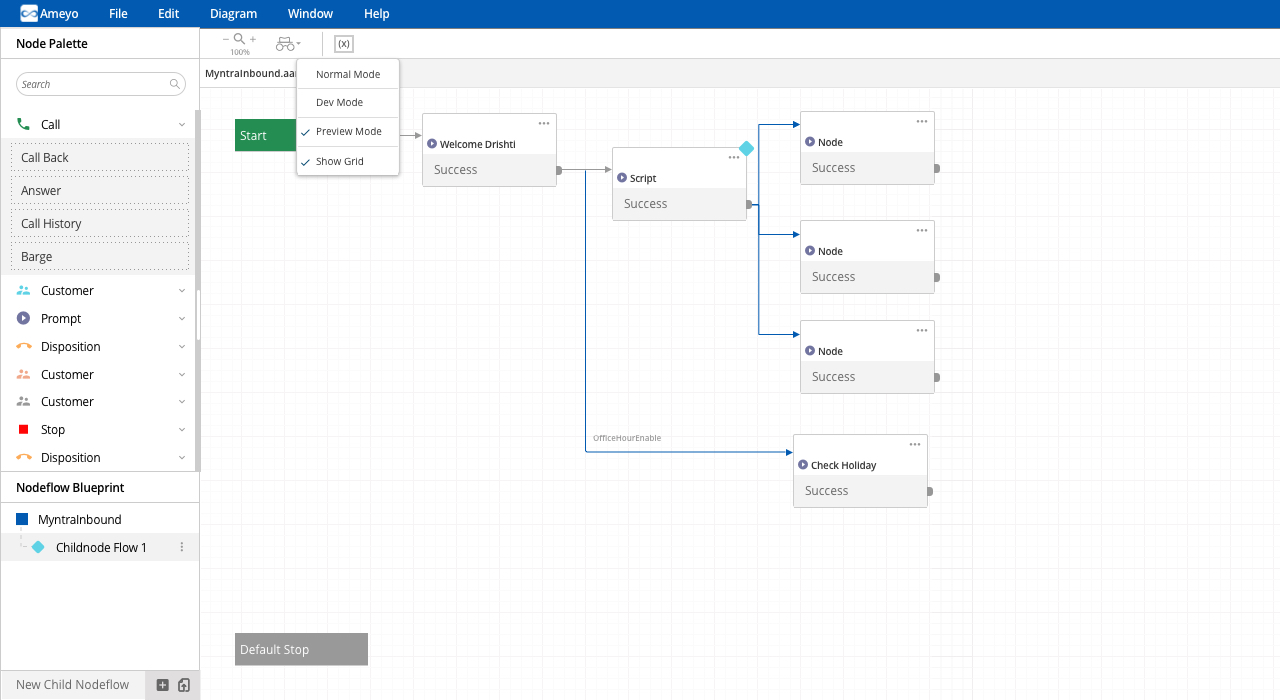
Figure: Nodeflow Operations
Ameyo Synthesizer can now design the nodeflow with conditional and unconditional transitions. The user will be able to define the unconditional transitions by clicking on the port available on the node. There will be two options available with the user. One will be for conditional transitions and the other will be for unconditional transitions.
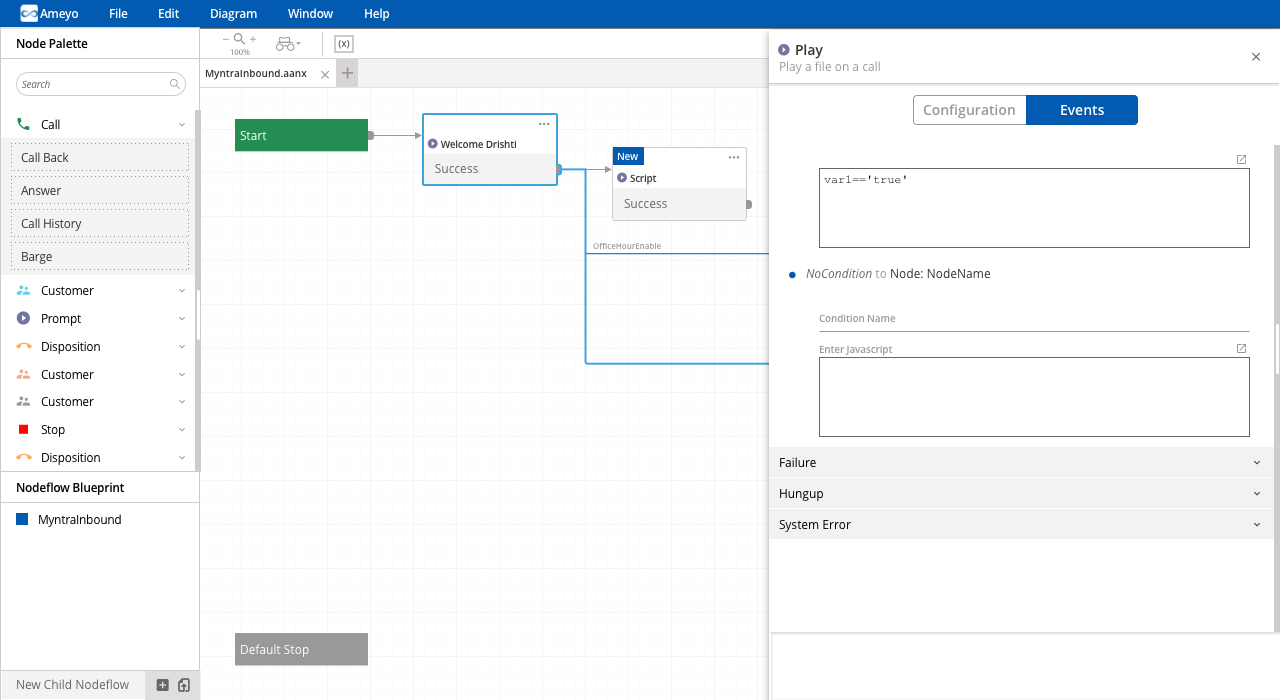
Figure: Conditional and Unconditional Transitions
Users will be able to design the node flow in a more user-friendly manner with a grid on canvas with Start and Default-Stop nodes to be fixed on the canvas so that it is always known for the user to locate it and see the transitions.
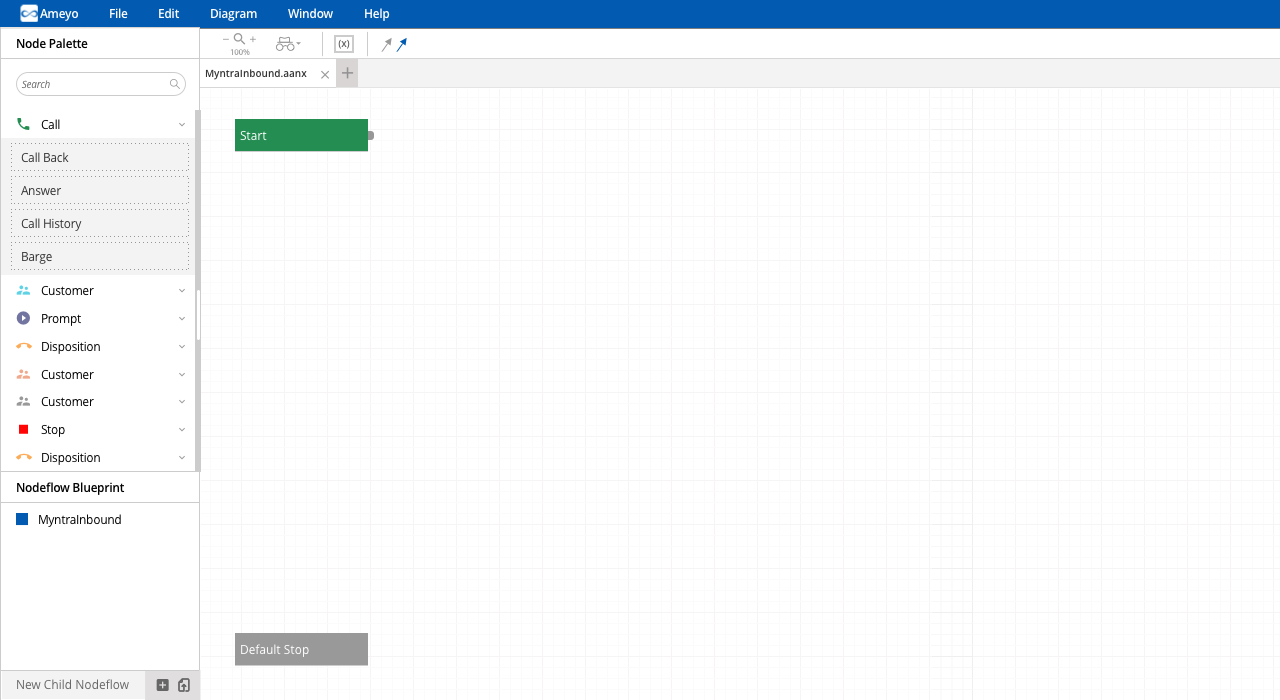
Figure: Default Start and Stop Nodes
Ameyo Synthesizer can now configure the visible nodes by dragging the same from palette to the canvas. The user will be able to see the right panel as soon as the node is dropped on the canvas with the alphabetically sorted attributes in the configuration section that will have their Interface representation according to the data type.
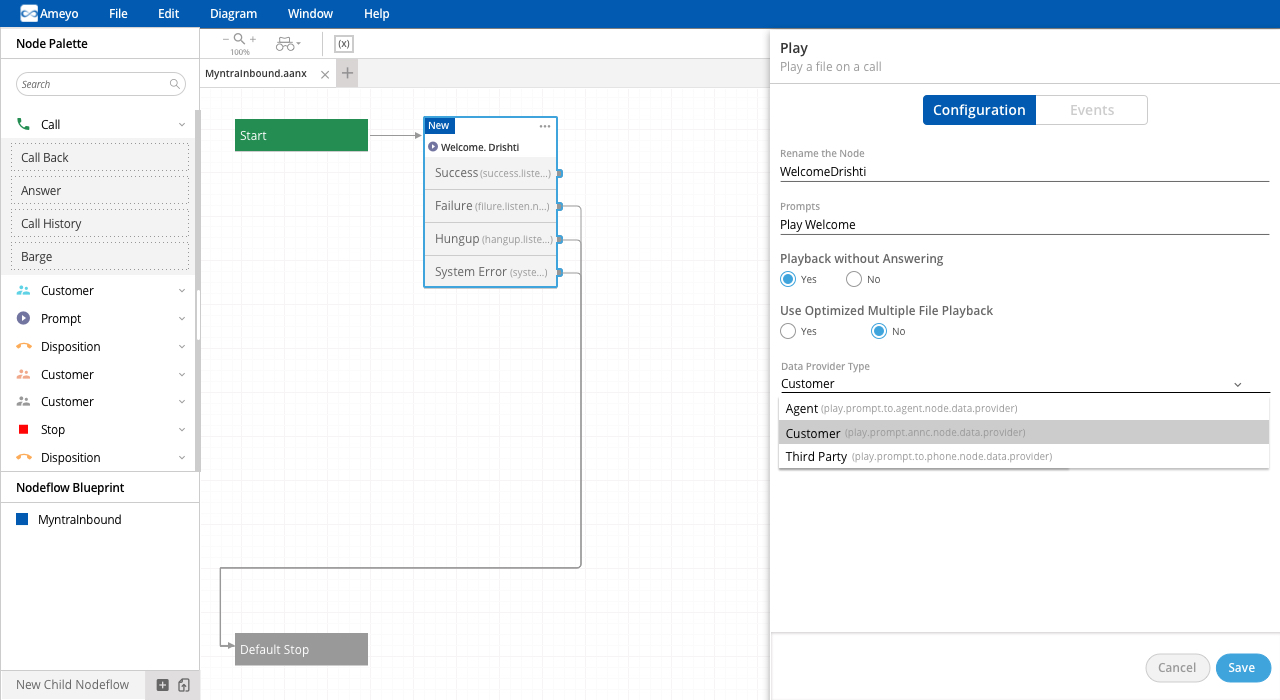
Figure: Option to drag-and-drop the Nodes
The administrator can now check what is uploaded for a particular execution point that is ANFX or Nodeflow and will be able to easily identify them with the name and extension while configuring routing as compared to the earlier version where ANFX or Nodeflow which was uploaded could not be checked at UI level as name.extension was missing.
The administrator can now add variables that will be used for assigning to the node configuration attributes.
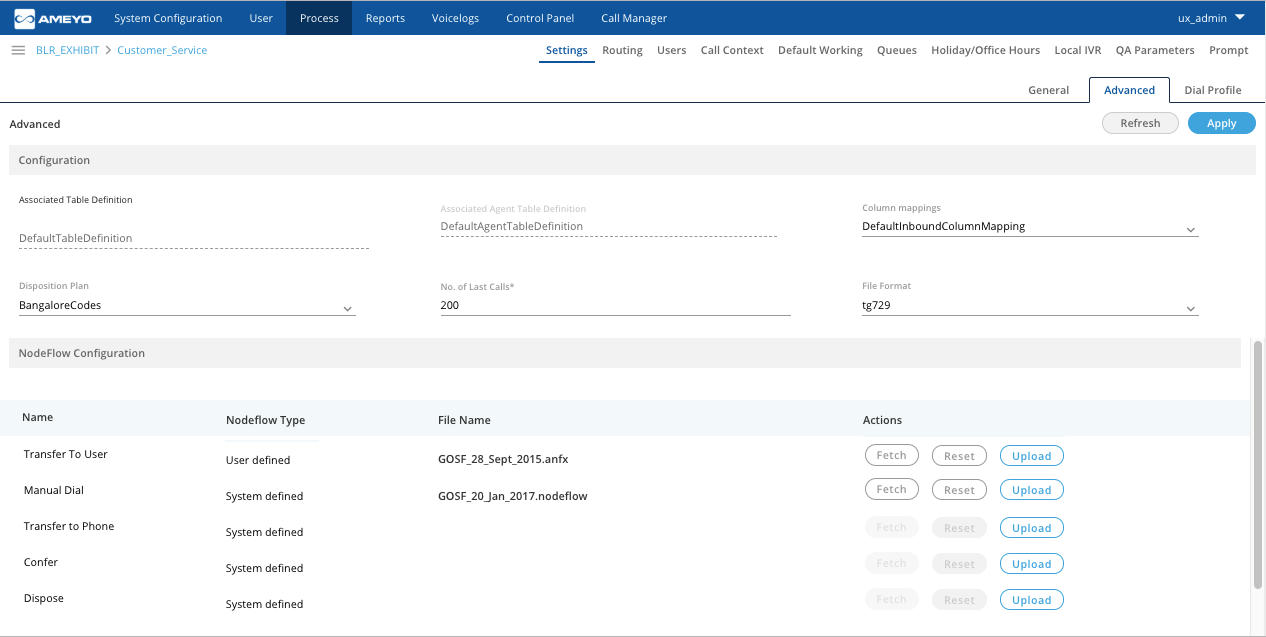
Figure: Nodeflow in Campaign Settings
With this new enhancement, the administrator can configure New social media resolver that treats every Facebook/Twitter comment as a new ticket with every reply to a comment on a post being recorded as a message on the existing ticket in the Agent dashboard. Earlier the resolver identified Facebook/Twitter posts and comments as a single ticket. Both these social media resolvers are now available in the system.
Ameyo Agent can use the Split option to create a copy of the entire post and its comments with both tickets having the interaction messages.
Use Case: The businesses can now track and keep records of customer queries and reviews by recording tickets raised through Facebook/Twitter comments.
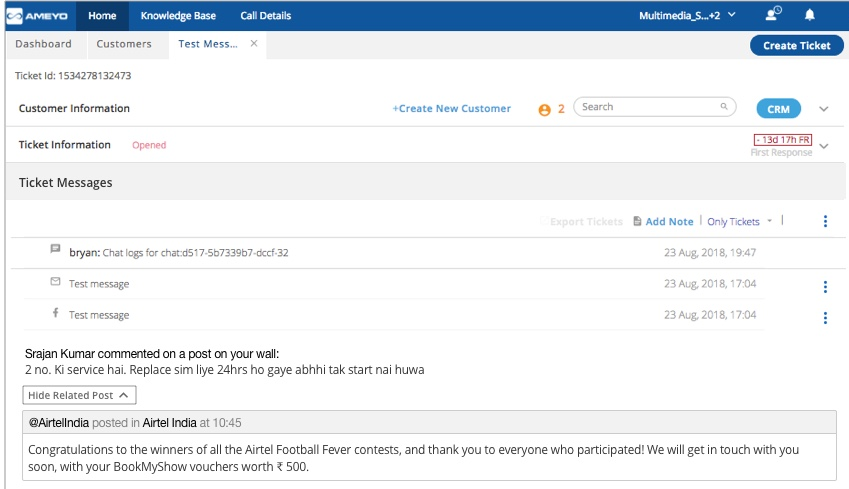
Figure: Resolving Comments
Ameyo admin can now set actions in Rule Engine for the "Ticket Reopened" event by configuring the Ticket action as 'Transfer Ticket to Queue' and setting ticket assignment for reopened tickets by choosing to assign reopened tickets to - "Anyone", "Agents available to take tickets", "Any Agent", "None".
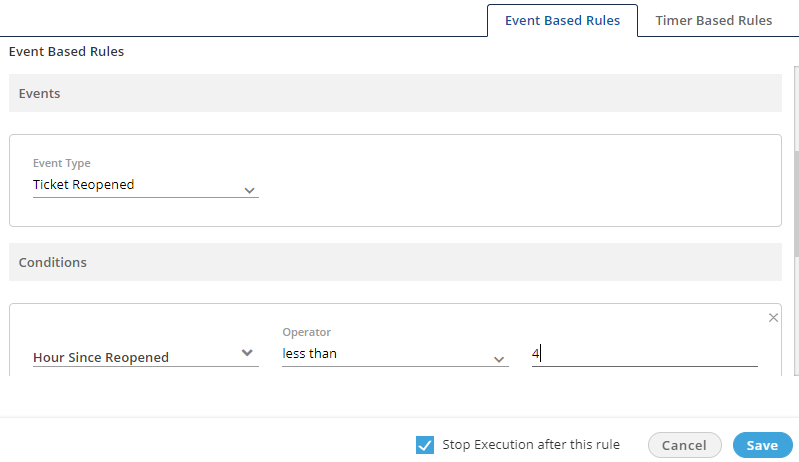
Figure: Ticket Configuration Update
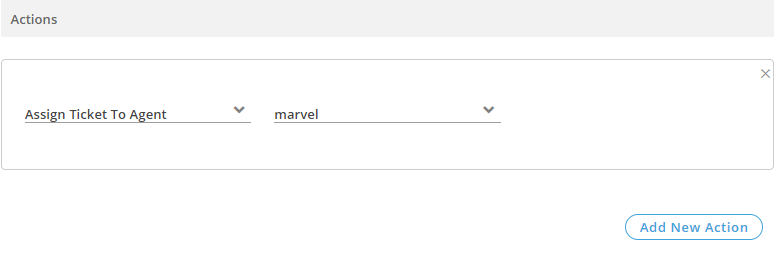
Figure: New Actions
Customer portal users will now be able to provide Interaction feedback with the functionality being enabled by an API that will fetch feedback schema. Customer Portal application will use the API to render the feedback and will check if the feedback is received for the customer’s ticket or not. Ameyo Supervisors will also get reports to view the feedback received through emails and customer portal and could take actions to improve customer satisfaction.
Reference Document
https://sites.google.com/a/ameyo.com/engineering/customer-portal-feedback-api-reference
Ameyo Administrator will now be able to add multiple Voice Resources in "Call Manager" and map the agents between them in "System" → "System Configuration" → "Settings" → "Mapping Policies".
If a voice resource is down, the Administrator can map the agents of down Voice Resource to another working (up) Voice Resource in "Mapping Policies". Once done, the agents have to logout and login again and their registration and WebRTC extension selection on the new Voice Resource will happen automatically.
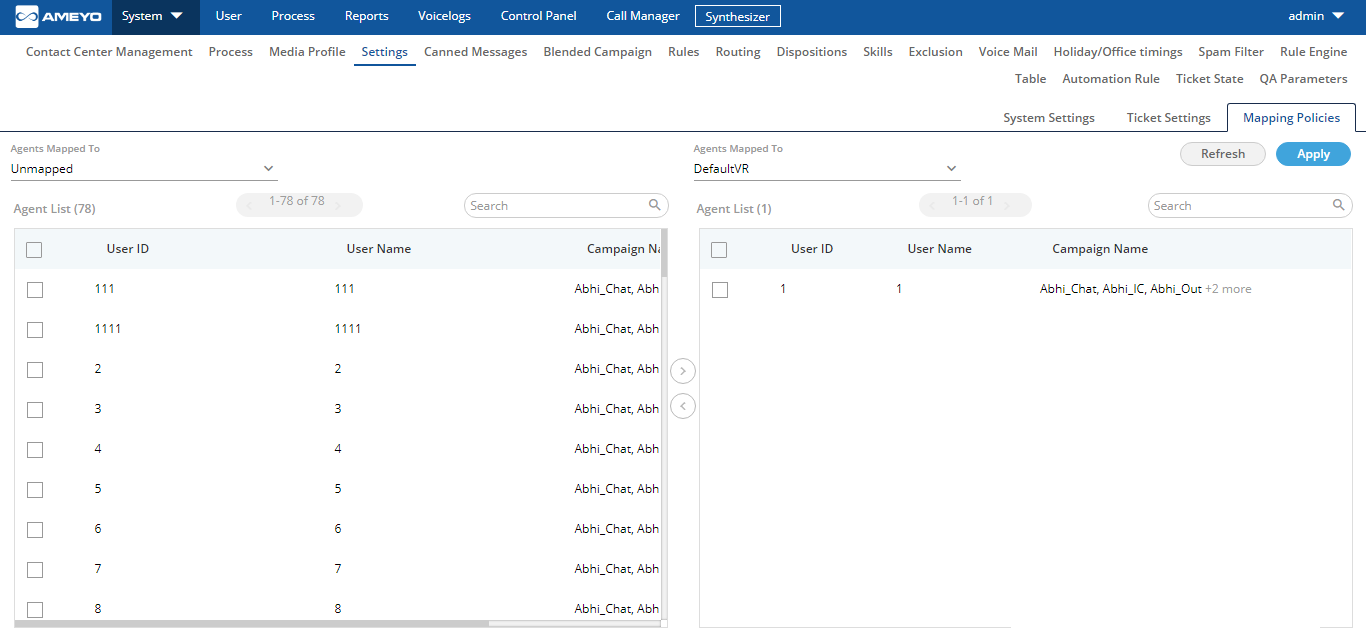
Figure: Multiple Call Servers
Security enhancement to protect the customer information and privacy by protecting the voice logs in voice log archiver module with security checks in form of passwords. The Ameyo user will be able to download the voice log through a predefined mechanism. As soon as the download button is clicked, the user will get a prompt for the password with which the zip will be protected. When the zip file will be unzipped then it would ask for the same password which was provided at the beginning of the process thus protecting the data.
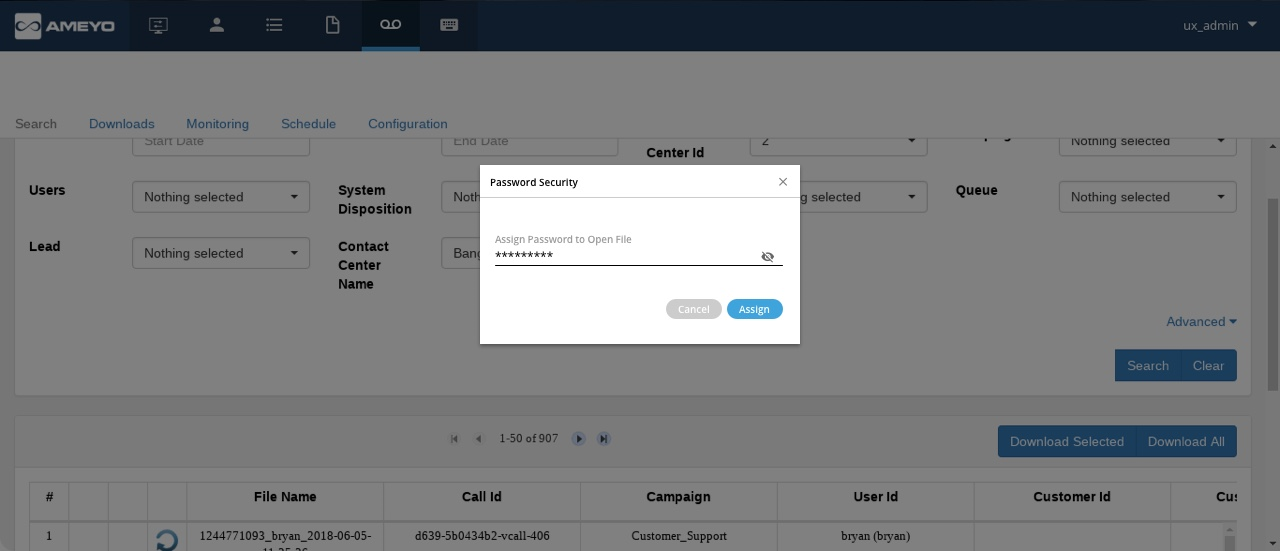
Figure: Encrypted Voicelogs