Download PDF
Call Details
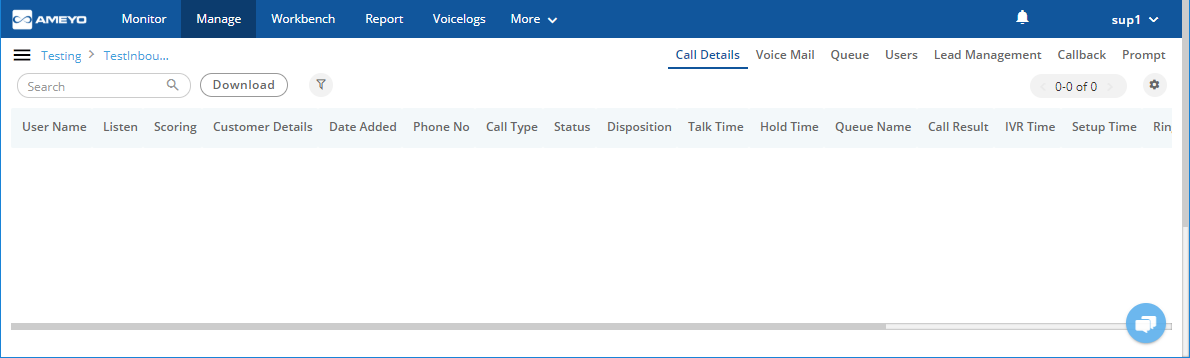
"Call Details" tab shows call details or history of last 200 calls in rolling basis and along with that an advanced section where call logs can be fetched with filters like date range, call duration, users, leads, customer status, call types. Fetched logs can be individually listened, recordings can be downloaded and whole call data can be extracted to CSV.
Figure: Manage Inbound Campaign
Supervisor can perform the following operations here.
Voice Log Search
Supervisor can use the search bar to search for any voice log.
Click "Download" button for the selected (searched) voicelogs to download it as a file on the disk.
Filters
Supervisor can click  icon to filter the call details.
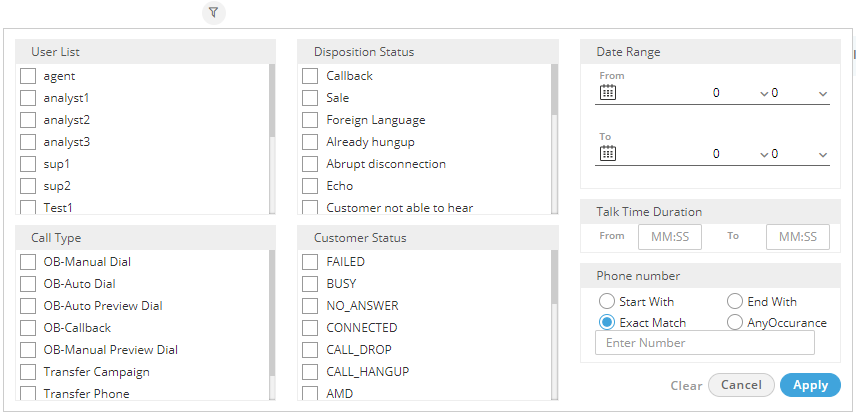
Figure: Filter Call Details
It contains the following filters.
- User List: Supervisor can select the users for whom the supervisor wants to fetch the call details.
- Disposition Status: Supervisor can also filter out the call details on the basis of disposition status, that is, No Voice, Echo, Sale, and others.
- Date Range: Supervisor can also filter out the data on the basis of date range, that is, the supervisor can select the date by entering the range in From and To respective text boxes.
- Talk Time Duration: Supervisor can filter out the data by selecting the specific call time duration. For example, if it wants to fetch the incoming and outgoing calls in which call time duration was between 40 to 60 minutes, then the supervisor can enter the range in the respective text boxes.
- Call Type: Supervisor can also filter out the data in terms of type of call, that is, whether it was OB Manual dial, OB Auto Dial, Transfer to phone etc.
- Customer Status: Supervisor can filter the data on the basis of status of call, that is, whether it was connected, failed, call drop etc.
- Phone Number: Supervisor can also filter the data in terms of following phone number patterns.
- Start With: Enter the initial digits of phone numbers to filter out the records, for example, 1234, 3456, and others.
- End With: Enter the last digits of phone number to filter out the records, for example, 4343, 6344 etc.
- Exact Match: Enter the phone number digits to filter out the records, for example, 1234, 3456, and others.
- Any Occurrence: Enter few digits to filter out the records, for example, 34,87, and others.
The filter can be cleared any time by clicking "Clear" button. Click "Apply" to apply the filter, whereas you can click "Cancel" to not apply it.
Listen to Voicelogs
Supervisor can listen to the voice logs by clicking on  icon, the supervisor can listen to the connected call and a pop-up will appear using which user can download, increase/decrease volume along with other features like forward/reverse, mute/unmute, pause/un-pause the call. For not connected calls, "the listen button" remains disabled
  .
.

Figure: Play Voicelog