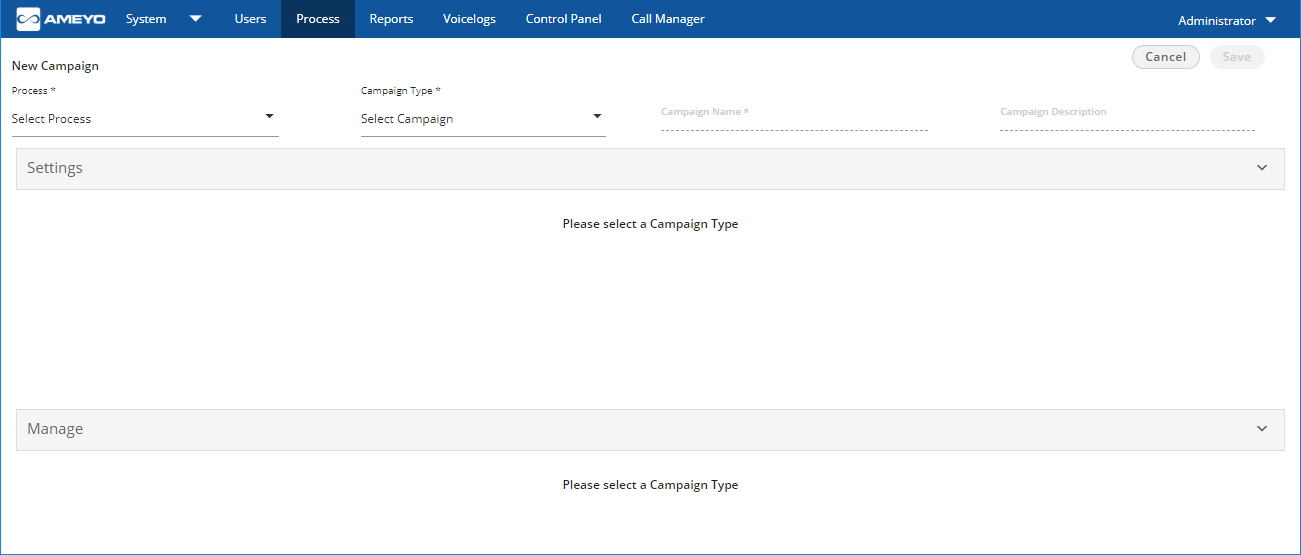
Figure: Create New Campaign
- Process: Select the process in which the campaign is to be created.
- Campaign Name: Enter the campaign name.
- Campaign Type: Administrator can create any of the following types of campaigns.
- Chat Campaign: This campaign includes chat-based interactions with the clients. The chat includes the following chat applications.
- Ameyo Web Chat
- External Chat Applications
- Twitter Direct Message
- Line Messenger
- Viber Messenger
- Facebook Messenger
- WhatsApp for Business
-
You need a paid account of Smooch (smooch.io) to integrate the external chat applications.
It is mandatory to create both Chat and Interaction Campaign else the users will not be able to login to the Chat Campaign.
- Interaction Campaign: This campaign includes the interactions based on Email and chat applications included in the selected Chat Campaign.
- Interactive Voice Application: This campaign includes inbound voice communication. Here, the clients will call at your number and interacts with your users through an IVR or directly.
- Outbound Voice Campaign: This campaign includes outbound communication. Here, your users call the clients.
- Parallel Predictive Voice Campaign: This campaign is an outbound voice campaign, but the dialer will have the features of Parallel Predictive Algorithm to dial the calls.
- Voice Blast Campaign: This campaign provides you the facility to broadcast the prerecorded messages to the clients automatically.
- Chat Campaign: This campaign includes chat-based interactions with the clients. The chat includes the following chat applications.
- Campaign Description: Enter the description of the campaign.
Please browse through the tabs given hereinbelow to know about the General Settings for your opted campaign type.
- Chat Campaign: Provide the inputs for the following fields to configure General Settings for a chat campaign.
- Preview URL: Provide the preview URL. If you are using Ameyo CRM, then following will be the preview URL.
http://<Server_IP>:8786/testing/preview.php
Replace <Server_IP> with the IP Address of your computer where CRM is installed. - CRM URL: Provide the CRM URL. If you are using Ameyo CRM, then following will be the CRM URL.
http://<Server_IP>:8786/testing/customer.php
Replace <Server_IP> with the IP Address of your computer where CRM is installed. - Disposition URL: Provide the Disposition URL. If you are using Ameyo CRM, then following will be the Disposition URL.
http://<Server_IP>:8786/testing/disposition.php
Replace <Server_IP> with the IP Address of your computer where CRM is installed.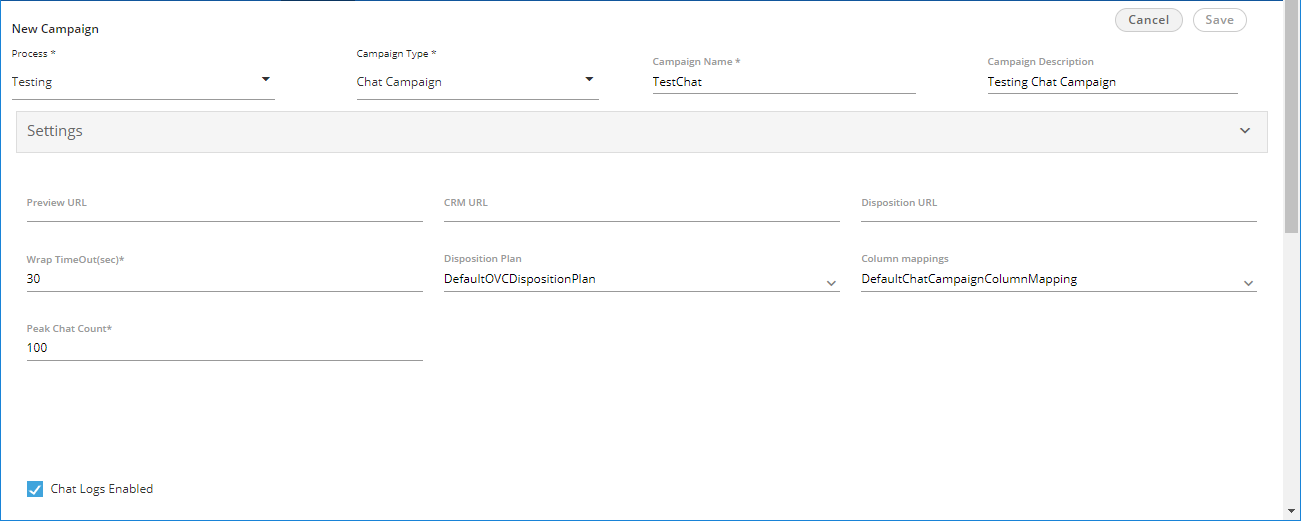
Figure: Creating New Chat Campaign
- Wrap Timeout(sec): Provide the duration in seconds are which the idle chat session will be terminated.
- Disposition Plan: Select any of the following disposition plans.
- DefaultOVCDispositionPlan
- DefaultIVADispositionPlan
- DefaultVBCDispositionPlan
- DefaultCCDispositionPlan
- DefaultIVRCDispositionPlan
- DefaultCSTACDispositionPlan
- DefaultAOVCDispositionPlan
- Column Mapping: It shows the default and custom column mappings. You can select any one.
- Peak Chat Count: Provide the maximum number of chat sessions that can be handled by an agent at a time even during the peak hours.
- Chat Logs Enabled: Check this box to enable the logging of chat logs. However, you can uncheck it to disable the chat logs.
It is mandatory to create both Chat and Interaction Campaign else the users will not be able to logon in the Chat Campaign.
- Preview URL: Provide the preview URL. If you are using Ameyo CRM, then following will be the preview URL.
- Interaction Campaign: Provide the inputs for the following fields.
Ticket will be created only in Interaction Campagin and not in other campaigns. If you want to create tickets for any Voice Campaign, you need to create this campaign also. It is mandatory to create and force users to use both Interaction and Chat Campaigns together.
- CRM URL: Provide the CRM URL. If you are using Ameyo CRM, then following will be the CRM URL.
http://<Server_IP>:8786/testing/customer.php
Replace <Server_IP> with the IP Address of your computer where CRM is installed. - Column Mapping: It shows the default and custom column mappings. You can select any one.
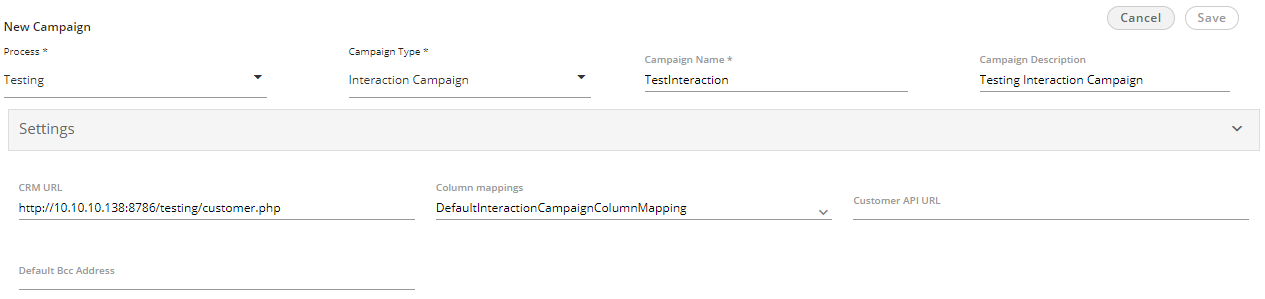
Figure: Creating New Interaction Campaign
- Customer API URL: If you want to use a third-party API within this campaign, provide the URL of the third-party API.
- Default BCC Address: Provide the email address to which all emails be sent by default through BCC.
- CRM URL: Provide the CRM URL. If you are using Ameyo CRM, then following will be the CRM URL.
- Interactive Voice Application: Provide the following inputs to create an interactive voice application campaign.
- Preview URL: Provide the preview URL. If you are using Ameyo CRM, then following will be the preview URL.
http://<Server_IP>:8786/testing/preview.php
Replace <Server_IP> with the IP Address of your computer where CRM is installed. - CRM URL: Provide the CRM URL. If you are using Ameyo CRM, then following will be the CRM URL.
http://<Server_IP>:8786/testing/customer.php
Replace <Server_IP> with the IP Address of your computer where CRM is installed. - Disposition URL: Provide the Disposition URL. If you are using Ameyo CRM, then following will be the Disposition URL.
http://<Server_IP>:8786/testing/disposition.php
Replace <Server_IP> with the IP Address of your computer where CRM is installed.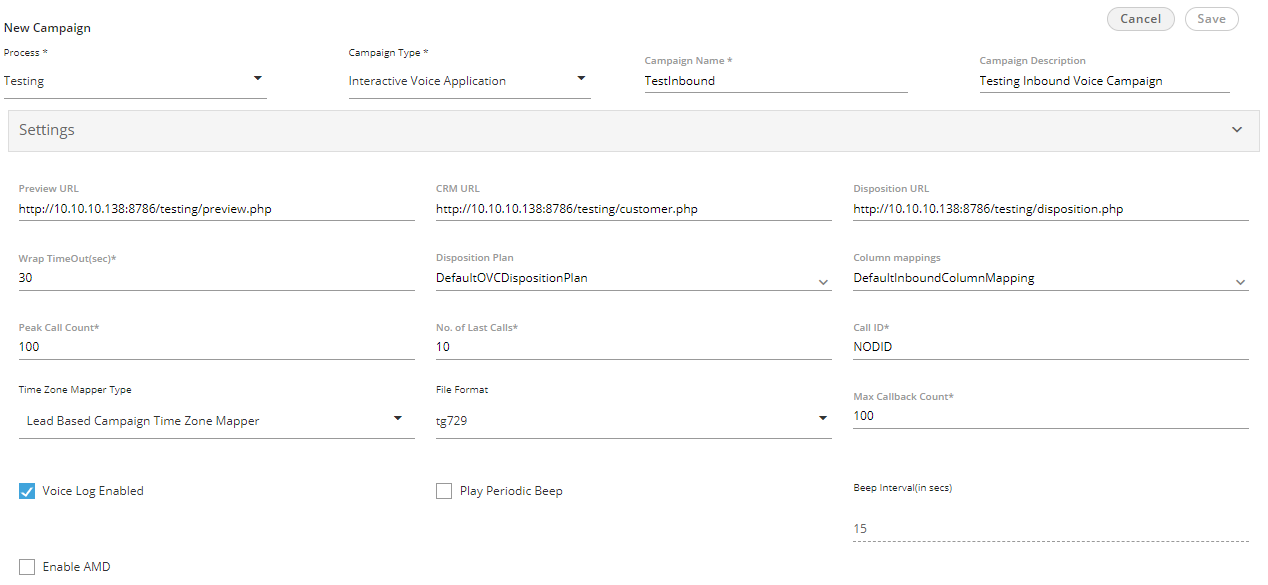
Figure: Creating New Interactive Voice Application Campaign
- Wrap Timeout(sec): Provide the duration in seconds are which the idle chat session will be terminated.
- Disposition Plan: Select any of the following disposition plans.
- DefaultOVCDispositionPlan
- DefaultIVADispositionPlan
- DefaultVBCDispositionPlan
- DefaultCCDispositionPlan
- DefaultIVRCDispositionPlan
- DefaultCSTACDispositionPlan
- DefaultAOVCDispositionPlan
- Column Mapping: It shows the default and custom column mappings. You can select any one.
- Peak Call Count: Provide the maximum number of chat sessions that can be handled by an agent at a time even during the peak hours.
- No. of Last Calls: Provide the maximum number of last calls.
- Call ID: Enter the DID Number that will be displayed as the caller ID. "NODID" is the default value.
- Time Zone Mapper Type: Select any of the following time zone mapper types, which allows you to map the time zones.
- Lead Based Campaign Time Zone Mapper: In this case, timezone of the customer is specified from the timezone set in the lead settings.
- Default Campaign Timezone Mapper: In this case time zone is determined from customer data. We get the timezone info from the column specified against timezone column mapping in the campaign.
- Phone Pattern Based Campaign Timezone Mapper: It is related to number management in Ameyo. With phone pattern based campaign timezone mapper, country code and area code can be mapped to a timezone and all numbers with that country code and area code will be dialled according to that timezone restriction/criteria.
- State Based Campaign Timezone Mapper: It is related to number management in Ameyo. With state based campaign timezone mapper, users are grouped as per their states mentioned in their details and all numbers with the same state will be dialled according to its timezone restriction/criteria.
- File Format: Select any of the following file formats in which the voice recordings will be saved.
- wav
- talaw
- tulaw
- tgsm
- tg729
- alaw
- Maximum Callback Count: Provide the maximum number of callbacks, which can be made by a user.
- Voice Logs Enabled: Check this box to enable the logging of voice logs. However, you can uncheck it to disable the voice logs.
- Play Periodic Beep: Check this box to play a beep periodically during the call to notify the caller that the call is being recorded. After checking it, you can specify the interval in seconds after which the beep will be played.
- Enable AMD: AMD stands for Answering Machine Detection. Check this box to enable the detection of answering machines when the auto-dialer makes the outbound calls automatically.
- Preview URL: Provide the preview URL. If you are using Ameyo CRM, then following will be the preview URL.
- Outbound Voice Campaign: Provide the following inputs to create an outbound voice campaign.
- Preview URL: Provide the preview URL. If you are using Ameyo CRM, then following will be the preview URL.
http://<Server_IP>:8786/testing/preview.php
Replace <Server_IP> with the IP Address of your computer where CRM is installed. - CRM URL: Provide the CRM URL. If you are using Ameyo CRM, then following will be the CRM URL.
http://<Server_IP>:8786/testing/customer.php
Replace <Server_IP> with the IP Address of your computer where CRM is installed. - Disposition URL: Provide the Disposition URL. If you are using Ameyo CRM, then following will be the Disposition URL.
http://<Server_IP>:8786/testing/disposition.php
Replace <Server_IP> with the IP Address of your computer where CRM is installed.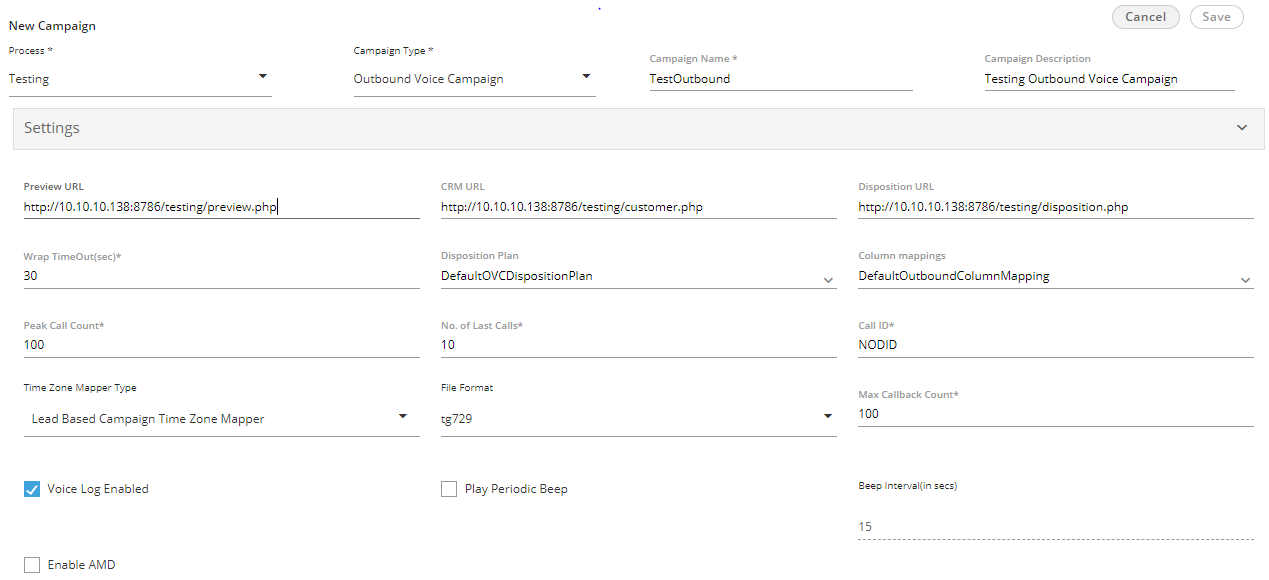
Figure: Creating New Outbound Voice Campaign
- Wrap Timeout(sec): Provide the duration in seconds are which the idle chat session will be terminated.
- Disposition Plan: Select any of the following disposition plans.
- DefaultOVCDispositionPlan
- DefaultIVADispositionPlan
- DefaultVBCDispositionPlan
- DefaultCCDispositionPlan
- DefaultIVRCDispositionPlan
- DefaultCSTACDispositionPlan
- DefaultAOVCDispositionPlan
- Column Mapping: It shows the default and custom column mappings. You can select any one.
- Peak Call Count: Provide the maximum number of chat sessions that can be handled by an agent at a time even during the peak hours.
- No. of Last Calls: Provide the maximum number of last calls.
- Call ID: Enter the DID Number that will be displayed as the caller ID. "NODID" is the default value.
- Time Zone Mapper Type: Select any of the following time zone mapper types, which allows you to map the time zones.
- Lead Based Campaign Time Zone Mapper: In this case, timezone of the customer is specified from the timezone set in the lead settings.
- Default Campaign Timezone Mapper: In this case time zone is determined from customer data. We get the timezone info from the column specified against timezone column mapping in the campaign.
- Phone Pattern Based Campaign Timezone Mapper: It is related to number management in Ameyo. With phone pattern based campaign timezone mapper, country code and area code can be mapped to a timezone and all numbers with that country code and area code will be dialled according to that timezone restriction/criteria.
- State Based Campaign Timezone Mapper: It is related to number management in Ameyo. With state based campaign timezone mapper, users are grouped as per their states mentioned in their details and all numbers with the same state will be dialled according to its timezone restriction/criteria.
- File Format: Select any of the following file formats in which the voice recordings will be saved.
- wav
- talaw
- tulaw
- tgsm
- tg729
- alaw
- Maximum Callback Count: Provide the maximum number of callbacks, which can be made by a user.
- Voice Logs Enabled: Check this box to enable the logging of voice logs. However, you can uncheck it to disable the voice logs.
- Play Periodic Beep: Check this box to play a beep periodically during the call to notify the caller that the call is being recorded. After checking it, you can specify the interval in seconds after which the beep will be played.
- Enable AMD: AMD stands for Answering Machine Detection. Check this box to enable the detection of answering machines when the auto-dialer makes the outbound calls automatically.
- Preview URL: Provide the preview URL. If you are using Ameyo CRM, then following will be the preview URL.
- Parallel Predictive Voice Campaign: Provide the following inputs to create a voice campaign that will be equipped with the features of Predictive Dialilng Algorithm.
- Preview URL: Provide the preview URL. If you are using Ameyo CRM, then following will be the preview URL.
http://<Server_IP>:8786/testing/preview.php
Replace <Server_IP> with the IP Address of your computer where CRM is installed. - CRM URL: Provide the CRM URL. If you are using Ameyo CRM, then following will be the CRM URL.
http://<Server_IP>:8786/testing/customer.php
Replace <Server_IP> with the IP Address of your computer where CRM is installed. - Disposition URL: Provide the Disposition URL. If you are using Ameyo CRM, then following will be the Disposition URL.
http://<Server_IP>:8786/testing/disposition.php
Replace <Server_IP> with the IP Address of your computer where CRM is installed.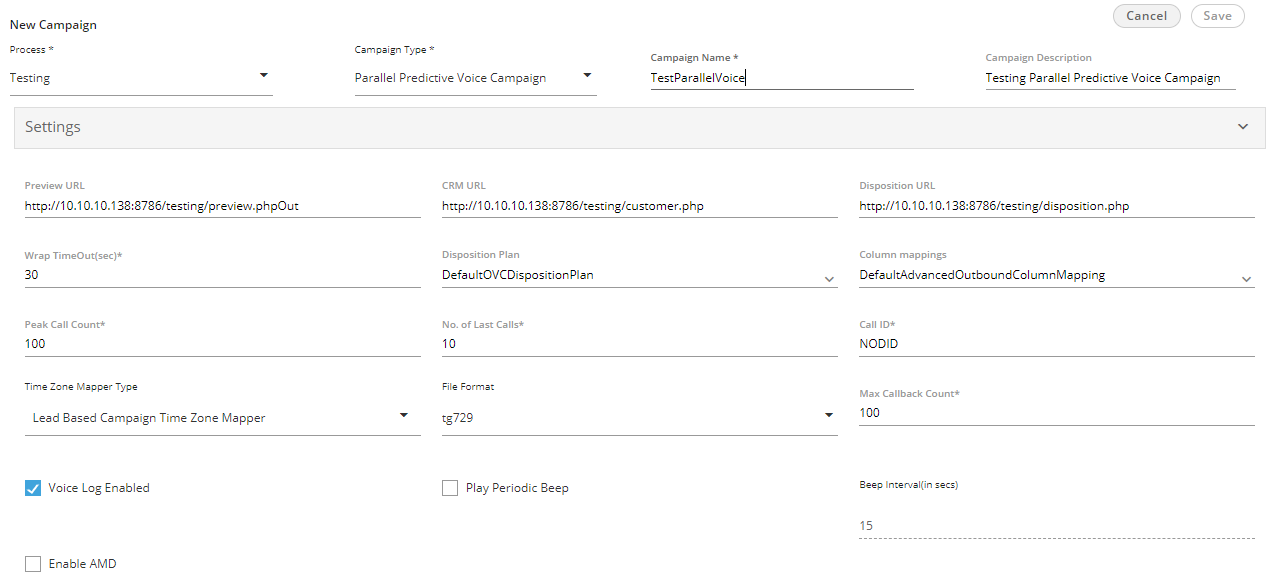
Figure: Creating New Parallel Predictive Voice Campaign
- Wrap Timeout(sec): Provide the duration in seconds are which the idle chat session will be terminated.
- Disposition Plan: Select any of the following disposition plans.
- DefaultOVCDispositionPlan
- DefaultIVADispositionPlan
- DefaultVBCDispositionPlan
- DefaultCCDispositionPlan
- DefaultIVRCDispositionPlan
- DefaultCSTACDispositionPlan
- DefaultAOVCDispositionPlan
- Column Mapping: It shows the default and custom column mappings. You can select any one.
- Peak Call Count: Provide the maximum number of chat sessions that can be handled by an agent at a time even during the peak hours.
- No. of Last Calls: Provide the maximum number of last calls.
- Call ID: Enter the DID Number that will be displayed as the caller ID. "NODID" is the default value.
- Time Zone Mapper Type: Select any of the following time zone mapper types, which allows you to map the time zones.
- Lead Based Campaign Time Zone Mapper: In this case, timezone of the customer is specified from the timezone set in the lead settings.
- Default Campaign Timezone Mapper: In this case time zone is determined from customer data. We get the timezone info from the column specified against timezone column mapping in the campaign.
- Phone Pattern Based Campaign Timezone Mapper: It is related to number management in Ameyo. With phone pattern based campaign timezone mapper, country code and area code can be mapped to a timezone and all numbers with that country code and area code will be dialled according to that timezone restriction/criteria.
- State Based Campaign Timezone Mapper: It is related to number management in Ameyo. With state based campaign timezone mapper, users are grouped as per their states mentioned in their details and all numbers with the same state will be dialled according to its timezone restriction/criteria.
- File Format: Select any of the following file formats in which the voice recordings will be saved.
- wav
- talaw
- tulaw
- tgsm
- tg729
- alaw
- Maximum Callback Count: Provide the maximum number of callbacks, which can be made by a user.
- Voice Logs Enabled: Check this box to enable the logging of voice logs. However, you can uncheck it to disable the voice logs.
- Play Periodic Beep: Check this box to play a beep periodically during the call to notify the caller that the call is being recorded. After checking it, you can specify the interval in seconds after which the beep will be played.
- Enable AMD: AMD stands for Answering Machine Detection. Check this box to enable the detection of answering machines when the auto-dialer makes the outbound calls automatically.
- Preview URL: Provide the preview URL. If you are using Ameyo CRM, then following will be the preview URL.
- Voice Blast Campaign: Provide the following inputs to create the campaign that broadcasts the pre-recorded voice messages automatically to the provided list of numbers.
- Column Mapping: It shows the default and custom column mappings. You can select any one.
- Peak Call Count: Provide the maximum number of chat sessions that can be handled by an agent at a time even during the peak hours.
- Call ID: Enter the DID Number that will be displayed as the caller ID. "NODID" is the default value.
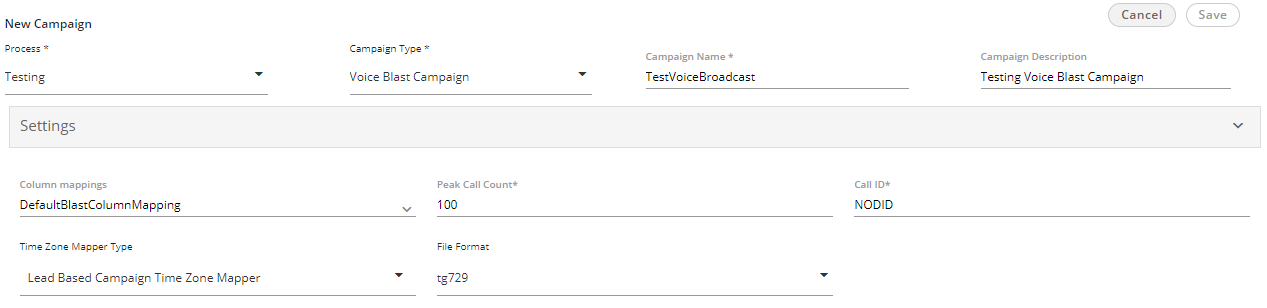
Figure: Creating New Voice Blast Campaign
- Time Zone Mapper Type: Select any of the following time zone mapper types, which allows you to map the time zones.
- Lead Based Campaign Time Zone Mapper: In this case, timezone of the customer is specified from the timezone set in the lead settings.
- Default Campaign Timezone Mapper: In this case time zone is determined from customer data. We get the timezone info from the column specified against timezone column mapping in the campaign.
- Phone Pattern Based Campaign Timezone Mapper: It is related to number management in Ameyo. With phone pattern based campaign timezone mapper, country code and area code can be mapped to a timezone and all numbers with that country code and area code will be dialled according to that timezone restriction/criteria.
- State Based Campaign Timezone Mapper: It is related to number management in Ameyo. With state based campaign timezone mapper, users are grouped as per their states mentioned in their details and all numbers with the same state will be dialled according to its timezone restriction/criteria.
- File Format: Select any of the following file formats in which the voice recordings will be saved.
- wav
- talaw
- tulaw
- tgsm
- tg729
- alaw
- Time Zone Mapper Type: Select any of the following time zone mapper types, which allows you to map the time zones.
- Supervisor
- Professional-Agent
- Executive
- Analyst
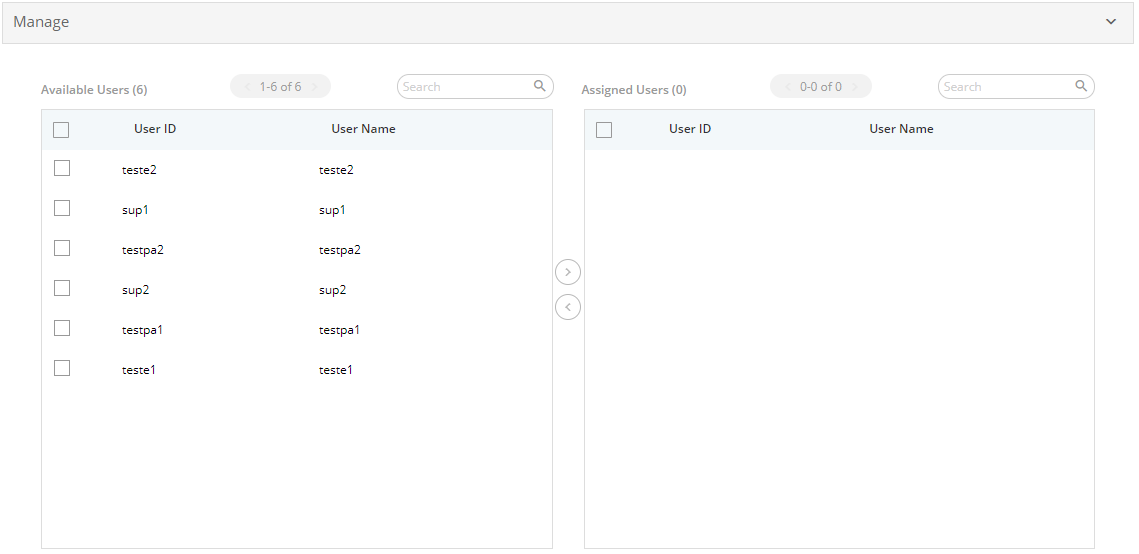
Figure: Section to assign users
Perform the following steps to assign the users to this campaign.- Select the users in "Available Users" section. You can click the checkbox given on top to select all users.
You can also search for the user names in the provided search box. - Click
 icon to add the selected users.
To unassign the users, select the users in "Assigned "Users" section and  icon.
icon.
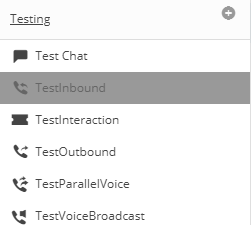
Alternatively, you can click "Cancel" to not create the campaign. Once the campaign is created, it is visible under its process in the sidebar. You can click the Process to view the campaigns created in it.
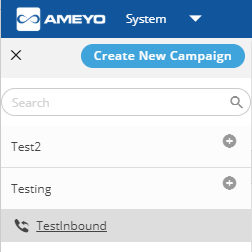
Figure: Created the Campaign