Download PDF
Routing in a Campaign
Here, you can create and manage the routing for both Inbound and Outbound Calls.
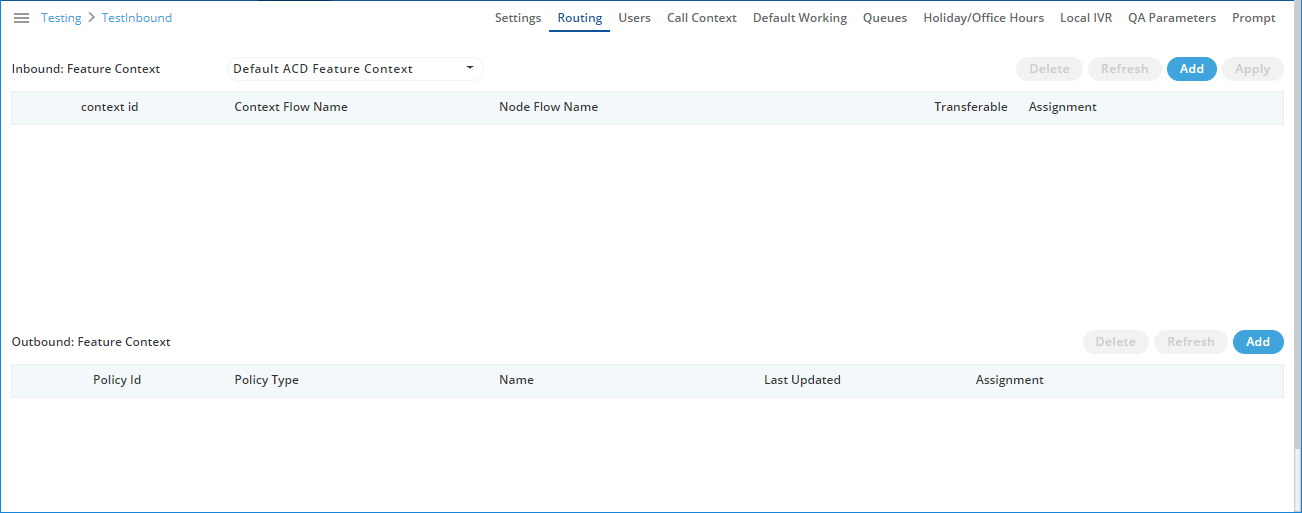
Figure: Routing
Routing for Inbound
The steps to create the routing plan for an inbound feature context has already been explained in the Chat Campaign Settings. Know more...
Routing for Outbound
In "Outbound: Feature Context" section, perform the following steps.
- Click "Add" to add a routing policy for the Outbound feature context.
- It creates a new row in the blank area.

Figure: Adding an Outbound Routing Policy
- Select any of the following Policy Types.
- Basic Single Call Context Type: It is the policy type in which outbound calls will be dialed out from the single call context.
- Phone Based Call Context Type: It is the policy type in which administrator can define the pattern on basis of which numbers will be dialed out from multiple call context. It will only reflect after procuring appropriate licenses.
- Basic Multiple Call Context Type (Licensable): It is the policy type in which outbound calls will be dialed out from multiple call context. It will only reflect after procuring appropriate licenses.
- Multiple Type Round Robin Call Context Type: It is the policy in which if a call tried by a call context fails to get connected, then it will be tried by the different call contexts that are selected for calling as per Round-Robin algorithm. As per Round-Robin Algorithm, each call context is used to call for a fixed amount of time and if the call does not get connected in that duration, another call context is used. The left over call context is reused when all other call contexts in the loop are used and the call is still not connected.
Make sure to not provide a name for the Routing for any "Outbound: Feature Context". The name will be assigned automatically after selecting the call contexts.
The Outbound Routing with manual names will not work.
- Click "Assign" link under "Assignment" header to select a call context that you have assigned in this campaign in "Call Context" Tab. Following pop-up is displayed for "Basic Single Call Context Type" on the page.
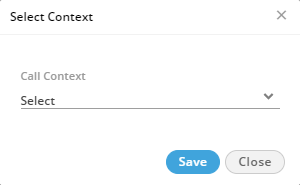
Figure: Select Call Context for Basic Policy
For "Phone Based Call Type", "Basic Multiple Call Context Type", and "Multiple Type Round Robin Call Context Type", the following pop-up appears to select the multiple call contexts.
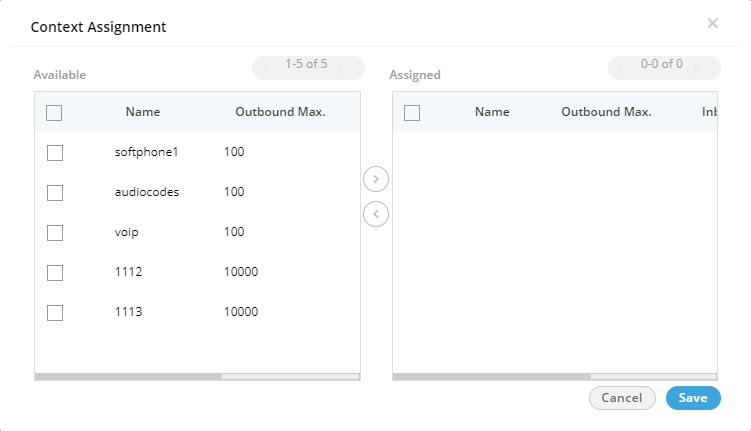
Figure: Select Call Contexts for Multiple Type Policy
Perform the following steps to assign call contexts to this new policy.
- Select the call contexts in "Available" section
- Click
 icon to proceed to assign the selected call contexts.
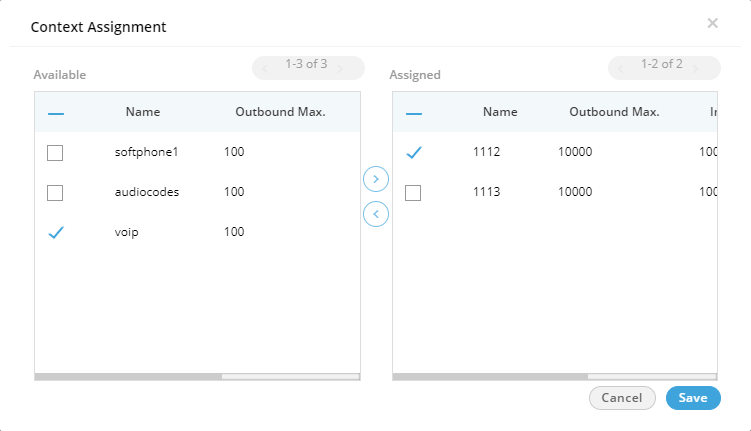
Figure: Assign or Unassign Call Contexts
- Click "Save" to assign the call contexts to this campaign.
Rather, you can click "Cancel" to not assign the Call Contexts.
To unassign a call context, click the link under "Assign" header for a new or existing Outbound Routing Policy, select a call context in "Assigned Call Contexts" section, click  icon, and click "Save" to unassign the selected call context from the campaign.
- Click "Save" to proceed to add the selected context to the routing policy.
- Click "Apply" to create the Routing Plan for Outbound.
You can create multiple routing policies for the Outbound Feature in the Interactive Voice Application (Inbound) Campaign.

Figure: Added Outbound Routing Policies
You can only change the selected Call Contexts while modifying an Outbound Routing Policy. In addition to that, you can also delete a routing policy.